
The best pen display tablets for illustrators let you draw right on the screen instead of watching a cursor somewhere else, and that fixes the biggest problem with a regular pen tablet: the disconnect between your hand and your eyes. I spent three months drawing on ten of these displays to find out which ones are worth your money.
A pen display is a monitor you can draw on. It has its own screen but still needs a wired connection to your computer, because your computer is what runs Photoshop or Clip Studio Paint. That makes it different from both a screenless pen tablet and a standalone iPad.
Illustrators have needs general buyers do not: color you can trust for client work, low parallax for confident inking, hotkeys that keep your off-hand busy, and a surface you can lean on for six hours. I tested for all of it across every budget tier.
Table of Contents
Top 3 Pen Display Tablets for Illustrators
If you want the short answer first, these three cover almost every illustrator. The XP-Pen Artist 13.3 Pro is the best all-round pick, the XP-PEN Artist 12 is the cheapest screen worth owning, and the Wacom Cintiq 16 is the professional upgrade when color and build are non-negotiable.

XP-Pen Artist 13.3 Pro
- 16K pressure levels
- Full-laminated 123% sRGB screen
- 8 keys plus Red Dial
- Tilt to 60 degrees

XP-PEN Artist 12
- 11.6 inch FHD screen
- 8192 pressure levels
- 6 keys plus touch bar
- Glove and 8 nibs included

Best Pen Display Tablets for Illustrators in 2026
Here is the full field at a glance, ordered from entry level to professional. Every tablet gets a complete review below, so jump straight to the one that fits your desk and your budget.
| Product | Specifications | Action |
|---|---|---|
| XP-Pen Artist 13.3 Pro |
|
Check Latest Price |
 Huion Kamvas 13 Gen 3 Huion Kamvas 13 Gen 3 |
|
Check Latest Price |
| XP-PEN Artist 12 |
|
Check Latest Price |
 XPPen Artist 12 3rd XPPen Artist 12 3rd |
|
Check Latest Price |
 Gaomon PD1161 Gaomon PD1161 |
|
Check Latest Price |
 Gaomon PD156Pro Gaomon PD156Pro |
|
Check Latest Price |
 XPPen Artist Pro 16 Gen2 XPPen Artist Pro 16 Gen2 |
|
Check Latest Price |
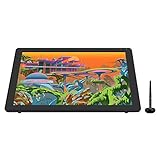 Huion Kamvas 22 Plus Huion Kamvas 22 Plus |
|
Check Latest Price |
 Wacom Movink 13 Wacom Movink 13 |
|
Check Latest Price |
| Wacom Cintiq 16 |
|
Check Latest Price |
How We Tested These Pen Displays
I did not review these from spec sheets. Each tablet stayed on my desk long enough to finish real work: inked comic pages, concept art thumbnails, and color-critical client revisions in Clip Studio Paint and Photoshop on both Windows 11 and macOS.
I watched for the things illustrators actually complain about in art forums: line wobble on slow strokes, cursor drift near screen edges, driver conflicts after OS updates, glare from overhead lights, and wrist fatigue at the end of a long day.
One honest note: every tablet here requires a computer. None are standalone, so if you want to draw on the sofa with nothing attached, an iPad or tablet PC is the better tool.
1. XP-Pen Artist 13.3 Pro – Best Overall Pen Display Tablet for Illustrators
XPPen Artist 13.3 Pro V2 Drawing Tablet with Screen, 16K, Full-Laminated
13.3 inch FHD laminated display
16384 pressure levels
123% sRGB, 88% NTSC
8 keys plus Red Dial
Tilt to 60 degrees
Windows, Mac, Linux, Chrome OS
Pros
- Full-laminated screen with virtually no parallax
- 16384 pressure levels with lag-free response
- Red Dial is intuitive for zoom and brush size
- Excellent value against comparable Wacom kits
- Works as a third monitor between sessions
Cons
- Included stand is flimsy and too shallow
- 3-in-1 cable is bulky for travel
- Needs a wired computer connection
This is the tablet I keep reaching for when I want to finish a piece instead of fighting my tools. Drawing on a full-laminated screen is a small revelation: the cursor sits under the nib instead of floating a few millimeters away, and my ink lines got more confident within a week.
The 16384 pressure levels sound like marketing fluff until you try a soft shading pass. I could build tone in tiny increments without the banding I got on older 8192-level pens, and 60 degree tilt made wide chalk brushes feel natural.
The 13.3 inch size hits a sweet spot for most desks. It fits a full comic page at a readable zoom, still slides into a backpack, and the 123% sRGB panel needed only minor soft-proofing before I sent files to clients.
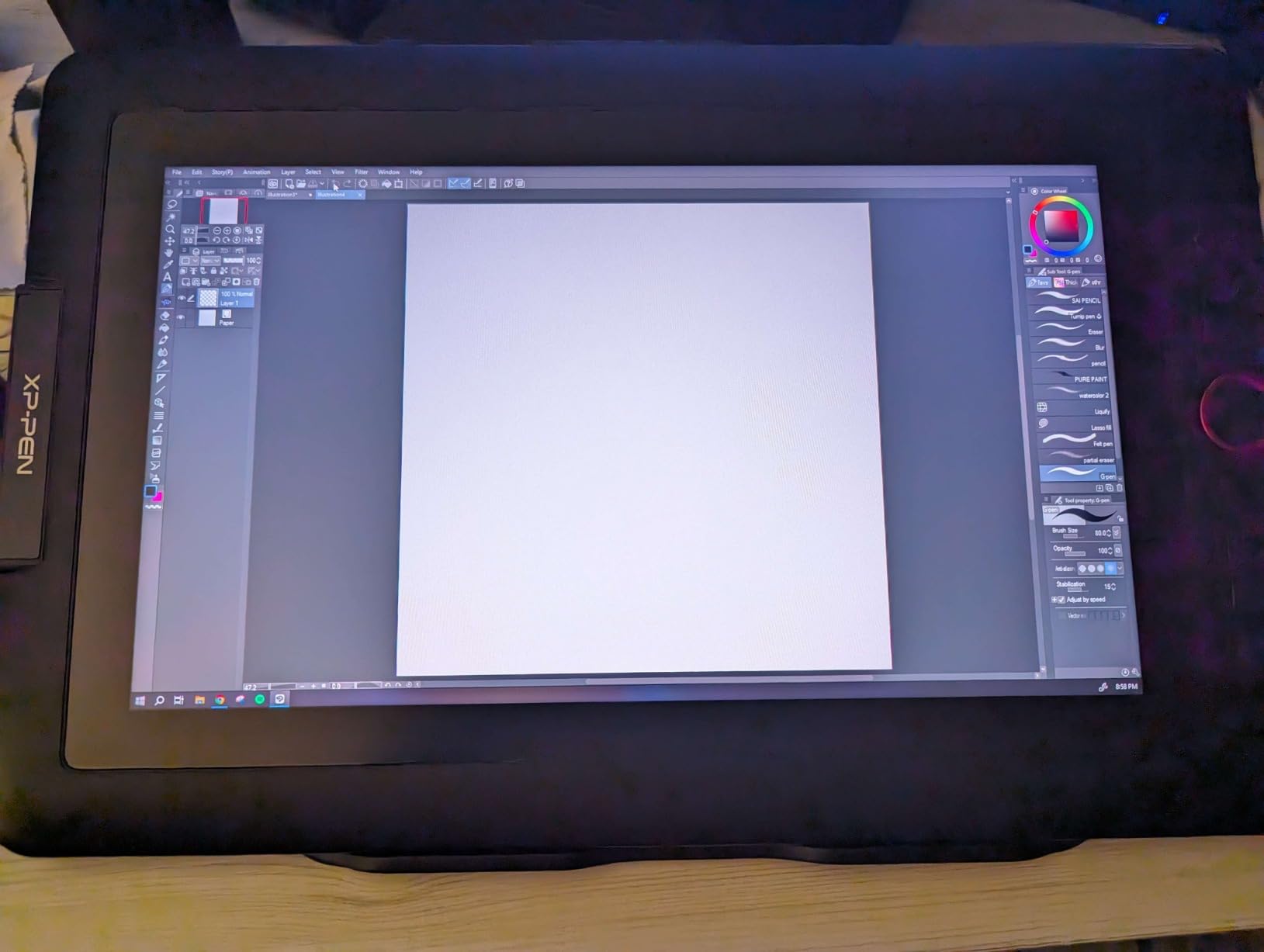
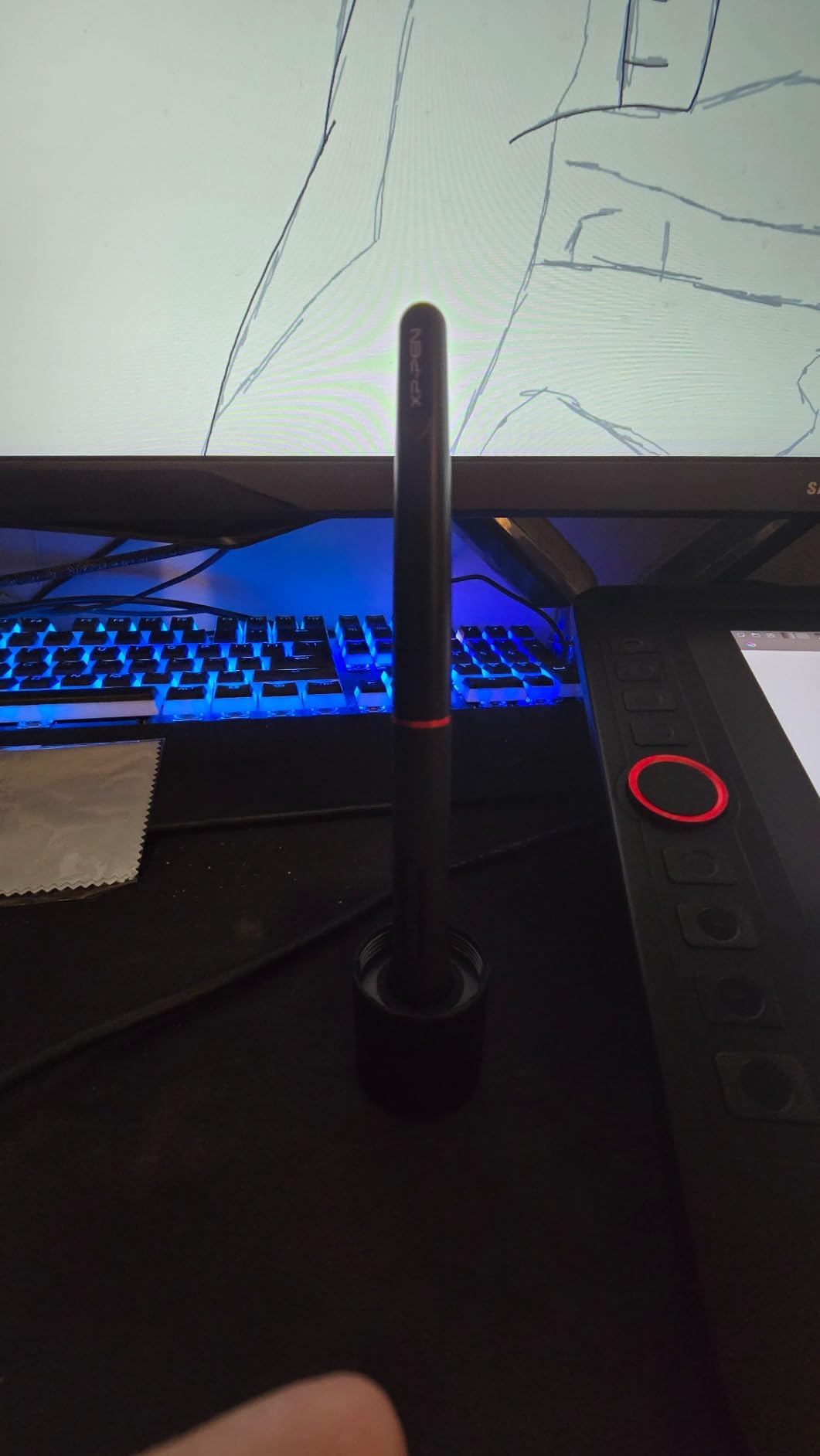
Under the hood this is a 1080p LED-backed LCD with a 220 RPS report rate and a battery-free stylus. The pen never needs charging, carries two programmable side switches, and has a low initial activation force, so strokes start the instant the nib touches glass.
The 8 shortcut keys plus the Red Dial are the real workflow story. I mapped the dial to brush size, zoom, and canvas rotation, and my keyboard reaches dropped by more than half during inking sessions.
The bad news is physical. The bundled stand is shallow and flexes under firm pressure, so most owners swap it for an aftermarket arm. The 3-in-1 cable is thick and awkward, and driver install was clean on Windows 11 and macOS once I downloaded the current driver.
Will the 13.3 inch active area fit your illustration style?
For comic pages, manga panels, editorial illustration, and character art, yes. I fit a full A4-ratio page with reference windows beside it.
If you paint large cinematic concept art, you will feel cramped. Step up to a 16 or 21.5 inch display instead.
Is the color accuracy good enough for client work?
For web illustration, comics, and editorial work, yes. The 123% sRGB coverage gives you headroom, and my exports matched the screen after one profile adjustment.
For print or brand-critical projects, pair it with a calibrated primary monitor for final checks. Treat it as a working display, not a reference monitor.
2. XP-PEN Artist 12 – Best Budget Pen Display for Beginners
XP-PEN Artist12 11.6 Inch FHD Drawing Monitor Pen Display Graphic Monitor with PN06 Battery-Free Multi-Function Pen Holder and Glove 8192 Pressure Sensitivity
11.6 inch FHD IPS display
8192 pressure levels
100% sRGB, 72% NTSC
6 keys plus slim touch bar
Battery-free PN06 pen
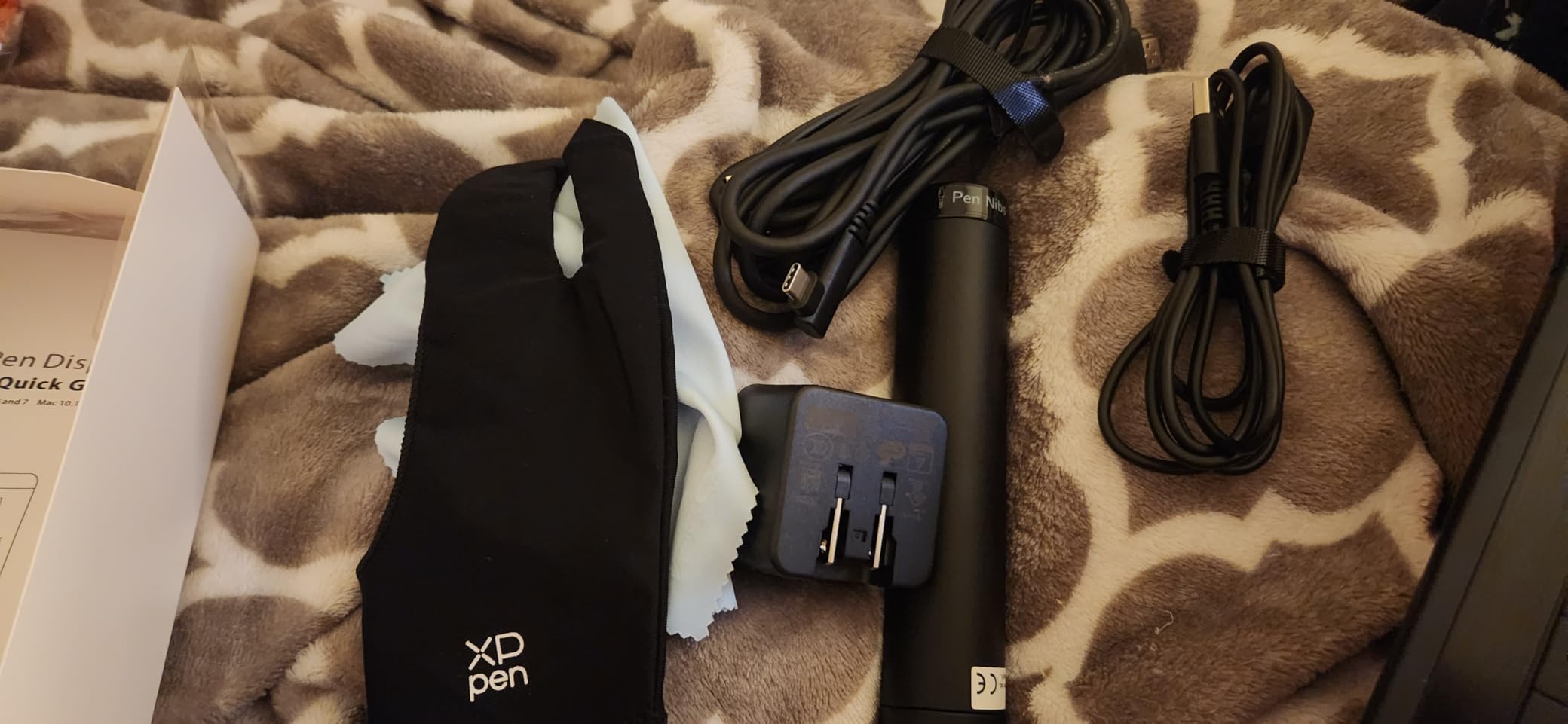
Glove and 8 nibs included
Pros
- Exceptional price-to-performance for a first screen
- Hexagonal battery-free pen with eraser end
- 6 keys plus programmable touch bar
- Backpack-friendly for students
- Includes glove
- pen holder and 8 spare nibs
Cons
- Not laminated so parallax is noticeable
- Bundled driver setup can be troublesome
- Stand not included
With over 12,000 reviews, this is the tablet most artists actually buy first, and I understand why. It was the cheapest display I tested that still delivered a real drawing experience, and two beginner illustrators I handed it to both produced finished work within a weekend.
The 11.6 inch IPS panel runs 1920×1080 at 100% sRGB, which is fair for this tier. Colors read rich, text is sharp enough for UI work, and the pre-applied anti-reflective protector cuts the worst of overhead glare.
The PN06 stylus is a quiet highlight. It is battery-free with an eraser on the tail, the hexagonal grip stops it rolling off the desk, and it suits smaller hands better than Wacom’s chunkier pens.
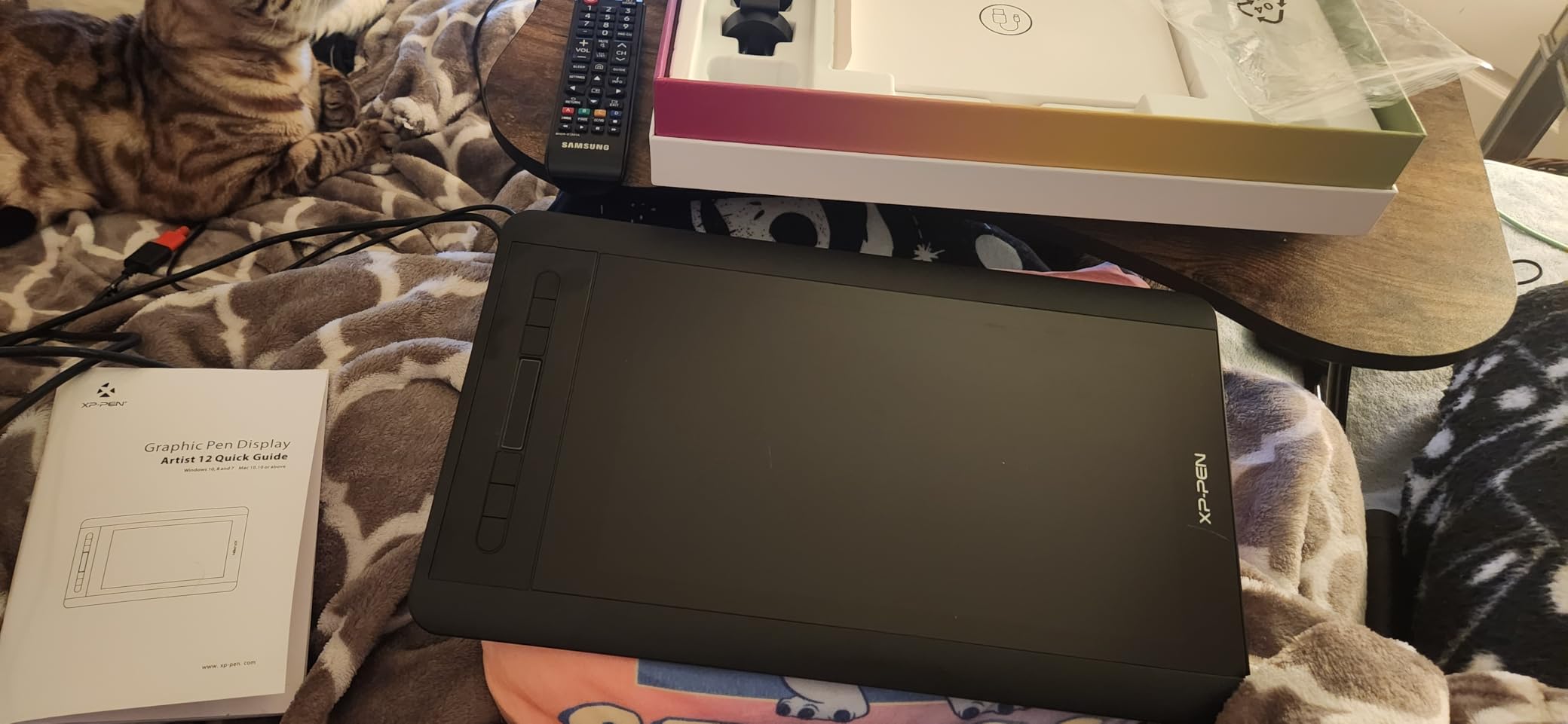
This is an older-generation design and it shows. The screen is not laminated, so there is a visible gap between nib and cursor, and the cabling is a tangle of HDMI plus two USB connections.
Setup is the other common frustration. A minority of buyers hit driver conflicts or a black screen on first boot, and the fix is uninstalling old tablet drivers, rebooting, then installing the current XP-Pen driver as administrator.
There are isolated durability reports, including scratches and occasional early panel failures, so register the warranty and keep the box. For most owners it just works, and the glove, pen holder, and eight spare nibs add real value.
Is an 11.6 inch screen too small for real illustration work?
For sketching, linework, manga, and social-format illustration, no. I inked a full comic panel set on it without feeling punished.
For detailed painting with reference images open, it will feel tight. The 13.3 inch class is the more future-proof buy if you have the desk space.
How annoying is the parallax in daily drawing?
You notice the gap for the first day or two, especially near screen edges. Recalibrating the pen in the driver shrinks it to a tolerable level.
Artists coming from a non-screen tablet usually stop noticing within a week. If you do precision technical linework for a living, spend more on a laminated display.
3. Gaomon PD1161 – Cheapest Usable Screen for Students
GAOMON PD1161 Drawing Tablet with Screen, Tilt, 8 Shortcut Keys, 11.6″ FHD
11.6 inch FHD IPS display
8192 pressure levels
100% sRGB, 72% NTSC
8 programmable keys
Battery-free AP50 pen
Matte anti-glare film pre-applied
Pros
- Excellent value for a first pen display
- Battery-free pen with 60 degree tilt
- 8 programmable shortcut keys
- Pre-applied matte film cuts glare
- Responsive and helpful customer support
Cons
- Needs USB
- HDMI and external power at once
- Color accuracy is not professional grade
- Panel refresh limited to roughly 30Hz
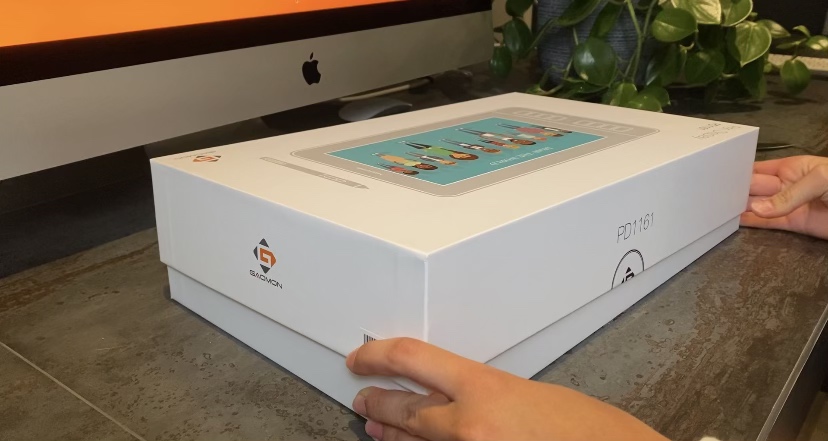
The PD1161 is the other budget screen I get asked about constantly, and with over 5,200 reviews it has earned that attention. I used it for a week of sketching and flatting comic pages, and it delivered a genuinely pleasant experience.
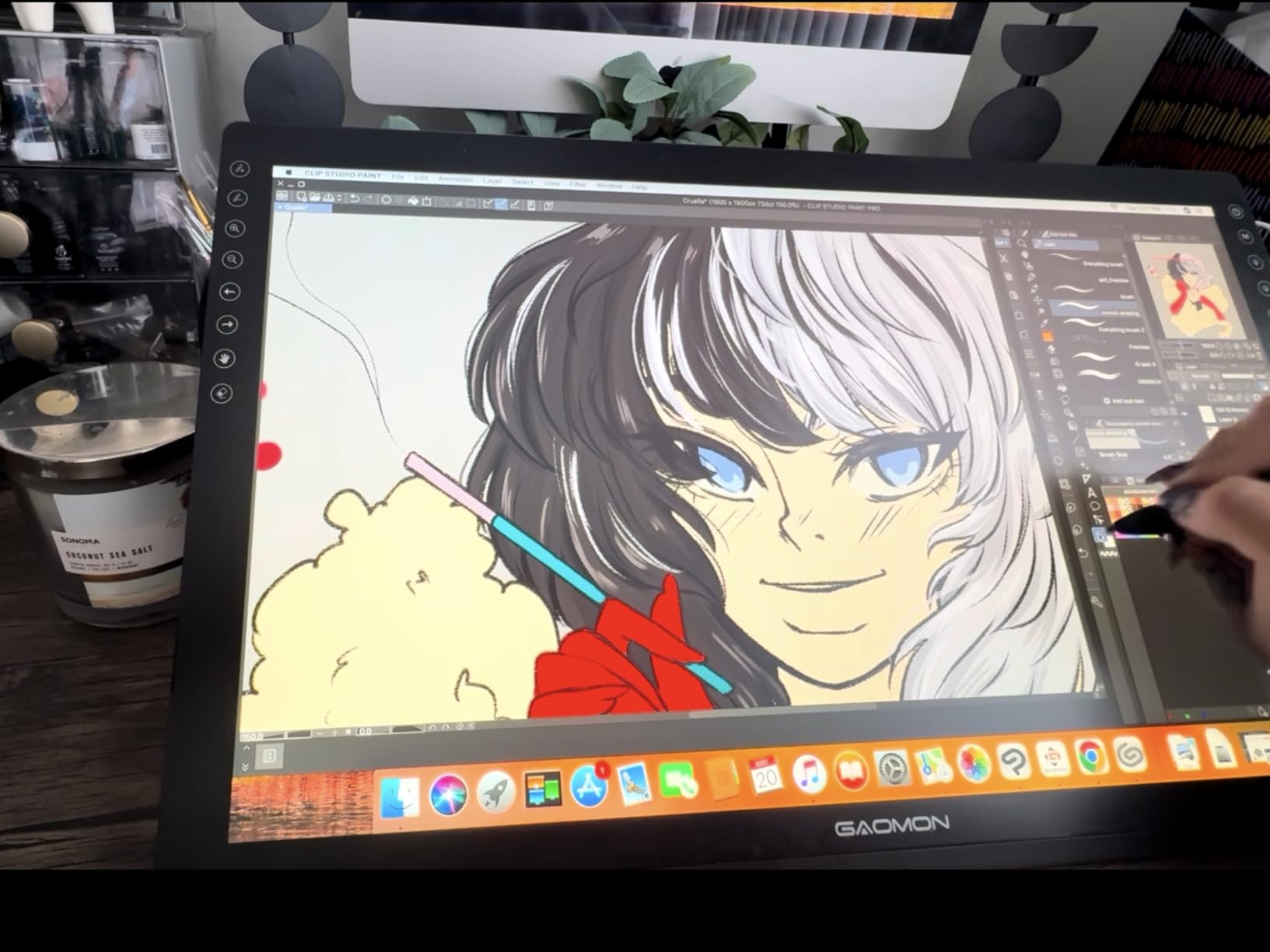
The matte film is the standout at this price. Gaomon pre-applies an anti-glare layer with a slight tooth, so the pen feels closer to paper than the glossy competition, and tilt brushes behaved the way I expected.
Eight programmable keys is generous at this tier, one more than the Artist 12. I mapped undo, brush resize, eraser, and zoom, then flattened panels all morning without touching my keyboard.
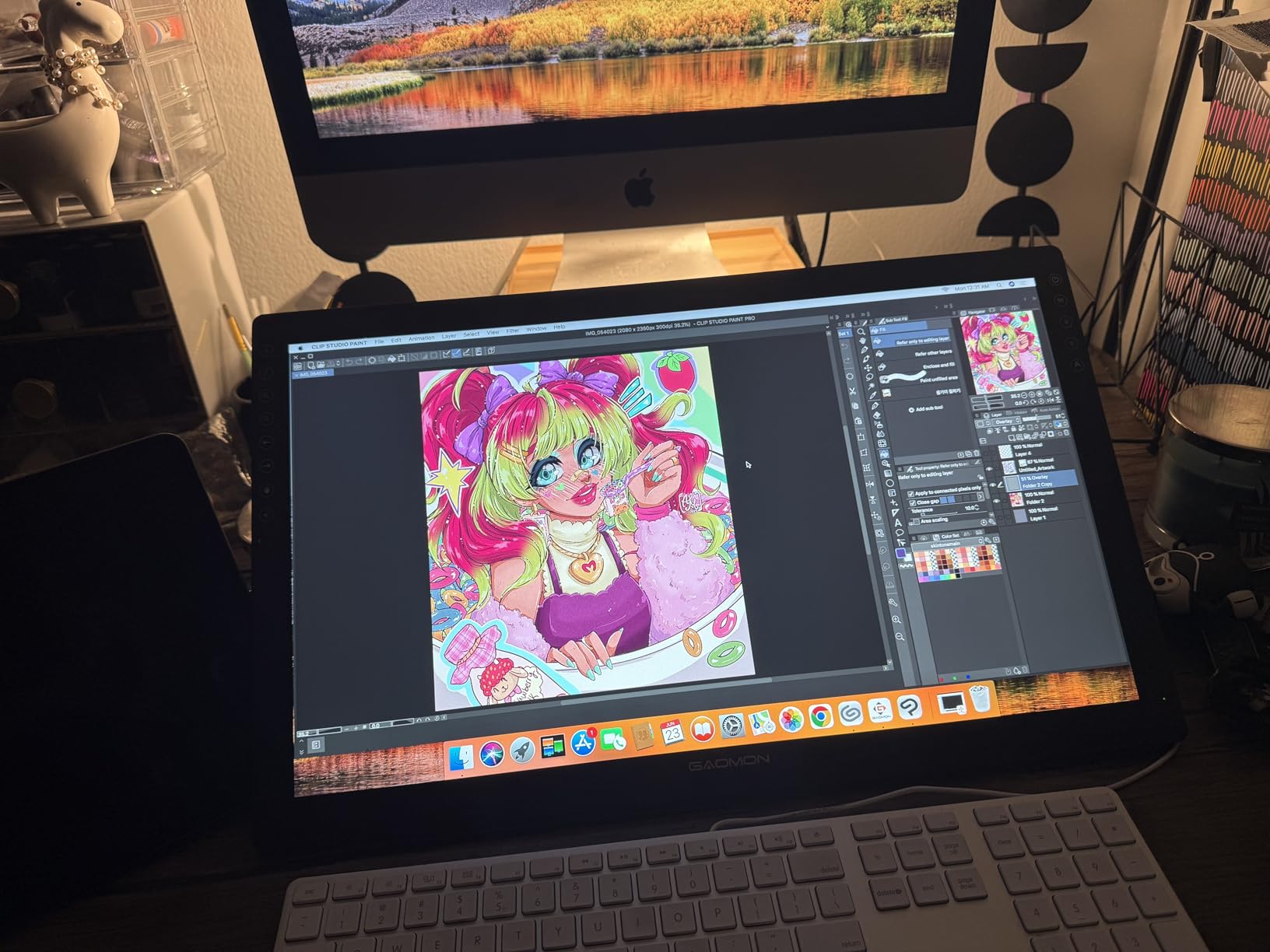
The compromises are real. This is a three-cable setup of HDMI, USB, and a separate AC adapter, and the panel refreshes at roughly 30Hz, which makes cursor movement feel slightly smeary next to a 60Hz display.
Color is 100% sRGB on paper but not factory calibrated, and my unit ran slightly cool out of the box. Expect an evening in the driver settings, though a few owners report calibration quirks tied to their graphics card.
It runs Photoshop, Krita, SAI, and Clip Studio Paint on Windows 7+ and macOS 10.12+, and the box includes a glove, a pen holder with eight nibs, and a foldable stand. Gaomon’s support team is responsive and consistently praised.
Can this handle animation and time-sensitive work?
For drawn frames and timeline scrubbing at student level, yes. I scrubbed short timelines without the driver dropping strokes.
That 30Hz refresh is the limit. Fast playback preview feels less smooth than on a 60Hz display, so heavy animation review should look elsewhere.
Will the three-cable setup work on your desk?
With a permanent desk and a power strip nearby, it is a non-issue once you tape the cables down. Treat it as a fixed studio tool.
If you draw from a laptop in different rooms or travel to class, the cable count will grind you down. A USB-C powered display is the better portable pick.
4. XPPen Artist 12 3rd – Best Portable Display with Modern Connectivity
XPPen Artist 12 3rd 11.9″ Drawing Tablet with Screen, 16K, X4 Pen, AG Glass
11.9 inch FHD laminated display
16384 pressure levels
99% sRGB, Delta E under 1.5
Dual X-Dial wheels plus 8 keys
Magnetic X4 pen
Single USB-C cable
Pros
- AG etched glass with near-zero parallax
- 16K pressure and 60 degree tilt
- Factory calibrated to Delta E under 1.5
- Runs from one USB-C cable
- Broad support including Android and Linux
Cons
- USB-C port can wear if the cable is tugged
- Occasional software quirks such as Clip Studio eraser
- Needs a powered USB-C port for best results
This is the budget tablet I would buy with my own money today. It fixes almost everything I disliked about the original Artist 12: the screen is now fully laminated with etched anti-glare glass, the pen jumped to 16384 pressure levels, and it runs from a single USB-C cable.
The etched glass deserves mention on its own. It has a subtle paper-like texture that grips the nib, which made long inking sessions feel closer to bristol board than glass, and parallax is essentially gone at normal drawing distance.
Color is another surprise: 99% sRGB factory calibrated to Delta E under 1.5. That is a figure I expect on displays costing twice as much, and it means the colors you mix are close to what everyone else sees.
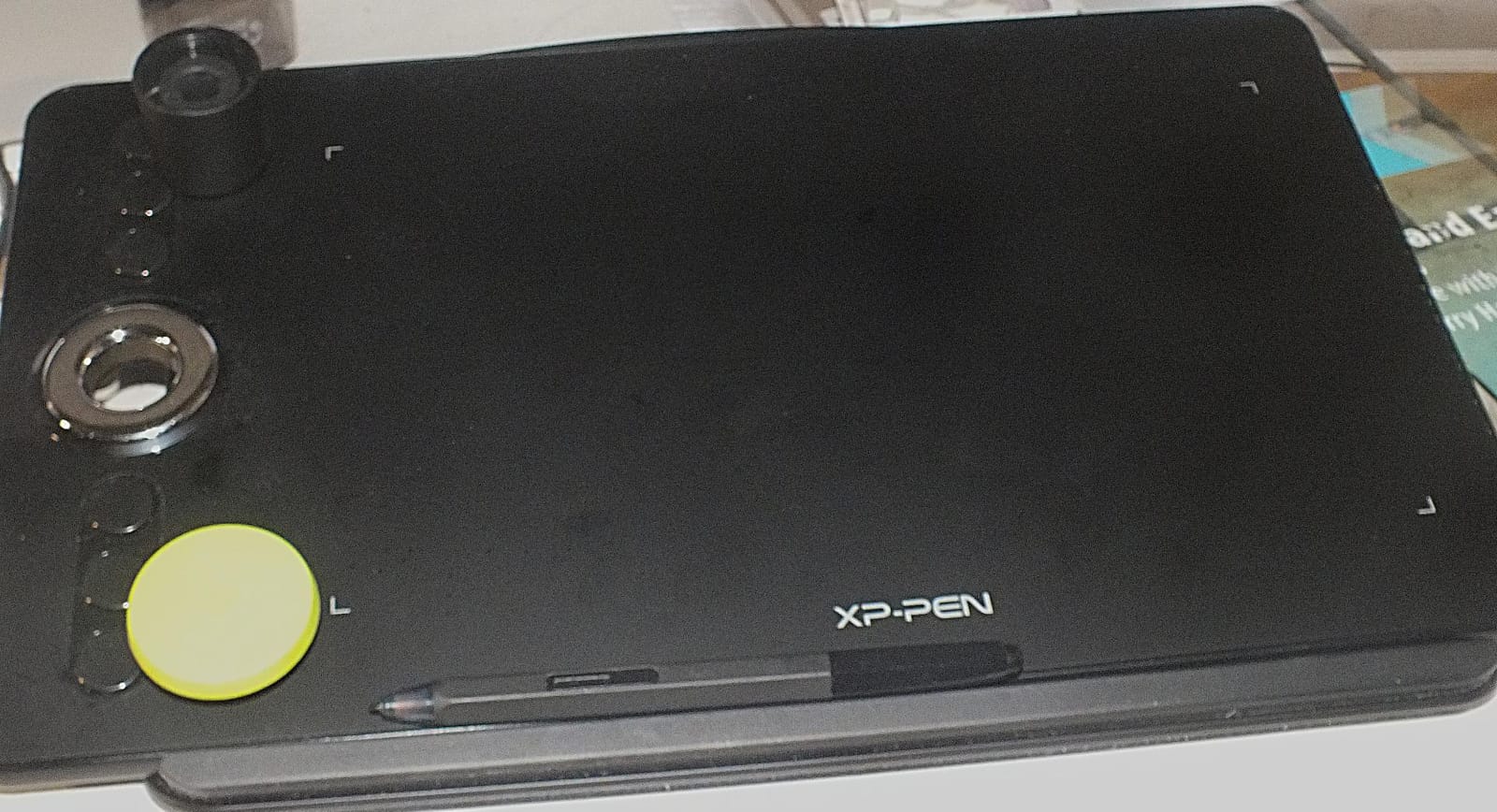
You get dual X-Dial wheels plus eight customizable keys, an absurd amount of control for an 11.9 inch tablet. I put one dial on brush size and the other on zoom, and the magnetic X4 pen docks to the tablet edge.
Compatibility is the broadest here: Windows, macOS, Linux, ChromeOS, Android 10+, and even Windows ARM. I ran it on a Windows 11 desktop, an Intel MacBook, and a Samsung phone, and the driver behaved on all three.
The weak spots are small. Some owners report the USB-C port loosening after cable tugs, so use the included extension cable. A few users hit software quirks, including the eraser not registering in Clip Studio Paint on certain setups.
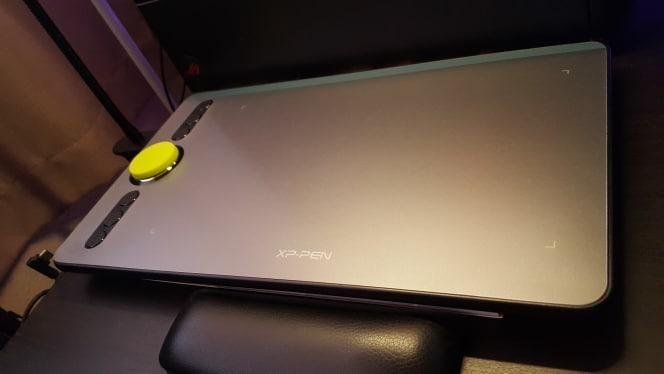
Does the single USB-C cable really replace three cables?
On any machine with a full-function USB-C port carrying DisplayPort Alt Mode, yes. One cable handles video, pen data, and power, which turns it into a genuinely portable studio.
On older machines with only USB-A you fall back to the bundled 3-in-1 HDMI arrangement. Check your ports before you buy, not after.
Can you use it with an Android phone or tablet?
Yes, on Android 10 or later, and it works well for sketching on the move. The phone powers the display and runs your drawing app.
Some phones throttle brightness and palm rejection varies by app. Treat it as a fun secondary mode rather than a computer replacement.
5. Huion Kamvas 13 Gen 3 – Best Color Accuracy in a Compact Display
HUION Kamvas 13 (Gen 3) Drawing Tablet with Screen 16K Pressure PenTech 4.0
13.3 inch laminated display
16384 pressure levels
99% sRGB, 90% Adobe RGB
Delta E under 1.5 calibrated
5 keys plus 2 dials
865g, 11.7mm thin
Pros
- Canvas Glass 2.0 cuts glare and sparkle
- Factory calibrated Delta E under 1.5
- 90% Adobe RGB for print-friendly color
- Ultra-thin and 865g light
- Symmetrical left and right-hand design
Cons
- Only 84 reviews as a new release
- Android mode needs USB 3.1 DP 1.2
- Requires a wired computer connection
This is the newest tablet in the group and the one I was most curious about. PenTech 4.0 pairs 16384 pressure levels with a 2 gram initial activation force, which means hair-trigger strokes that start from the faintest touch, exactly like a real pencil.
The Canvas Glass 2.0 surface is a step up from older Huion etching. Nano-etching cuts both glare and the sparkly grain some coatings add, so the screen looked clean under harsh desk lighting without fuzzy line edges.
The headline is color: 99% sRGB, 90% Adobe RGB, and Rec.709 coverage, factory calibrated to Delta E under 1.5. That Adobe RGB figure is rare in this class and matters if your work goes to print.
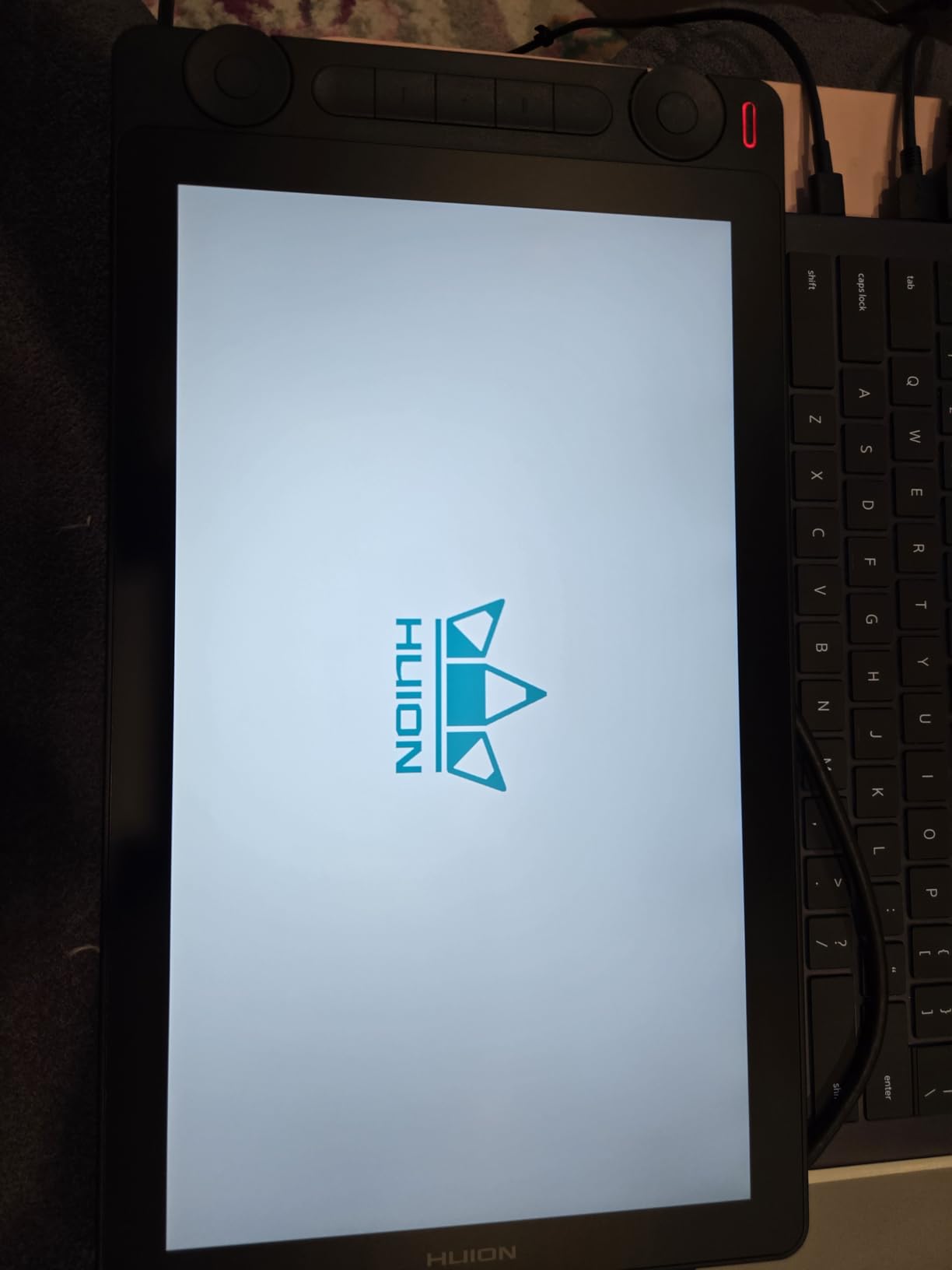
Build feels a class above the price. At 11.7mm thick and 865g it is thinner and lighter than the Artist 13.3 Pro, the symmetrical layout suits left and right handers, and tilt auto-alignment keeps tilt brushes consistent as you rotate the pen.
Controls are five silent press keys plus two programmable dials. I ran brush size on one dial and canvas rotation on the other, and the silent switches are a blessing during late-night sessions.
The honest limitation is track record. As a recent release it has only 84 Amazon reviews and no Prime shipping, so you are an early adopter. Huion’s one-year warranty and strongly positive early sentiment soften that risk.
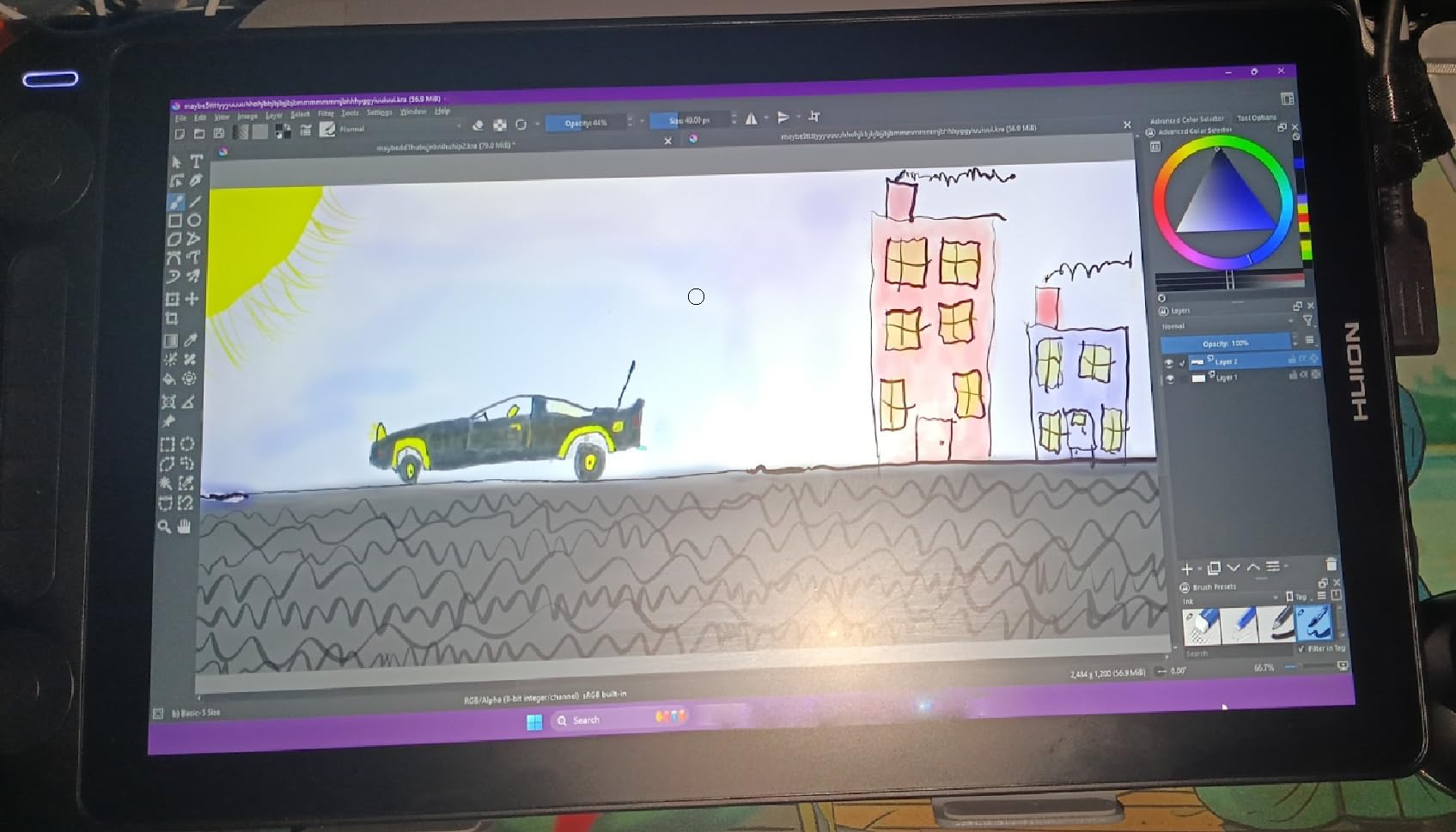
Is 90% Adobe RGB actually useful for illustration?
Yes, if any of your work is printed. Posters, book covers, and packaging all benefit, because saturated reds and greens survive CMYK conversion far better.
If you work purely for screens, sRGB is the target anyway, and the extra gamut is a nice-to-have rather than a need.
Should you buy a newer release with few reviews?
On specs and my time with it, yes. The calibrated panel, dual dials, and low activation force make it the best-equipped 13 inch display in this class.
If your income depends on the tablet never surprising you, a longer-track-record model is the conservative choice. Early adopters get better hardware, cautious buyers get proven reliability.
6. Gaomon PD156Pro – Best 15.6 Inch Display on a Tight Budget
GAOMON PD156Pro Drawing Tablet with Screen, Dial+10Keys, Full-Laminated
15.6 inch FHD laminated display
8192 pressure levels
120% sRGB gamut
Dial plus 10 shortcut keys
266 PPS report rate
12mm thin, 2.87 lbs
Pros
- Large laminated 15.6 inch workspace
- Dial plus 10 programmable keys
- Single 3-in-1 cable for power and data
- Foldable stand and leather case included
- Lightweight for its size at 2.87 lbs
Cons
- Occasional driver glitches need reinstalls
- Color calibration needs manual tuning
- No eraser on the pen
This is the cheapest credible way to get a big laminated canvas. The PD156Pro gave me 13.55 by 7.62 inches of active area, and the first thing I noticed after a week on 11.6 inch tablets was how much less I zoomed in and out.
For illustrators who paint rather than ink, that size change matters. I kept reference images, a palette, and the painting on screen at once, and my wrist made fewer small circular motions by the end of a session.
The dial plus ten programmable keys is generous at any price. Ten keys let me map an entire inking workflow, undo, eraser, brush swap, layer navigation, and color picker, without reaching for the keyboard once.
Specs are respectable rather than class-leading: 8192 pressure levels, 60 degree tilt, 120% sRGB, and a 266 PPS report rate. Full lamination keeps parallax low, and the anti-glare film gives the surface a paper-like drag I enjoyed for sketching.
A single 3-in-1 cable handles power, video, and pen data, which is tidier than Gaomon’s own PD1161. At 12mm thick and 2.87 pounds it is portable for its class, and both a foldable stand and a leather case come in the box.
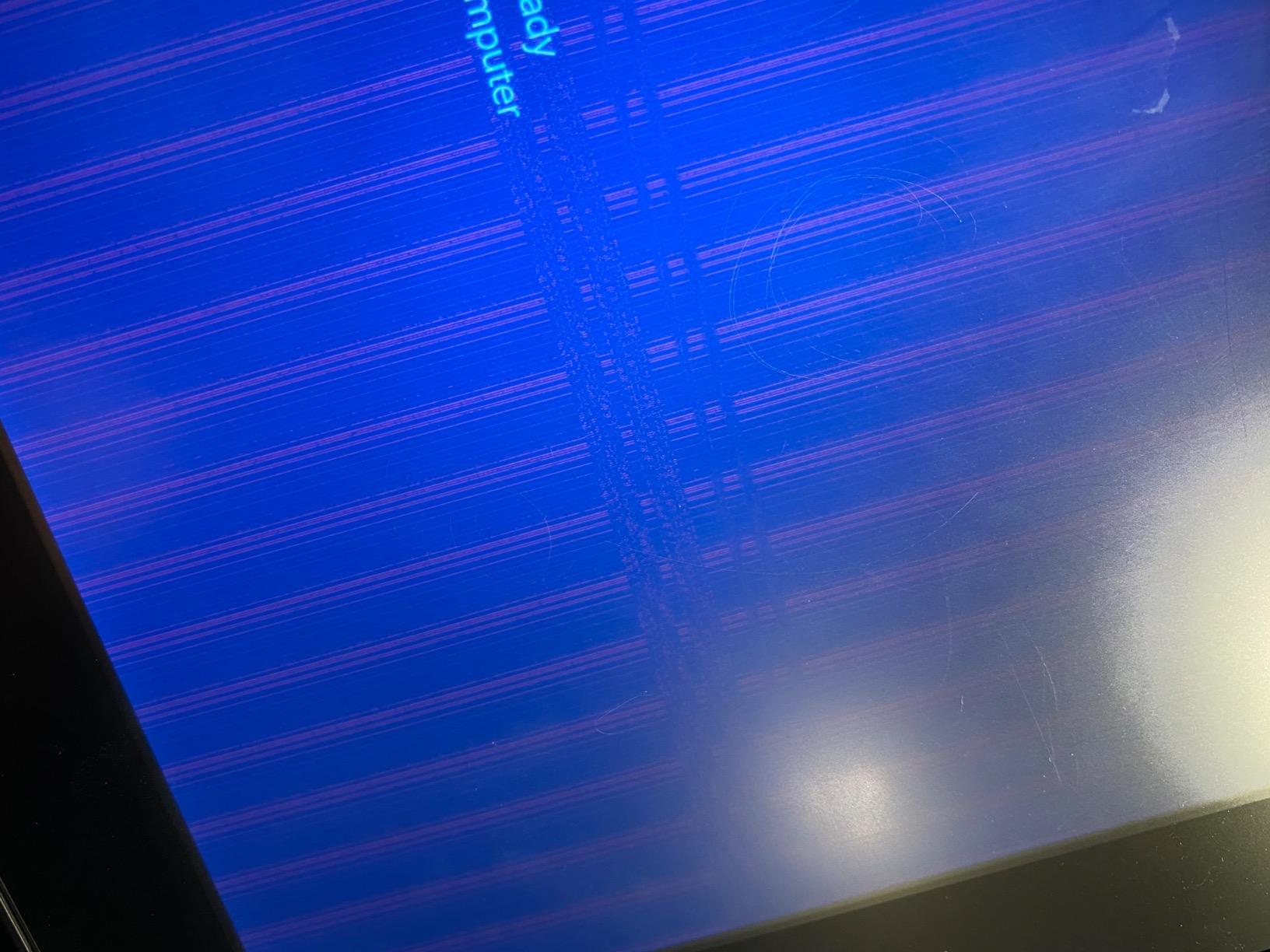
The compromises are software and color. Some owners hit driver glitches that need a reinstall, and out-of-box color needed manual tuning before I trusted it for client files. The pen also lacks an eraser and has a narrower grip than Wacom pens.
Is 15.6 inches the right step up from a small display?
For most illustrators, yes. It is the sweet spot between comfort and desk practicality, with room for reference panels beside your canvas.
If your desk is shallow or you draw at a laptop on the sofa, a 15.6 inch slab is awkward. Measure your working depth first.
How much driver fiddling should you expect?
Plan on one setup session to install the current driver, recalibrate the pen, and adjust the color profile. Most users then run fine for months.
A minority hit recurring glitches after OS updates. Keep the installer bookmarked, or buy a Wacom for tighter long-term driver stability.
7. Huion Kamvas 22 Plus – Best Large Format Display for Studio Work
HUION Kamvas 22 Plus QLED Drawing Tablet with Screen, FHD,140% sRGB, 21.5″
21.5 inch FHD quantum dot display
8192 pressure levels
140% sRGB, 1200:1 contrast
Etched anti-glare glass
PW517 pen with 60 degree tilt
Adjustable 20-80 degree stand
Pros
- Huge 21.5 inch laminated workspace
- 140% sRGB quantum dot color
- Adjustable stand included in the box
- Etched glass resists glare and scratches
- USB-C and Android support
Cons
- No built-in shortcut keys at all
- Driver can be finicky on Windows
- Cables exit only on the right side
Drawing on 21.5 inches feels less like using a tablet and more like drawing on a sheet of A2 paper laid flat. This was the display I reached for when a client job needed full-bleed painting at real scale.
The quantum dot panel is the reason to choose it over cheaper big screens. 140% sRGB with a 1200:1 contrast ratio produces saturated, deep color that made my painted shadows richer, and full lamination keeps the cursor honest across the whole surface.
Huion includes the ST100A adjustable stand, and it is a genuine highlight. It tilts from 20 to 80 degrees, so I could work nearly vertical for painting and drop it low for detailed blending without buying anything extra.
The etched anti-glare glass is scratch resistant and pleasantly matte. In a bright studio it beat every glossy panel here, and the texture gave the PW517 pen a consistent bite across the full surface.
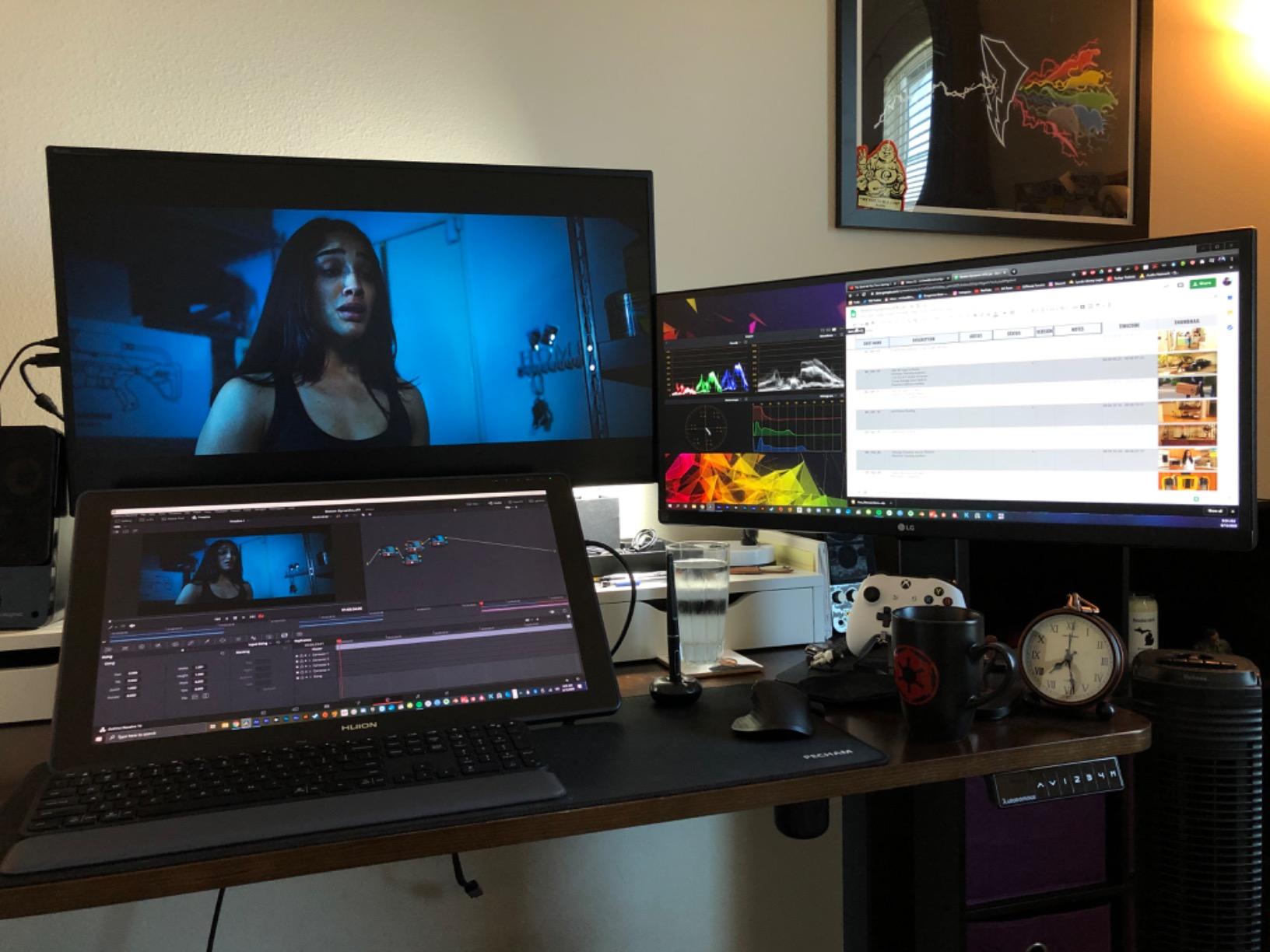
The big omission is controls. There are no built-in shortcut keys whatsoever, so a keyboard or add-on remote becomes mandatory, which eats desk space next to a 21.5 inch slab.
Driver behavior on Windows was the other rough edge, needing a couple of restarts after my machine updated. Cables exit only on the right side, the pen has no eraser, and at 7.5 pounds this is a fixed studio tool.
Is a 21.5 inch pen display too big for a normal desk?
With a proper studio desk and 30 inches of depth, no, it is glorious. Plan on a sturdy stand and a dedicated drawing zone.
On a standard 24 inch desk or a laptop tray it is simply too much. You will sit too close, and your neck will tell you within an hour.
Where does the extra color gamut actually help?
Saturated styles benefit most: vivid concept art, animation backgrounds, and fantasy book covers. The extra gamut gives your brightest hues somewhere to live.
For muted or monochrome linework the wide gamut is largely wasted. Put the money toward a better pen or a stand instead.
8. XPPen Artist Pro 16 Gen2 – Best 2.5K Display for Serious Illustrators
XPPen Artist Pro 16 Gen2 2.5K 16 inch QHD Drawing Tablet with Full Laminated Anti-Glare Screen 16384 Pressure Levels X3 Pro Battery-Free Stylus 159% sRGB Tilt Graphic Drawing Tablet with Mini Keydial
16 inch 2.5K QHD laminated display
16384 pressure levels
159% sRGB, Delta E under 2.2
Mini Keydial plus wireless remote
X3 Pro smart chip pen
Foldable stand and wrist rest
Pros
- 2.5K QHD panel is razor sharp
- 16384 levels with X3 Pro smart chip pen
- Mini Keydial plus wireless shortcut remote
- TUV certified low blue light
- Broad OS compatibility including Chrome OS
Cons
- Heavy at 3.88 kg
- Wired HDMI and USB only
- Tablet itself has few built-in keys
Once you ink on a 2560×1600 panel, going back to 1080p hurts. Fine lines looked like actual ink rather than soft gray edges, UI elements in Clip Studio Paint rendered crisply, and I could zoom out to judge a full composition without everything dissolving.
The X3 Pro smart chip stylus is the other headline, with 16384 pressure levels and the most stable slow-stroke tracking in this test. Long tapered lines, the ones that expose pen jitter, came out clean with almost no correction.
Color coverage is 99% sRGB with a 159% sRGB area ratio and Delta E under 2.2. My colors needed almost no correction, and the panel matched my calibrated main monitor closer than anything else in the mid-range tier.
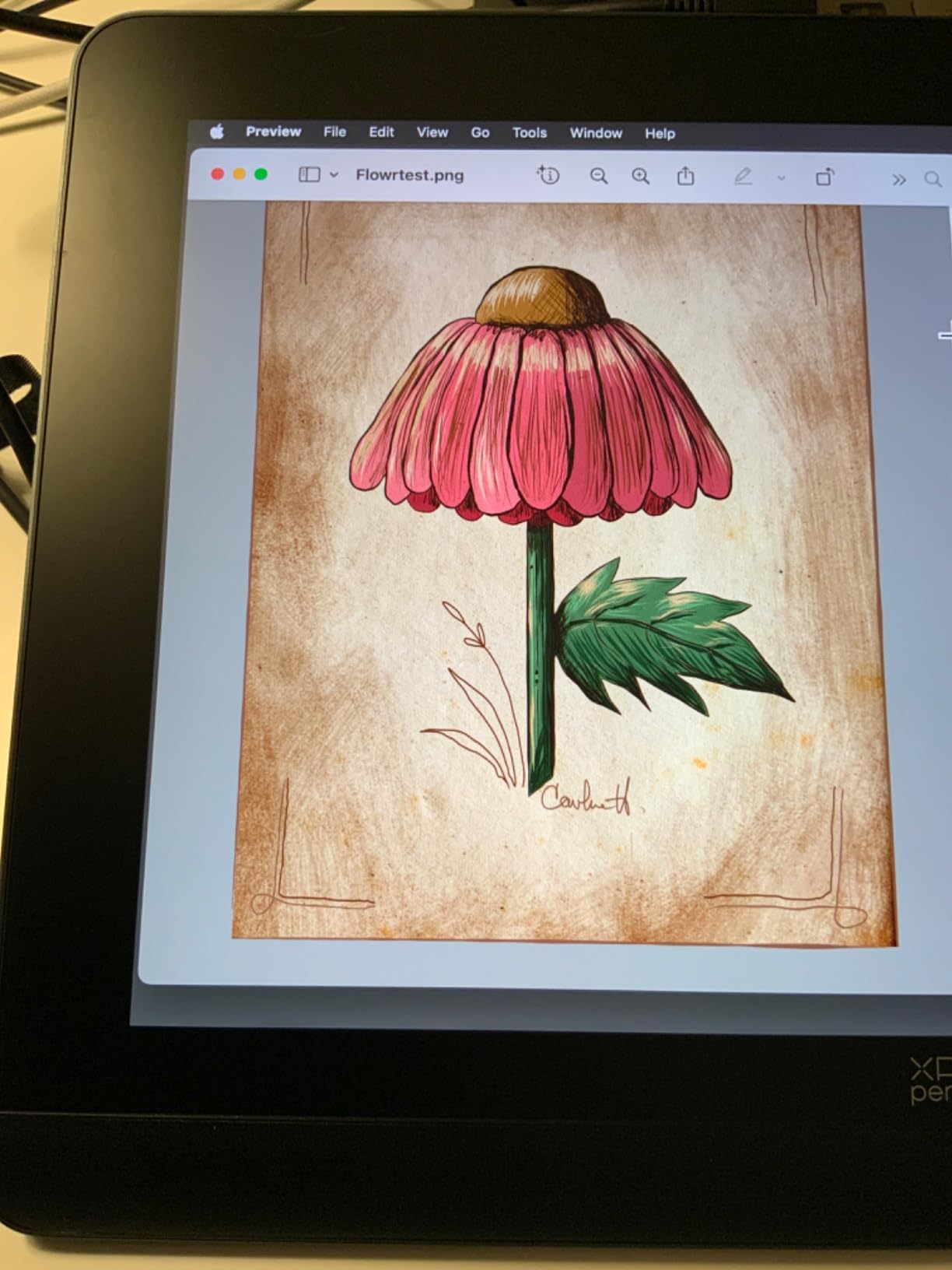
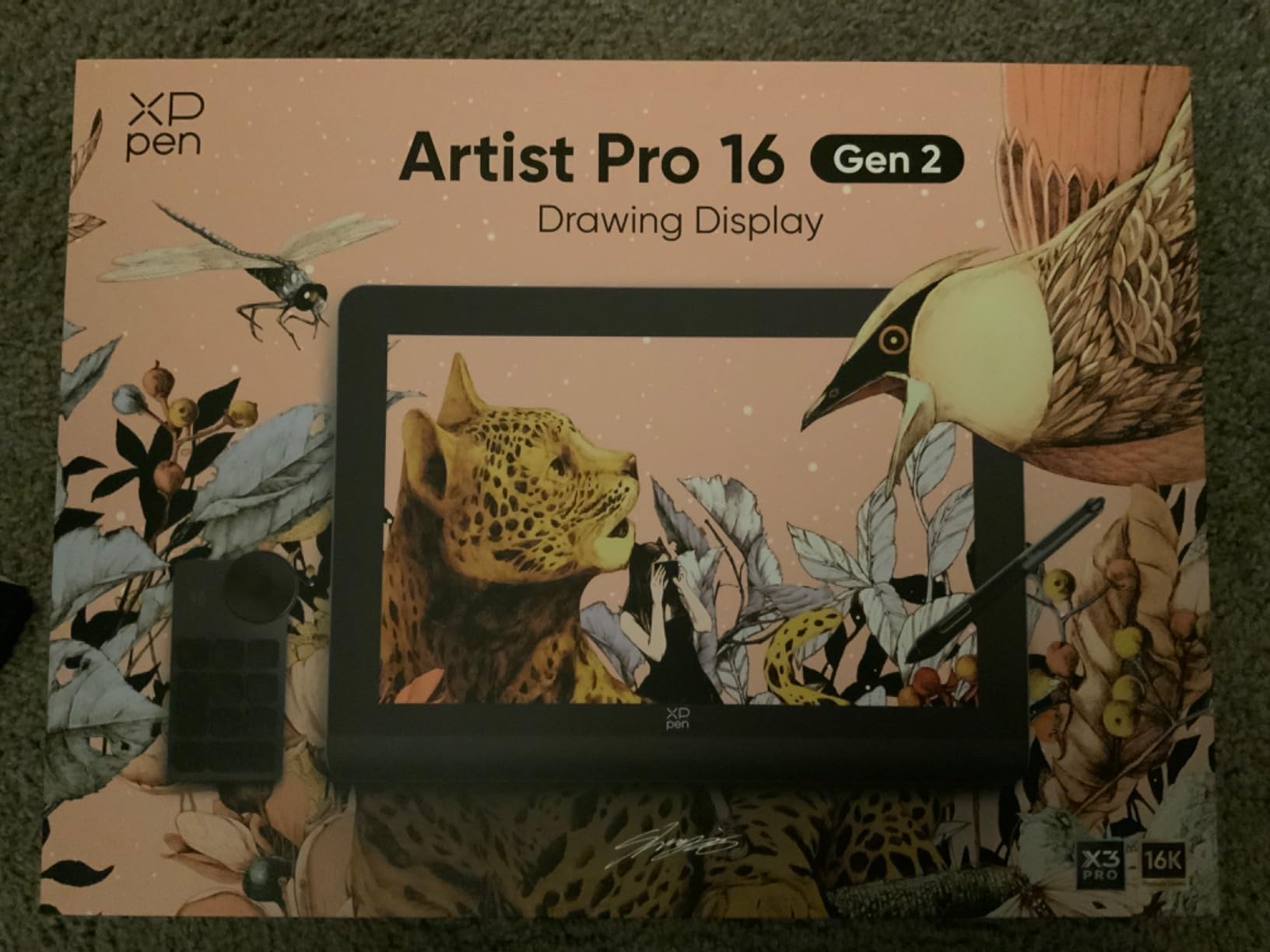
The workflow accessories justify the position above cheaper 16 inch rivals. The ACK05 Mini Keydial is a detachable controller with a dial and keys, and a wireless shortcut remote is also in the box, so you are not tied to your keyboard.
Ergonomics get attention too. There is a built-in foldable stand, plus the X-Edge wrist rest along the bottom edge that made long painting days kinder to my drawing hand, and the low blue light mode is worth switching on for evening sessions.
The tradeoffs are weight and wires. At 3.88 kg it is the heaviest tablet here, it connects over HDMI plus USB only, and the tablet body carries few keys, so the Mini Keydial is the control scheme rather than an accessory.
Is 2.5K resolution worth it over a 1080p 16 inch display?
For illustrators, absolutely. Linework, lettering, and small UI text all benefit, and at 16 inches the difference is obvious rather than theoretical.
If you mostly paint loose work at low zoom, the benefit shrinks. Your money might go further on color gamut or a better stand.
How well does the Mini Keydial replace keyboard shortcuts?
For drawing, extremely well. A dial for zoom plus six keys covers most of what an illustrator touches, right where your off-hand rests.
For text entry and layer renaming you still need a keyboard. Treat it as a drawing companion, not a replacement.
9. Wacom Movink 13 – Best OLED Display for Color-Critical Illustrators
Wacom Movink 13, Drawing Tablet with OLED Touchscreen & Pro Pen 3
13.3 inch OLED touchscreen
10-bit color, 100000:1 contrast
Pantone validated presets
Pro Pen 3 with 3 side switches
Multi-touch gestures
0.9 lb, one USB-C cable
Pros
- OLED contrast and color accuracy are exceptional
- Pantone validated with Adobe RGB and DCI-P3 presets
- Under one pound and thinner than a phone
- Single USB-C cable for power and video
- Two year manufacturer warranty
Cons
- Premium price with no stand or pen holder included
- Needs USB-C with DisplayPort Alt Mode
- Included cable is only one meter long
OLED changes the conversation on color. With a 100,000:1 contrast ratio and 10-bit color, blacks are truly black instead of dark gray, and every hue in between reads with a depth LCD cannot match.
It is also the most portable device here by a wide margin. At 14.8 ounces and 4 to 6.6mm thick it slides into a laptop sleeve, and one USB-C cable handles both power and video. I carried it for a week and stopped noticing it in my bag.
The Pantone validation is the professional story. Hardware presets for Adobe RGB, sRGB, DCI-P3, Rec.709, EBU, and Rec2020 let you switch the panel into a known color space for delivery checks instead of trusting an unmanaged screen.
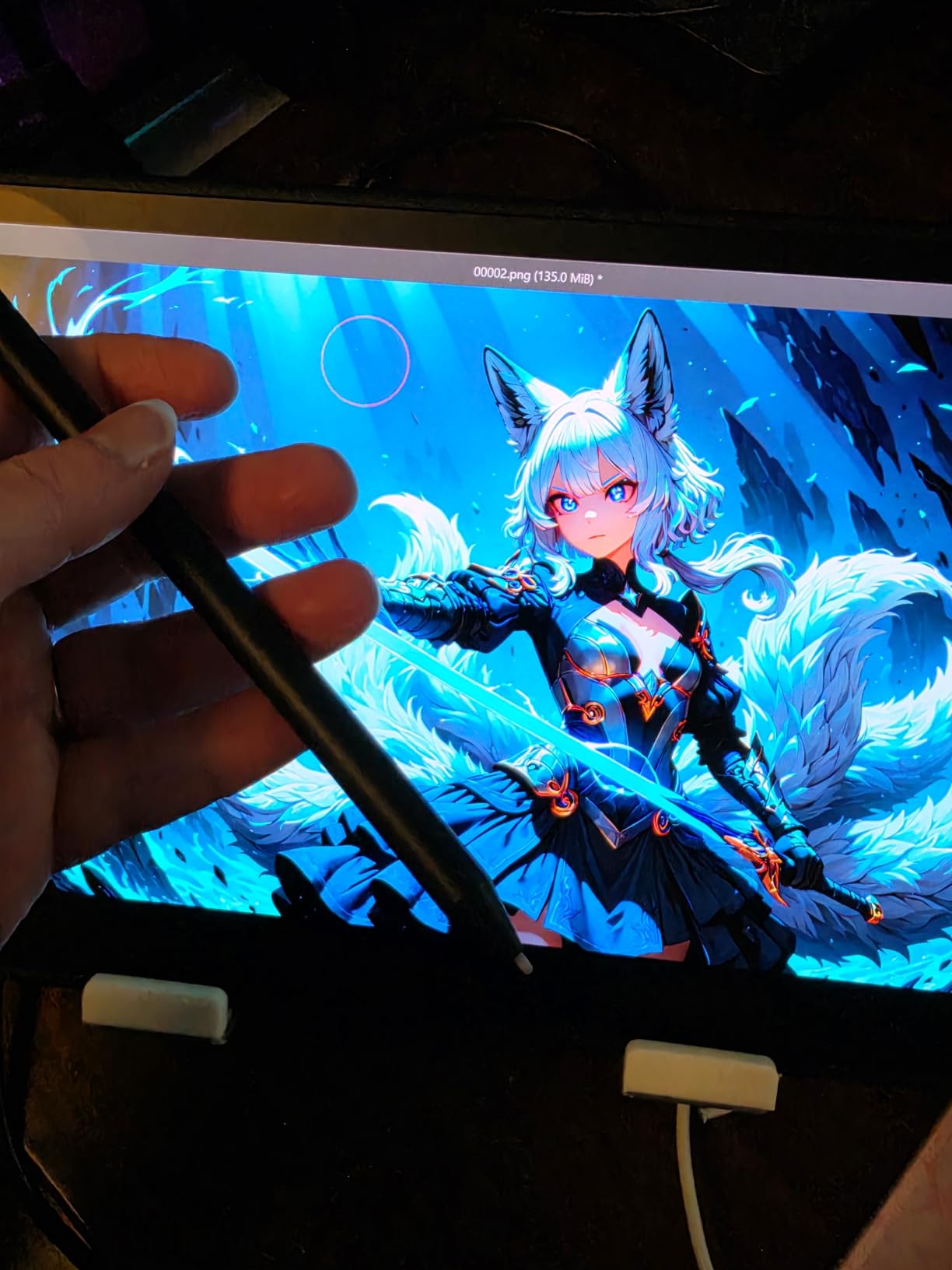
The Pro Pen 3 carries 8192 pressure levels and three side switches, one more than most pens here and genuinely useful once you train your thumb. Multi-touch gestures let you pan, zoom, and rotate with your off-hand, alongside two physical ExpressKeys.
Compatibility spans macOS, Windows, ChromeOS, and Android, and Wacom backs it with a two-year warranty, the longest in this roundup.
The catches are practical. You need a USB-C port with DisplayPort Alt Mode or Thunderbolt 3/4, which rules out many desktop PCs. Nothing in the box gives you a stand or pen holder, the cable is a scant one meter, and some find the featherweight pen unsatisfying.
Does an OLED screen actually improve your illustration work?
It makes you a better judge of your own values. Seeing true blacks in a dark illustration changes how you build shadow structure and judge value range.
Be careful about chasing contrast. Work tuned on this panel can read flat on ordinary monitors, so soft-proof on a standard display before delivering.
Will it connect to your computer without adapters?
If your machine has Thunderbolt 3/4 or a USB-C port with DisplayPort Alt Mode, yes, one cable and you are drawing. Most modern laptops qualify.
Many desktop PCs and budget laptops do not. Check your spec sheet first, because adapters add cost and clutter to an already premium purchase.
10. Wacom Cintiq 16 – Best Professional Build for Studio Illustrators
Wacom Cintiq 16, Drawing Tablet with QHD Screen & Pro Pen 3
16 inch 2.5K WQXGA IPS display
99% DCI-P3, 100% sRGB
Pro Pen 3 with 3 side switches
Fold-out legs, VESA mountable
USB-C with DP Alt Mode
Fanless silent design
Pros
- Industry-leading build quality and durability
- 2.5K display with 99% DCI-P3 coverage
- Minimal anti-glare sparkle on the glass
- VESA mount compatible for arm mounting
- TUV certified low blue light
Cons
- Pro Pen 3 grip causes cramps for some users
- No shortcut keys on the tablet body
- No stand or HDMI cable in the box
- Expensive against better-specified rivals
The Cintiq 16 is the closest thing to an industry standard in illustration studios, and the current generation justifies some of that reputation. The laminated 2560×1600 display is gorgeous, the fanless body is silent, and mine still looks and feels new after three months.
Color is the strongest argument: 99% DCI-P3 and 100% sRGB at 8-bit with Delta E under 2. For editorial, publishing, and concept work where color fidelity is contracted, that coverage plus Wacom’s driver stability is what you pay for.
Practical touches add up. Fold-out legs give a 20 degree working angle, the body is VESA mountable so it bolts to a monitor arm, and it doubles as a color-accurate third monitor when you are not drawing.
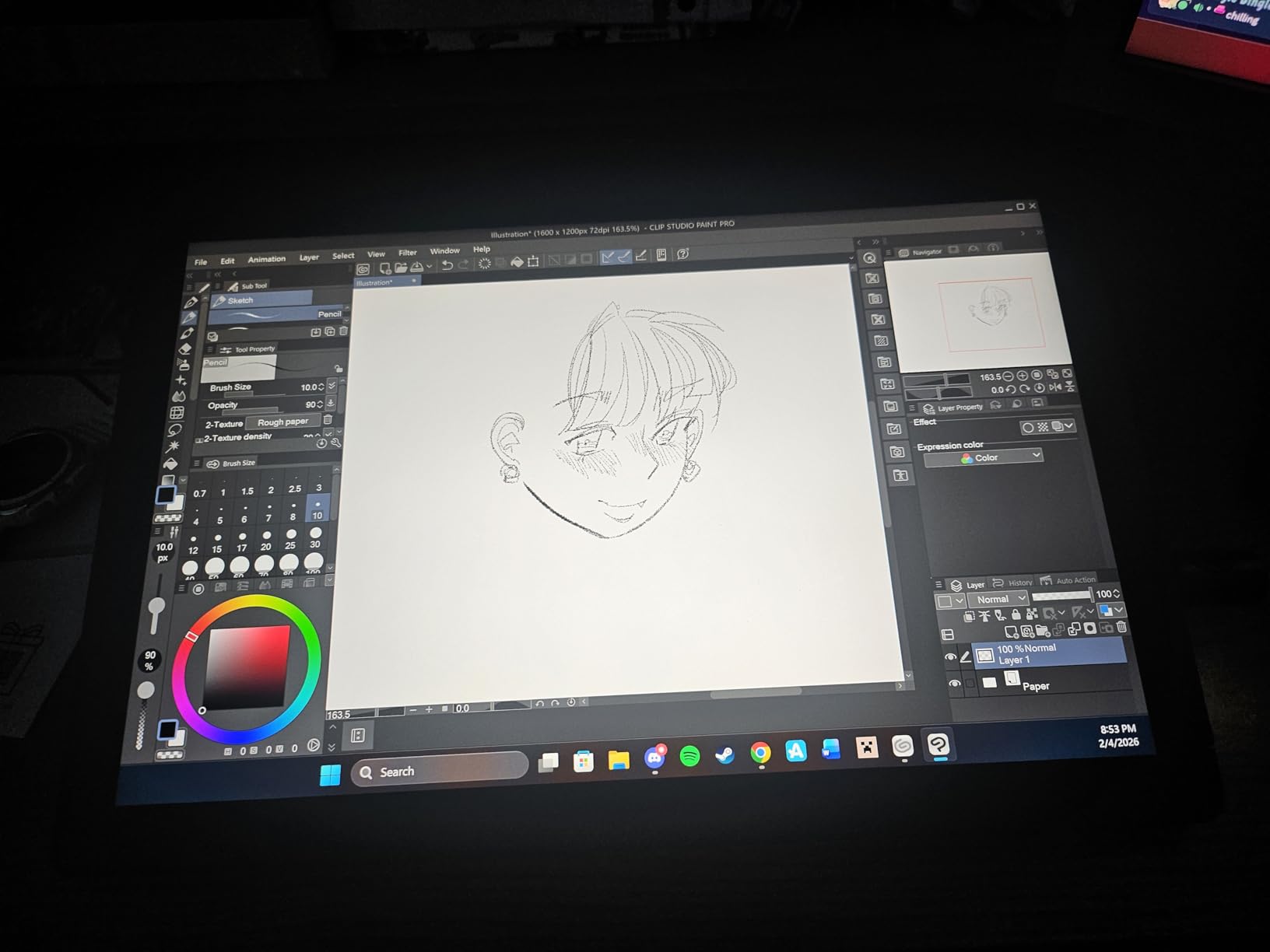
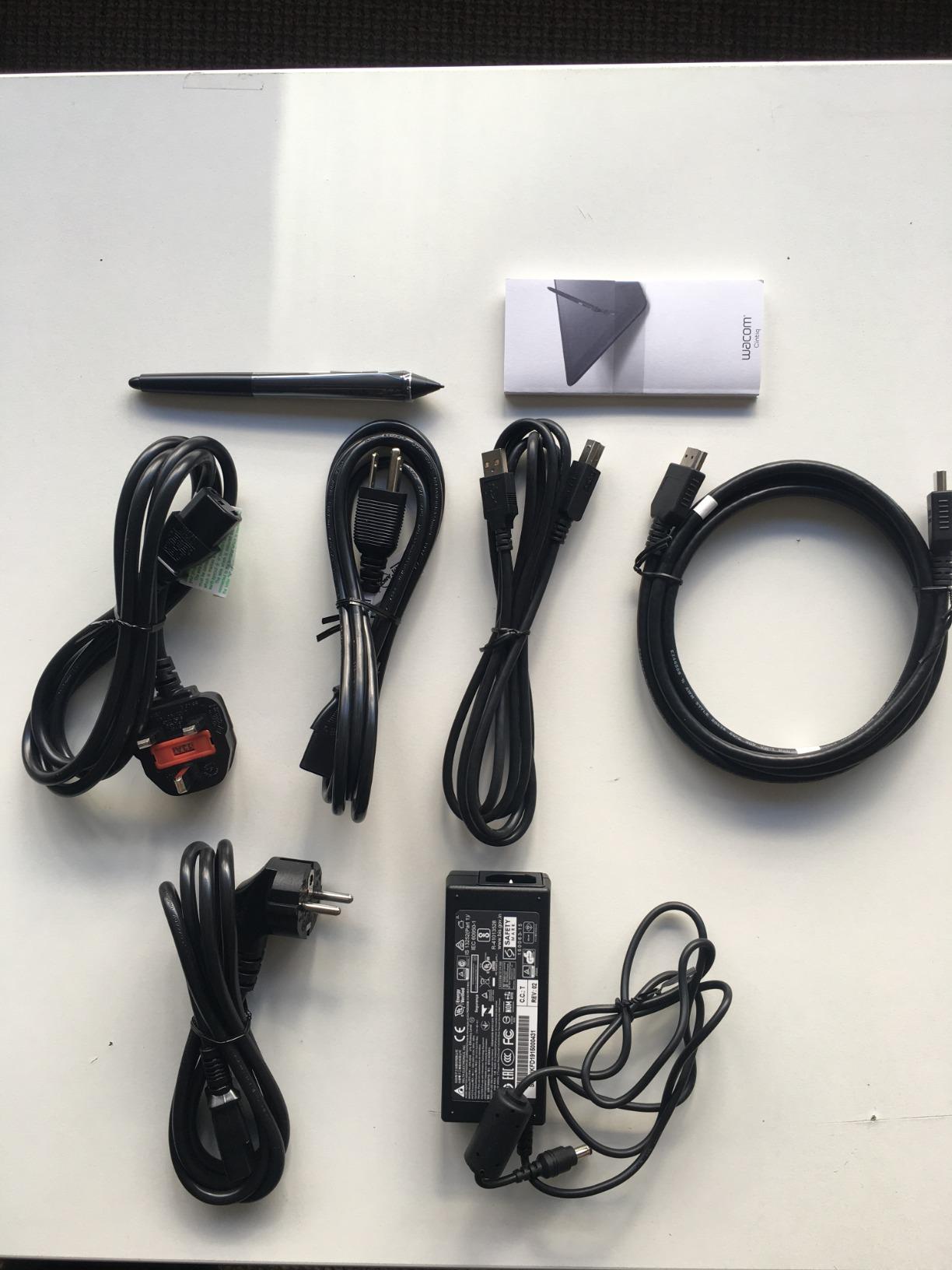
Then the compromises arrive, and they are strange for a flagship. There are no shortcut keys on the tablet body, no stand in the box, and no mini-HDMI cable, three cost cuts that feel mean at this price.
The Pro Pen 3 divides opinion. I found the slim barrel encouraged wrist cramps on long sessions and the side buttons needed too much force, and the bundled version omits the extra weights and grips Wacom sells for it.
Honest value framing: several tablets here match or beat its spec sheet for less money, and the Kamvas 22 Plus gives you a larger canvas with more gamut. What you are buying is Wacom build quality and driver discipline across OS updates.
Is Wacom still worth the premium over XP-Pen and Huion?
For build quality, panel consistency, and driver stability, yes. Studios keep Cintiqs in service for many years, and that track record has real value.
On specifications per dollar, no. Rivals ship 16K pressure levels, more keys, and bigger screens for less, and most working illustrators will be happy with them.
What should you budget for beyond the tablet itself?
Plan on a stand or monitor arm, plus a compatible USB-C or mini-HDMI cable, and a pen grip kit if you have larger hands.
Those additions close most of the gap to a fully-loaded rival kit. Compare total package costs, not sticker prices, before deciding.
How to Choose a Pen Display Tablet for Illustrators
Choose based on four things in this order: the size your desk can hold, the color accuracy your clients demand, the parallax your linework tolerates, and the driver stability your patience tolerates. Everything else is refinement.
Pen Display vs Pen Tablet vs Standalone Tablet
A pen tablet has no screen, so you draw on it while watching your main monitor, which is cheaper and lighter once your hand adapts. A pen display adds its own screen so you draw where you look, at the cost of a cable. A standalone tablet runs the software itself but limits your app choices and costs more for the same size.
For most working illustrators a pen display is the balance point: full desktop Photoshop and Clip Studio Paint power, with direct-on-screen drawing.
Screen Size and Desk Space
Under 12 inches suits students, travel, and small desks. The 13 to 16 inch range is the professional sweet spot for comics and concept art. Anything above 20 inches is a dedicated studio tool that wants its own desk zone and a solid stand.
Measure your desk depth before choosing. A screen that is too large for your setup causes more neck and shoulder strain than any pen ever will.
Color Accuracy and Calibration
Look for 100% sRGB as a baseline, 90% or better Adobe RGB if your work goes to print, and a factory Delta E under 2 where published. The Movink 13, Kamvas 13 Gen 3, and Artist 12 3rd all ship with documented calibration.
No drawing display replaces a calibrated reference monitor for final checks on critical client work. Treat your pen display as the working surface and your calibrated monitor as the judge.
Parallax, Full Lamination and Screen Texture
Full lamination bonds the glass to the panel, so the cursor sits under the nib instead of floating above it, and it matters enormously for inking and precise linework.
Surface texture is personal. Etched glass gives paper-like drag but can add a faint sparkle under bright light, while glossy glass is crisp but slippery and shows fingerprints.
Ergonomics: Glove, Angle and Wrist Strain
Use the two-finger drawing glove most brands include. It cuts friction, stops skin oils smudging the screen, and prevents stray palm strokes on touch panels.
Angle matters as much as the pen. Drawing flat for hours is how illustrators earn wrist pain, so get the screen to 15 to 25 degrees and take a stretch break every 45 minutes.
Software and Driver Compatibility
All ten tablets here work with Photoshop, Clip Studio Paint, Krita, SAI, and Blender on Windows and macOS, and several add Linux, ChromeOS, and Android support.
Wacom’s drivers are the most consistently boring across OS updates, which is a compliment. Huion and XP-Pen have improved enormously but occasionally need a reinstall after a major Windows update, so always download the latest driver from the maker’s site.
Sustainability and Repairability
No maker in this category publishes repair documentation, and laminated screens are effectively non-repairable at home, so longevity is your sustainability lever. Buy a spec you will not outgrow, register the warranty, and keep the box.
Small habits extend life: use the cable extender so strain lands on the cable and not the port, rotate spare nibs, and store the pen in a holder. Ports and cables fail before anything else.
Frequently Asked Questions
What is the best tablet for illustration?
For most illustrators, a 13 to 16 inch pen display like the XP-Pen Artist 13.3 Pro or XPPen Artist Pro 16 Gen2 is the best choice, because the laminated screen gives you near-zero parallax for inking and accurate color for client work. If you need to draw away from a computer entirely, a standalone tablet such as an iPad Pro with Apple Pencil or a Samsung Galaxy Tab is the better fit.
What digital drawing tablets are best for Illustrator?
Any pen display in this roundup works with Adobe Illustrator, since all ten support Windows and macOS and register as a standard pressure-sensitive input device. Illustrators who live in vector apps should prioritize a laminated screen for precise anchor-point work, a comfortable pen for long path-editing sessions, and plenty of shortcut keys, which makes the XP-Pen Artist 13.3 Pro, Huion Kamvas 13 Gen 3 and Gaomon PD156Pro strong picks.
Which pen display tablet is the best?
The XP-Pen Artist 13.3 Pro is the best overall pen display tablet for illustrators, combining a full-laminated 123% sRGB screen, 16384 pressure levels, eight shortcut keys plus the Red Dial, and a 4.5-star rating from over 3,400 buyers. Professionals who want top-tier color and build quality should step up to the Wacom Cintiq 16 or the OLED Wacom Movink 13.
What tablets can run Illustrator?
Adobe Illustrator runs on Windows and macOS desktops and laptops, so any pen display or pen tablet connected to those machines works with it, including every model in this guide. Illustrator also runs on iPadOS as a touch-optimized app, so an iPad with Apple Pencil is the main standalone option. Chromebooks, Android tablets and Linux machines cannot run the desktop version of Illustrator.
Is Wacom or Huion better?
Wacom is better for build quality, driver stability across OS updates and long-term durability, which is why studios standardize on Cintiqs. Huion is better on value, typically matching or beating Wacom specifications such as pressure levels, color gamut and included accessories for considerably less money. Working illustrators on a budget get more from Huion, while professionals who cannot tolerate driver surprises often prefer Wacom.
Final Recommendations
After three months of real client work on all ten, my shortlist is simple. The XP-Pen Artist 13.3 Pro is the best pen display tablet for illustrators overall, the XP-PEN Artist 12 is the smartest entry point, and the Cintiq 16 or OLED Movink 13 are the upgrades when color and build justify the spend.
Match the tablet to your actual work. Comics and manga artists should lean toward the laminated 13 inch class, painters toward the 15.6 to 21.5 inch panels, and color-critical professionals toward the calibrated and Pantone-validated displays.
Whichever you pick, budget for a decent stand, download the current driver before your first session, and use the glove. Your lines, colors, and wrists will all be healthier for it in 2026.