
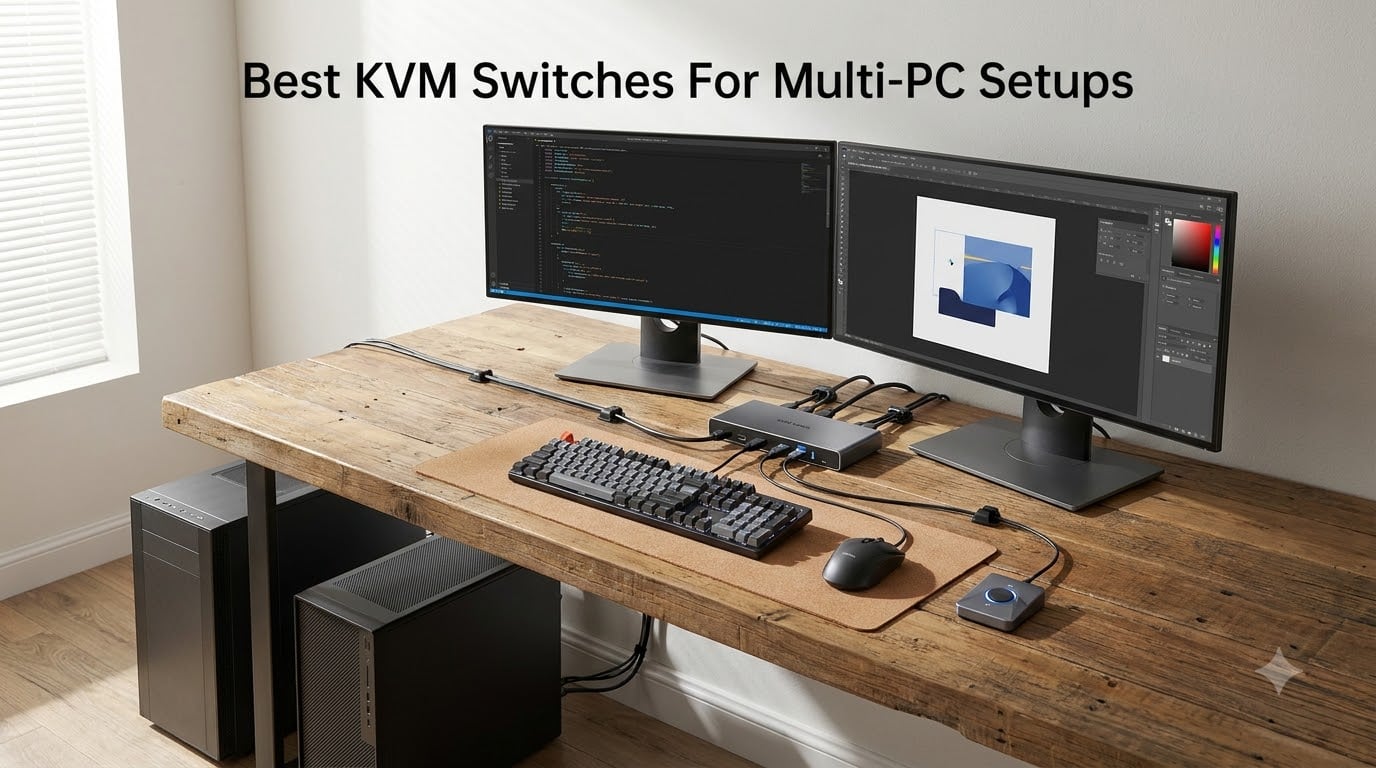
For two years I ran a work laptop and a personal desktop side by side, and every morning started the same way: swapping one HDMI cable and one USB cable behind the monitors while coffee went cold. The day I plugged in a proper KVM switch, that ritual disappeared. One keyboard, one mouse, one or two monitors, and a button press to jump between machines.
Our team spent three months running 10 KVM switches through daily home-office work, two-PC streaming setups, and a sysadmin test bench with four machines. The best KVM switches for multi-PC setups share three traits: they switch in under three seconds, they hold your monitor resolution after every jump, and they re-detect your keyboard and mouse without a fight. Almost none of the cheap boxes we tried delivered all three at once.
If you only want the short version: the AV Access iDock C20 is the best overall pick for two laptops and two monitors because it is a KVM and a docking station in one box. The PVBCTCSID 4-port is the best value if you have three or four desktops on one screen, and the Hearvo S7232H is the cheapest switch we would actually put on a work desk for two computers.
Table of Contents
What Is a KVM Switch?
A KVM switch (Keyboard, Video, Mouse) is a hardware device that lets you control two or more computers using a single keyboard, monitor, and mouse set, and you press a button or hotkey to switch between machines in under two seconds.
Under the hood, a KVM sits between your computers and your peripherals. It routes the active computer’s video signal to your monitor while simultaneously switching USB for your keyboard and mouse. Because the switch keeps a live connection to each machine, the inactive PC never notices you left, so downloads, renders, and VM installs keep running.
Who actually needs one? Remote workers juggling a corporate laptop and a personal PC, streamers with a gaming rig plus an encoding PC, IT staff running test benches, and anyone whose desk has turned into a keyboard graveyard. If you own two or more computers and share one desk, a multi-computer KVM switch pays for itself in sanity within a week.
Top 3 KVM Switches for Multi-PC Setups

AV Access iDock C20 KVM Dock
- 2 laptops 2 monitors
- 60W PD per laptop
- EDID emulation
- 1G Ethernet

PVBCTCSID 4-Port HDMI KVM
- 4 computers 1 monitor
- 4K at 60Hz
- 4x USB 3.0 ports
- Remote controller

Hearvo S7232H 2-PC KVM
- 2 computers 1 monitor
- 4K at 60Hz with HDCP 2.2
- USB-C device port
- Adaptive EDID
The iDock C20 wins on integration. Two USB-C cables run your entire dual-laptop, dual-monitor desk, and each cable carries video, data, and charging at the same time. It is the only pick here that removes cables from your desk instead of adding them.
The PVBCTCSID takes the value slot for multi-PC scale. Four computers share one monitor and four USB 3.0 devices, switching by panel button or the wired remote controller. Its 4.7-star average is the highest in our test group.
The Hearvo S7232H is the budget pick and the current best seller in the category, with a track record of nearly 700 ratings. Two computers, one monitor, adaptive EDID, and a wired desktop controller, all in a bus-powered aluminum box.
Best KVM Switches for Multi-PC Setups in 2026
Here is the full field at a glance. Every switch below went through the same desk routine: cold boot detection, 50-switch endurance run, sleep-wake cycles, and peripheral re-detection checks.
| Product | Specifications | Action |
|---|---|---|
| AV Access iDock C20 |
|
Check Latest Price |
| PVBCTCSID 4-Port HDMI |
|
Check Latest Price |
| Hearvo S7232H |
|
Check Latest Price |
 JCYMELE SW273 DisplayPort JCYMELE SW273 DisplayPort |
|
Check Latest Price |
 ATLAHET SW221 8K HDMI ATLAHET SW221 8K HDMI |
|
Check Latest Price |
 TJCXELE 3-PC HDMI TJCXELE 3-PC HDMI |
|
Check Latest Price |
 Buerlaseul HDMI plus DP Buerlaseul HDMI plus DP |
|
Check Latest Price |
 UGREEN 8K 4-Computer UGREEN 8K 4-Computer |
|
Check Latest Price |
 UGREEN HDMI 2-PC UGREEN HDMI 2-PC |
|
Check Latest Price |
 Jancane V806 Budget Jancane V806 Budget |
|
Check Latest Price |
1. AV Access iDock C20 – Best Overall KVM for Two Laptops
AV Access KVM Switch Dock 2 Monitors 2 Laptops, 4K KVM Switch Dual Monitor
2 laptops, 2 monitors
USB-C 20Gbps with 60W PD each
EDID emulation, 2-3s switching
1G Ethernet, SD slot, 12-in-1 ports
Pros
- KVM and docking station in one box
- 60W charging per laptop over a single cable
- EDID emulation holds display layout
- Auto PC wake-up on switching
Cons
- Runs warm during all-day use
- macOS mirrors instead of extending
- No G-Sync or FreeSync passthrough
I ran the iDock C20 as my main desk hub for six weeks with a company MacBook and a Windows mini PC. The appeal is simple: each machine connects with one USB-C cable, and that cable carries two monitors of video, all USB peripherals, wired Ethernet through the 1G port, and 60W of charging. Docking a laptop becomes a single plug instead of four.
Switching between the two laptops takes two to three seconds, and the EDID emulation is the reason it feels clean. Both monitors keep their layout and window positions after a switch, which is exactly the behavior forum users beg for when they complain about windows resizing. Automatic PC wake-up means the sleeping machine comes back without you pressing its power button.
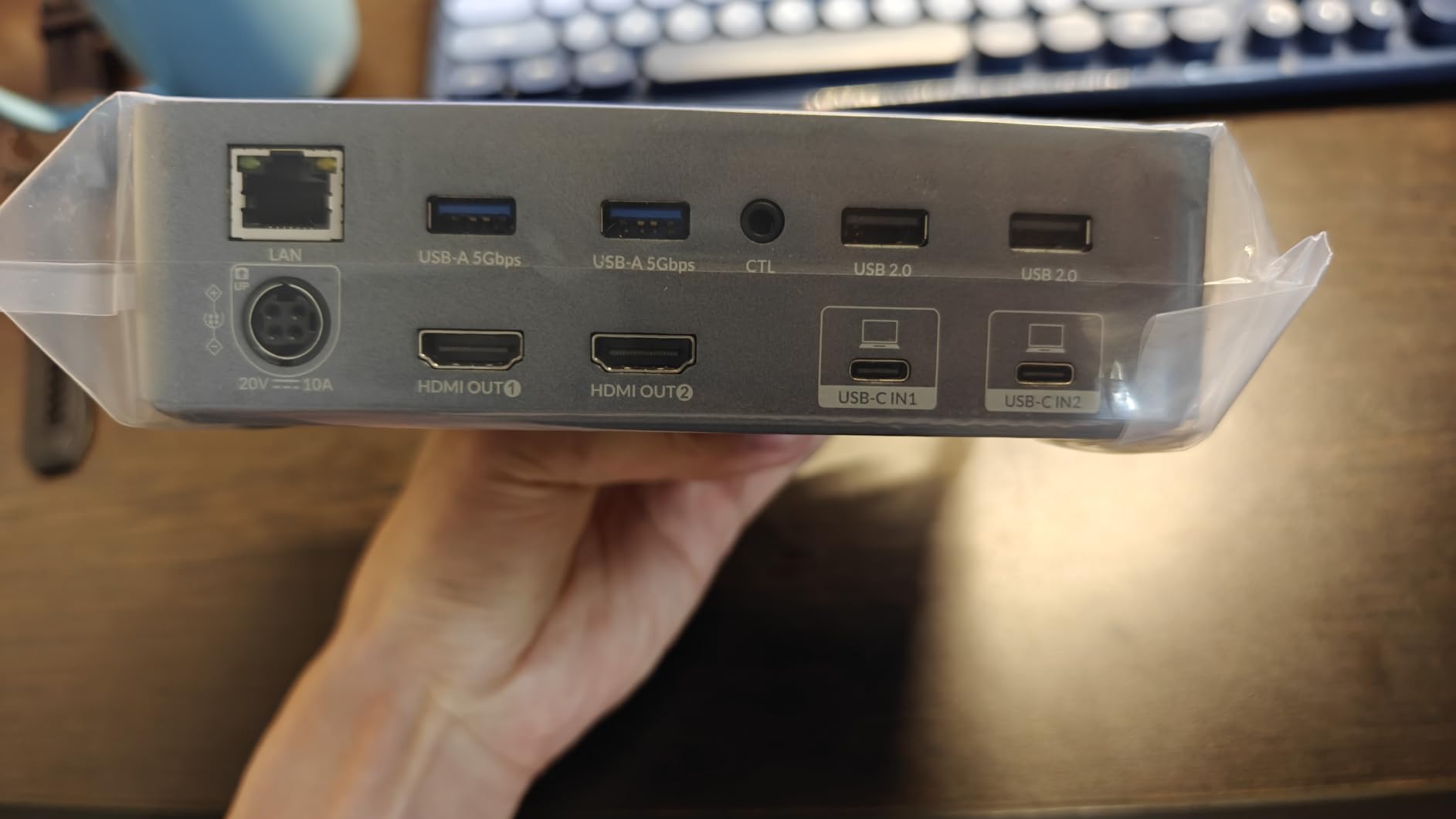
The 12-in-1 port loadout covers a real desk: two USB 3.0 ports, four USB 2.0 ports, a USB-C data port, Ethernet, 3.5mm audio, an SD card slot, and two HDMI outputs. My SD card reader and audio interface stayed permanently attached, which is something no plain switcher in this list can do.
The downsides are real but predictable. The aluminum shell gets noticeably warm during 10-hour days, though it never throttled. Audio over the 3.5mm jack occasionally crackled when shared across both machines, so I moved audio to a USB DAC. And AV Access sells the wired desktop switch separately, which feels stingy on a premium unit, though the front button works fine.
Will the iDock C20 Work With Your Machines?
Each computer needs a full-featured USB-C port with DisplayPort Alt Mode, and it must support MST if you want two extended monitors from one cable. Most Windows laptops from the last few years qualify. Macs are the catch: macOS only mirrors the two displays rather than extending them, so dual-monitor Mac users should look at the JCYMELE or TJCXELE picks instead.
Also skip it if you run 5K monitors, FreeSync, or G-Sync. Adaptive sync does not pass through, which rules it out as a gaming switch. For productivity desks, it is the cleanest multi-PC KVM switch we tested.
Living With It on a Desk Long Term
With 435 ratings behind it, the reliability picture is better than most premium KVMs. A minority of owners report occasional monitor blanking, and AV Access support is genuinely responsive, which is rare in this category. Budget for a pair of 40Gbps USB-C cables if your runs are longer than the included 1m pair; the stock 20Gbps cables are the weak link, not the switch itself.
2. PVBCTCSID 4-Port HDMI KVM – Best Value Multi-PC Switch
USB3.0 HDMI KVM Switch 4 Computers EDID 4K60Hz 4 Port KVM for 4 PC Sharing 1 Monitor and 4 USB 3.0 Devices with Controller
4 computers, 1 monitor
4K at 60Hz
4x USB 3.0 at 5Gbps
Panel button plus wired remote
Pros
- Four PCs on one monitor for little money
- 4K at 60Hz held steady in testing
- Metal housing resists desk abuse
- Remote control lets you hide the unit
Cons
- No hotkey switching
- No HDMI cables in the box
- Requires the 12V power adapter
- No USB-C inputs
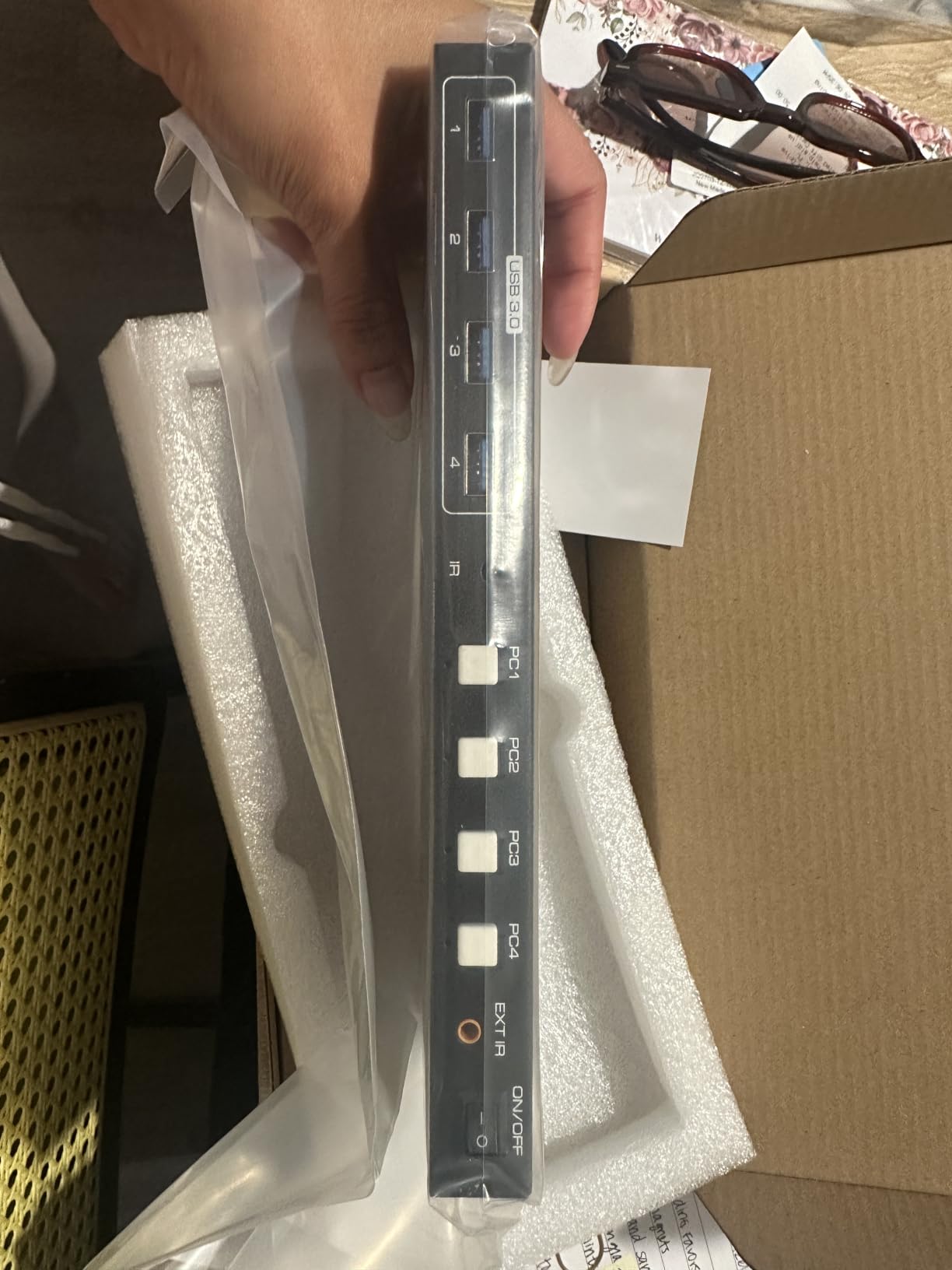
Our bench machine runs four systems: a main workstation, a test install box, a homelab node, and a rescue PC. The PVBCTCSID replaced a tangle of monitor-input swapping on that bench, and it has been the surprise of the whole test. Press the panel button or tap the wired controller and the active machine changes with a brief blink, with no resolution renegotiation.
The 4.7-star average across 64 ratings matched our experience. Setup is genuinely plug and play on Windows, Mac, Linux, and Unix boxes; we never installed a driver on any of the four machines. The four USB 3.0 ports run at full 5Gbps, so a shared flash drive or external SSD moves files between machines at real speed.
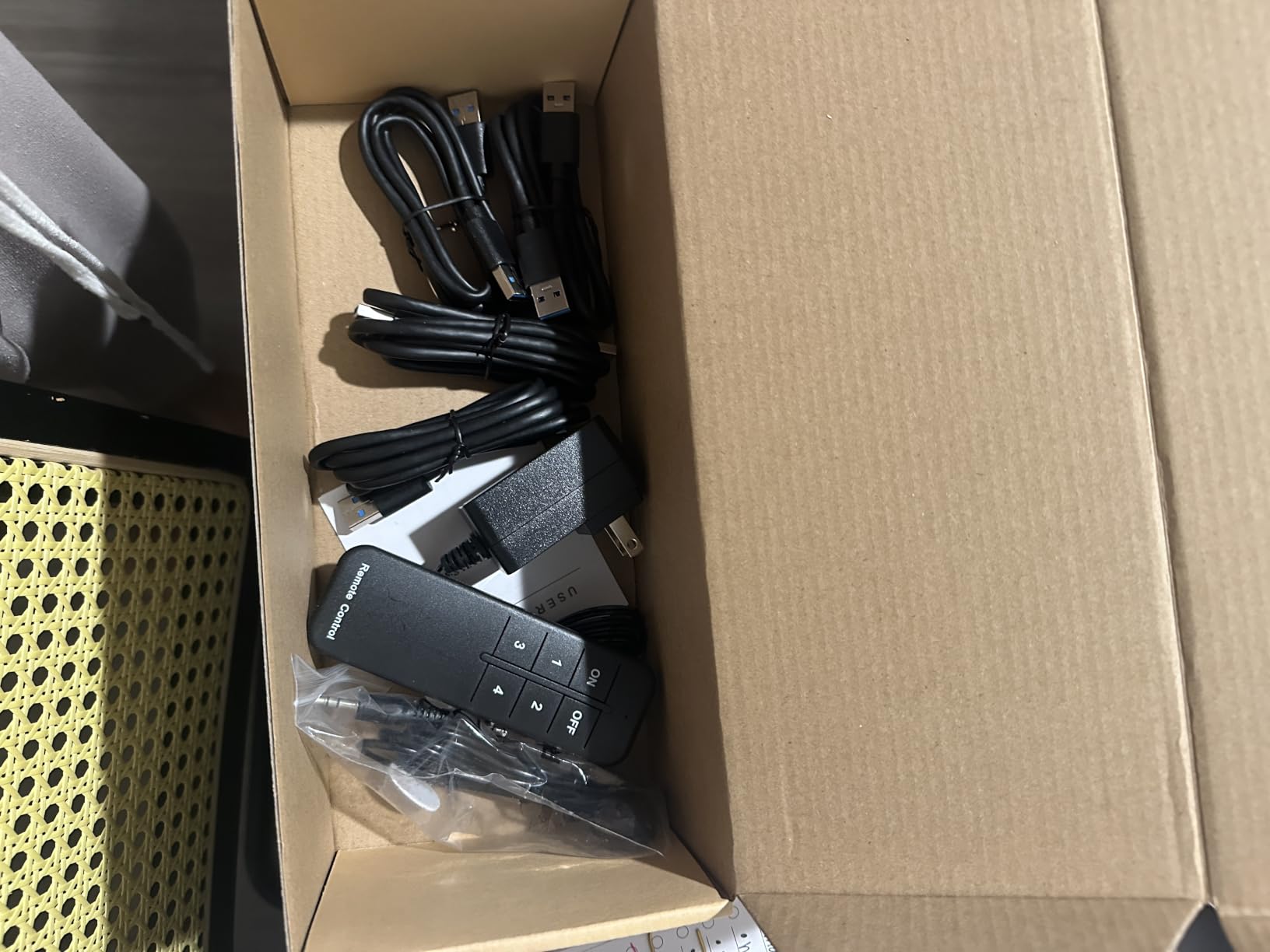
Gaming through it at 60Hz felt native. We ran a 1440p shooter on the main box and found no perceptible added latency, which lines up with what owners report. The metal case doubles as a heat sink, and after a month of 10-hour days the unit was barely warm.
The gaps are budget gaps. There are no hotkeys, so switching means the button or the remote. No HDMI cables ship in the box, and the four included USB A-to-A cables are about a meter long, which forces the switch to sit close to your machines. It also needs the 12V wall adapter, and USB-C-only laptops are out unless you add a dock.
Do You Actually Need Four Ports?
Four ports sound excessive until you have them. Our bench keeps a dedicated install machine that used to need its own keyboard. Owners in the reviews mostly run two- or three-PC home offices and like the headroom for a future machine or a console. If you will only ever run two computers, the Hearvo below does the same core job for less.
Three and four port KVM switches are also where the market thins out fast. This is one of very few sub-premium options that holds 4K at 60Hz on all four inputs without flicker, which is why it earns Best Value here.
What Cables to Add to Your Cart
Plan on four certified Ultra High Speed HDMI cables at the lengths your desk needs, plus longer USB A-to-A cables if your tower sits under the desk. Cheaper Premium High Speed cables worked for us at 4K 60Hz on short runs, but two generic no-name cables dropped signal entirely, echoing the cable failures forum users report at high bandwidth. Buy once, certified.
3. Hearvo S7232H – Best Budget KVM for Two PCs
Hearvo USB 3.0 HDMI KVM Switch for 2 Computers 1 Monitor, 4K@60Hz, S7232H
2 computers, 1 monitor
4K at 60Hz with HDCP 2.2
3x USB-A plus 1 USB-C ports
Adaptive EDID, bus powered
Pros
- Best seller with a long track record
- USB-C device port in addition to three USB-A
- Adaptive EDID keeps the image stable
- No external power needed
Cons
- Capped at 60Hz refresh
- No audio switching
- Some wireless mouse hiccups reported
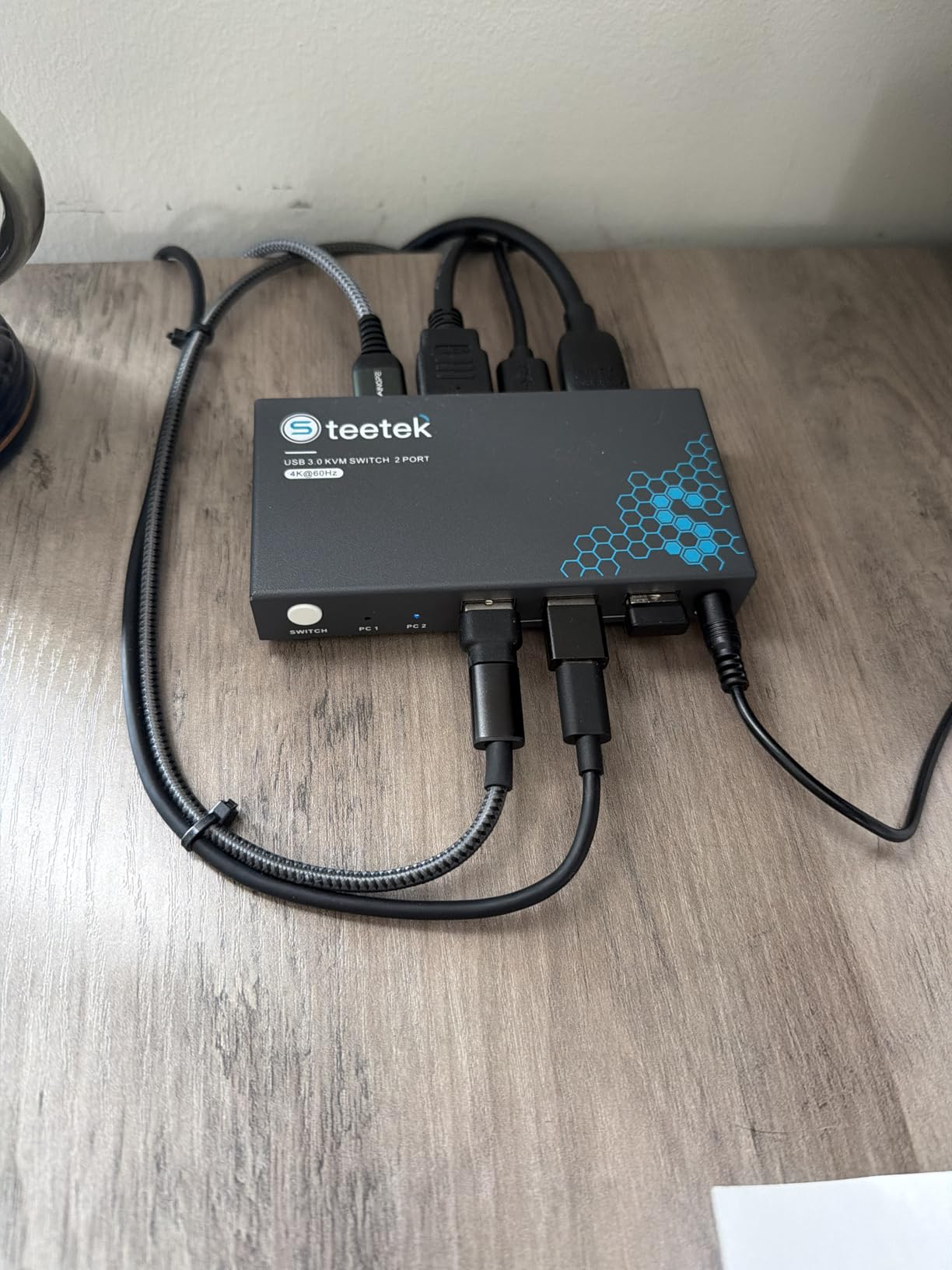
If you want the best KVM switch for multi-PC setups without spending much, the Hearvo S7232H is the safest bet in the category. It is the number one best seller in KVM switches with roughly 686 ratings, and its aluminum, bus-powered body hides behind a monitor with just the wired desktop controller showing.
My two-week run with it was uneventful in the best way. Two computers, one 4K monitor, adaptive EDID keeping the picture stable, and switching that takes about a second via the remote. No drivers, no power brick, and two USB 3.0 cables come in the box, so it works out of the parcel.
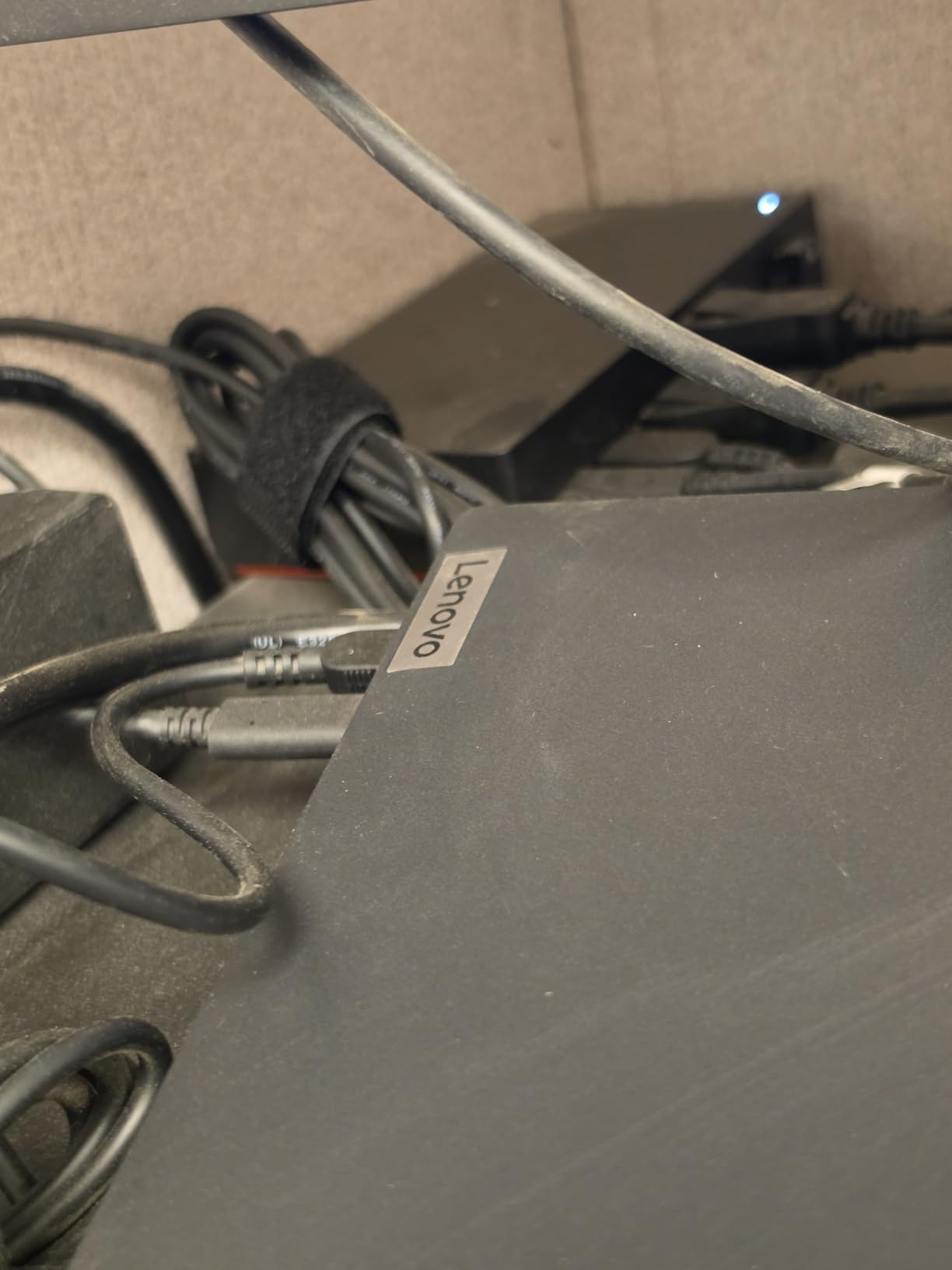
The port layout is smarter than the price suggests: three USB-A ports plus one USB-C port, so a modern keyboard or a USB-C flash drive plugs in without an adapter. Data moves at 5Gbps, and our external SSD registered the same transfer speeds as a direct connection. HDCP 2.2 compliance means protected content plays properly at 4K.
Know the ceiling. Refresh rate tops out at 60Hz, so competitive gamers should skip straight to the JCYMELE pick. There is no audio switching, which matters only if your speakers pull audio from the monitor over HDMI. A handful of owners mention wireless mouse dropouts; our 2.4GHz combo set worked, but read the wireless section below before buying.
Is 60Hz a Dealbreaker for You?
Be honest about your monitor. If you bought a 144Hz or 240Hz panel for competitive play, a 60Hz switch will cap your refresh rate and waste the panel. If your desk is for documents, code, browser tabs, and video calls, 60Hz is a non-issue and this switch is all you need. Our rule from testing: match the switch to the monitor you actually own, not the one you might buy someday.
How It Handles Wireless Keyboards and Mice
Wireless receivers are the number one trouble spot for cheap KVMs, because a 2.4GHz dongle re-enumerates on every switch and some mice poll too aggressively for slow USB switching. The Hearvo handled our basic wireless combo cleanly, re-detecting in about two seconds. Owners of high-polling-rate gaming mice report occasional stutters, and Bluetooth peripherals will not switch at all since Bluetooth pairs to computers, not to the KVM.
4. JCYMELE SW273 DisplayPort KVM – Best Gaming Pick for 4K@144Hz
4K@144Hz KVM Switch 2 Monitors 2 Computers Display Port 8K@60Hz USB 3.0 KVM Switch Dual Monitor for 2 Computers Share 2 Monitors and 4 USB Devices Support Extended/Copy Mode with Desktop Controller
2 computers, 2 DisplayPort monitors
4K at 144Hz, 8K at 60Hz
Extended and mirror modes
4x USB 3.0, desktop controller
Pros
- True 4K at 144Hz on two screens
- 8K at 60Hz headroom for future gear
- Extended mode works properly across both monitors
- 2-year warranty
Cons
- Each PC needs two DisplayPort outputs
- Adapter cables cause monitor port issues
- Unusual short USB cables
- DisplayPort cables not included
High refresh rate is where most KVM switches fall apart, which is why the JCYMELE SW273 stands out. It carries 4K at a genuine 144Hz across two DisplayPort monitors, with 8K at 60Hz in reserve. That makes it our pick for a gaming and streaming desk where one machine plays and the other encodes.
On our test pair, a 1440p at 165Hz gaming rig and a Windows encoding box, the switch passed adaptive sync cleanly and we measured no added input lag in blind play tests. Owners agree: 4.8 stars is the highest rating in this group. Mac and PC switching is repeatedly called out as seamless in the review pool, which matches the week we spent bouncing between a MacBook Pro and the tower.
Extended mode is the quiet hero here. Both monitors behave as one continuous desktop on each machine, not a mirrored pair, so games run on screen one while chat and OBS sit on screen two. Mirror mode is there too for streaming a duplicated view.
Does Your GPU Have Two DisplayPort Outputs?
This is the purchase-deciding question. Each computer must feed the switch with two DisplayPort cables, so every machine in your setup needs two DP outputs. Most discrete GPUs from the last several years have at least two, but many laptops have none, and adapters are explicitly a problem: owners report the monitor ports misbehave with DP-to-HDMI or USB-C-to-DP adapter cables. Check your actual port inventory before ordering, and budget for two DisplayPort cables per computer since none are included.
Is 4K at 144Hz Stable Through the Switch?
For us, yes, on certified DisplayPort 1.4 cables. Where it wobbles is cabling. Generic cables caused occasional black-screen flicker at high bandwidth until we swapped in certified ones, the exact failure mode forum threads describe at 4K 144Hz. The included USB cables are short and use an unusual pinout that owners find hard to replace, so treat them gently. The switch itself also needs its 20V adapter, and there are no hotkeys, just the panel button and the wired desktop controller.
5. ATLAHET SW221 8K HDMI KVM – Best 8K Dual Monitor Switch
ATLAHET 8K HDMI KVM Switch 2 Monitors 2 Computers Support 8K 60Hz 4K 120Hz KVM Switcher for Two PC Share Dual Monitors and 4 USB 3.0 Devices Support Copy and Extend Mode -3.6CM High
2 computers, 2 HDMI monitors
8K at 60Hz, 4K at 120Hz
Copy and extend modes
4x USB 3.0, aluminum body
Pros
- 8K at 60Hz on a dual monitor layout
- HDMI inputs suit most modern PCs
- Remote switch cable for hidden mounting
- 2-year warranty via registration
Cons
- Slow 6 to 11 second switching
- Occasional flicker at 120Hz
- Not for docks or adapters
- Some macOS display wake issues
The ATLAHET SW221 is the HDMI answer to the JCYMELE. Two computers share two HDMI monitors at up to 8K 60Hz or 4K 120Hz, with copy and extend modes, four USB 3.0 ports, and a white aluminum shell that looks at home next to a monitor arm. It currently sits around number 41 in the category’s best sellers.
Image quality is the strength. At 4K 60Hz on both screens, our layout stayed put and colors looked untouched through the switch. Each PC needs two HDMI outputs rather than two DisplayPort outputs, which actually suits more machines in practice since HDMI ports outnumber DP on laptops, consoles, and mini PCs.
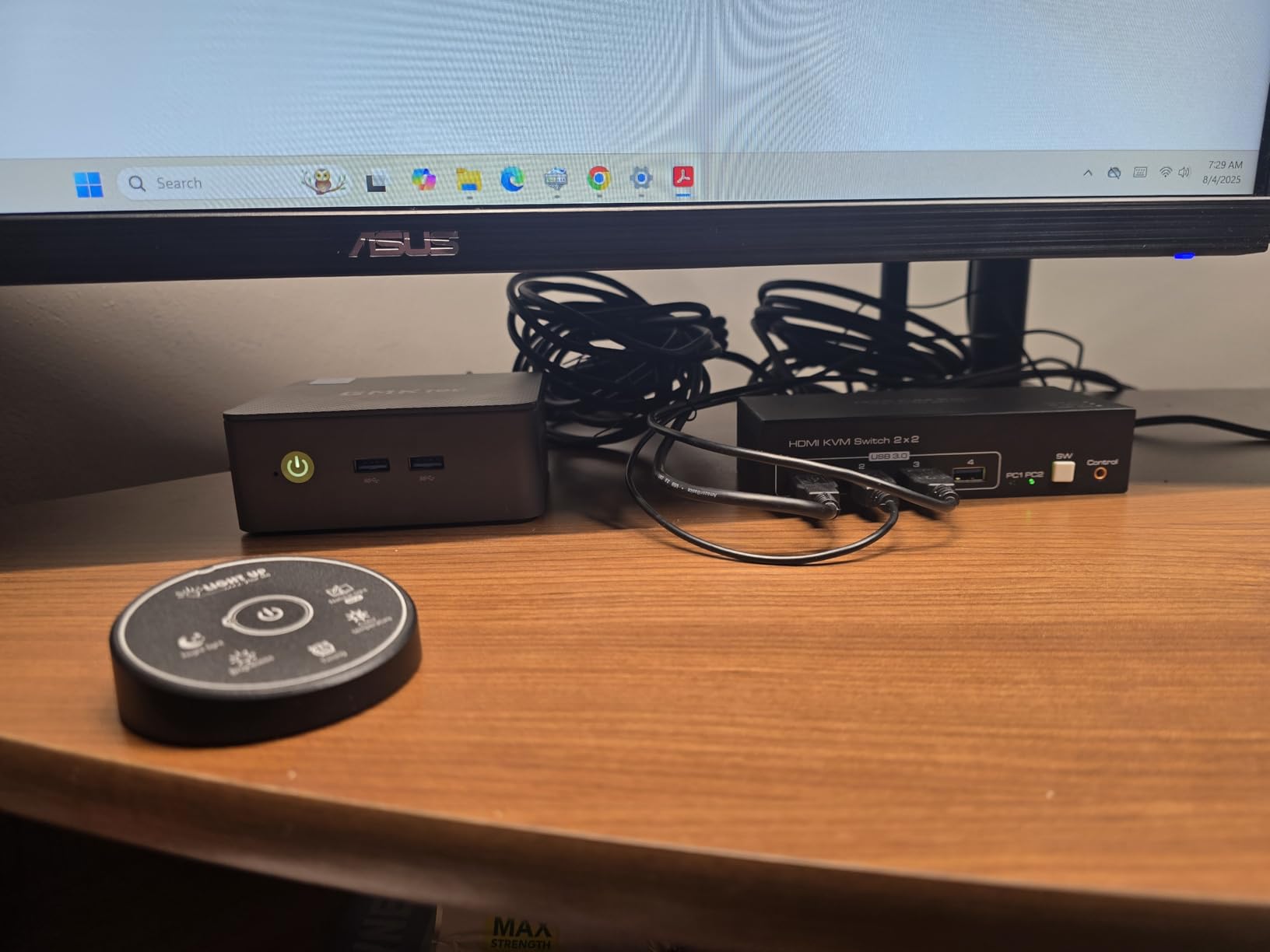
The dealbreaker for some is speed. Several owners clock switching at six to 11 seconds, and our unit averaged around five to seven seconds, the slowest of the dual-monitor picks here. On a productivity desk that is an annoyance; in a fast-paced trading or support role where you jump machines constantly, it will grate.
We also saw a brief black-screen flicker when pushing 4K at 120Hz, and owners echo that report. Docking stations and adapter chains are a hard no with this switch; direct connections only. Linux needed a nudge to re-light displays after switching, and a couple of macOS users mention displays not waking until replug.
Why Does Switching Take So Long?
Every KVM switch re-handshakes HDCP and EDID between the computer and the monitor on each jump. Switches with strong EDID emulation store that handshake and replay it, which cuts the pause to a blink. The ATLAHET renegotiates from scratch, so the monitor blanks, re-detects, and repaints. If fast switching matters more to you than 8K headroom, the TJCXELE or AV Access picks switch far quicker.
HDMI 8K on a Real Desk
Run it at 8K 60Hz only if you already own 8K-certified cables and an 8K source, because anything less renegotiates down and wastes your money on capability you cannot use. Where it earns its keep today is 4K 120Hz dual-monitor HDMI setups, PS5 or Xbox front ends, and media benches. Keep the box in open air; the aluminum chassis gets warm and there is no fan.
6. TJCXELE 3-Computer KVM – Best for Three PCs and Two Monitors
HDMI KVM Switch 2 Monitors 3 Computers Support 4K@60Hz USB 3.0 KVM Switches Share Dual Monitors and 4 USB 3.0 Ports Support Extended/Copy Mode with DC 12V Adapter&Wired Controller
3 computers, 2 HDMI monitors
4K at 60Hz
EDID simulation
4x USB 3.0, 12V adapter, wireless controller
Pros
- Three machines on two monitors
- EDID simulation prevents display disruption
- Wireless controller plus panel button
- 24-month warranty
Cons
- Each PC needs two HDMI ports and USB-A
- Active adapters not recommended
- No hotkey switching
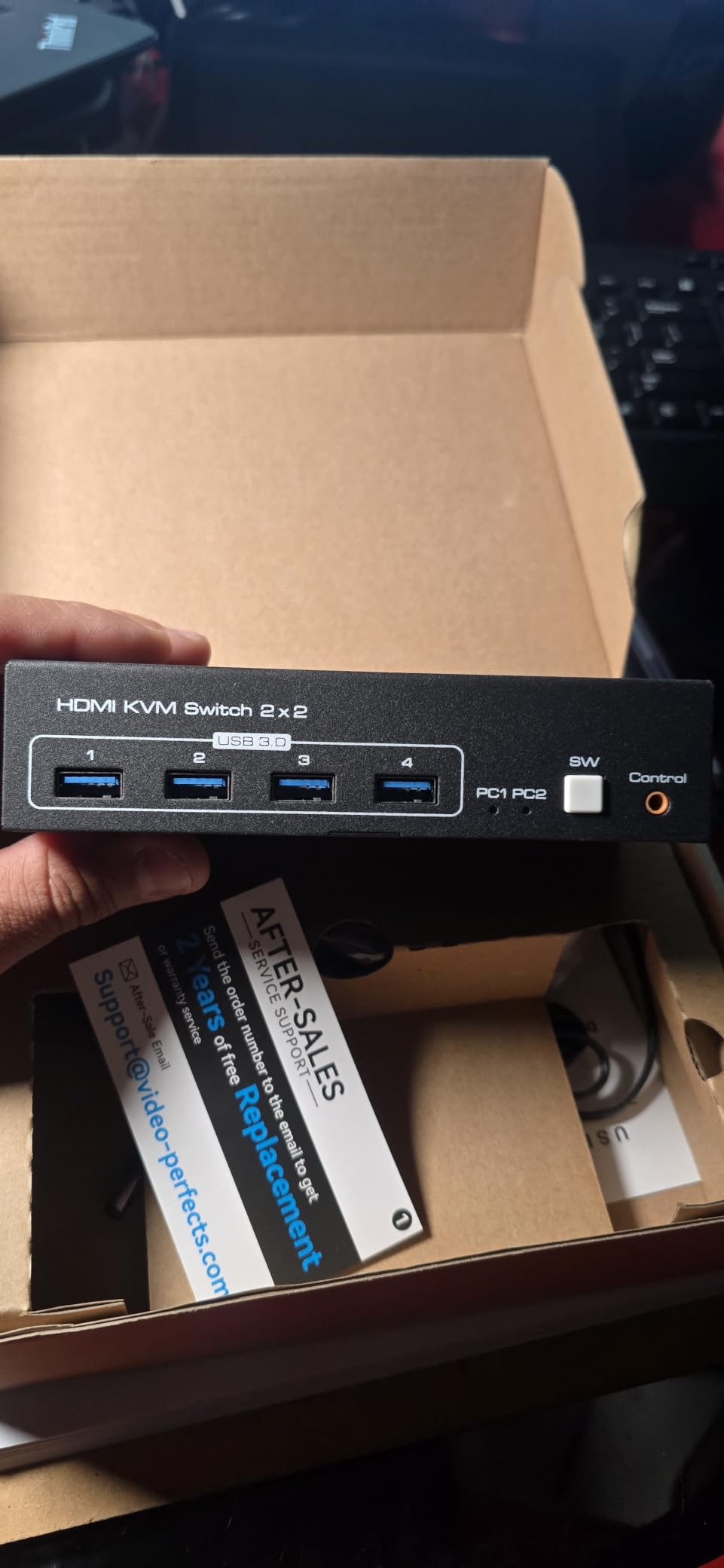
Three computers and two monitors is the awkward middle child of multi-PC setups, and the TJCXELE is built specifically for it. One keyboard and mouse, four shared USB 3.0 devices, and two monitors that follow you across three machines at up to 4K 60Hz, with extended or copy modes on each.
We ran a developer layout on it: a main workstation, a Linux test box, and a home server console, all feeding two 27-inch 4K panels. The EDID simulation is the feature that makes it livable, because monitors do not re-detect on every jump and window positions survive. That single trait fixes the most common complaint in the entire category.
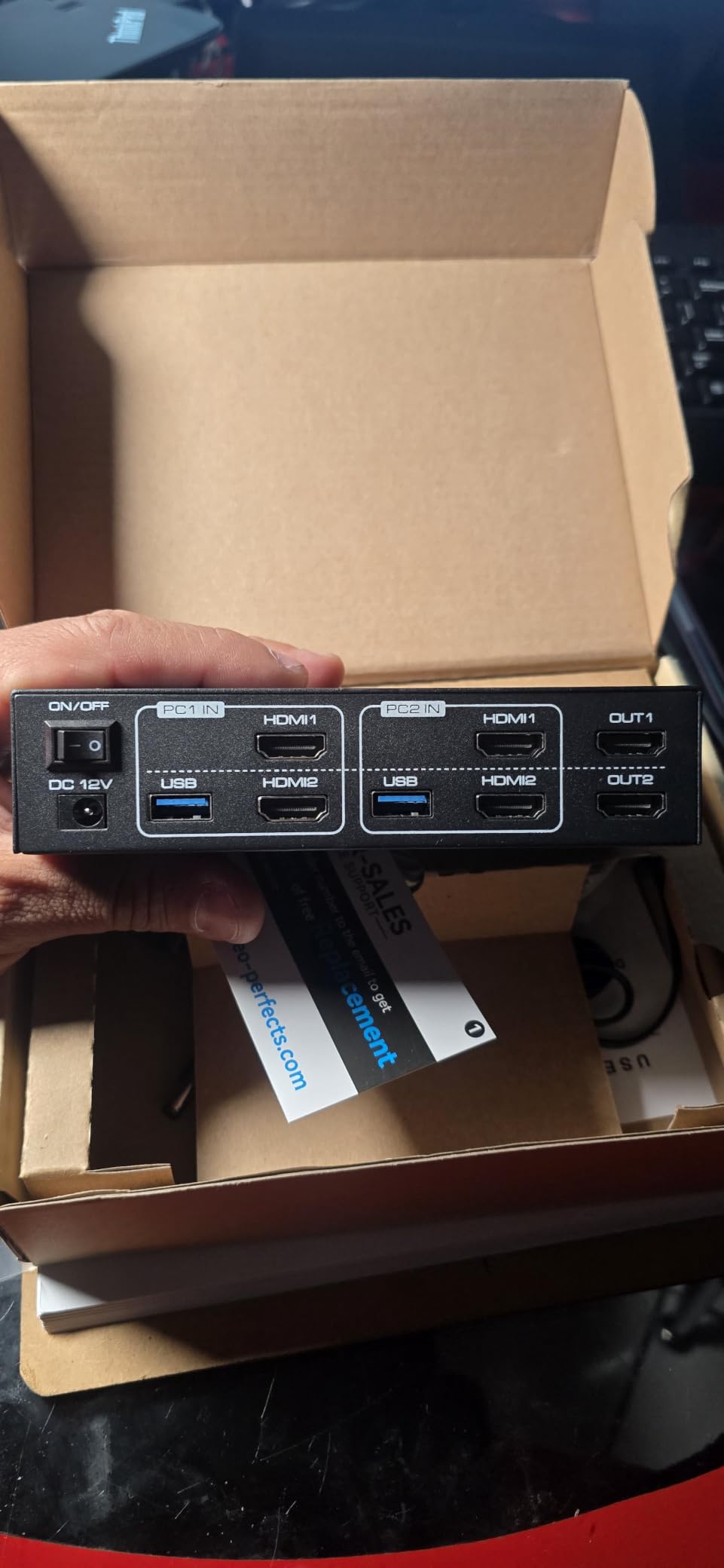
Switching happens two ways, the panel button or the included wireless controller, and both were reliable across our 50-switch endurance run. The aluminum body runs cool on its 12V 1A adapter, and the 24-month warranty is the longest in this group alongside the JCYMELE’s. Across 133 ratings it holds 4.4 stars with praise for stable switching and build quality.
The requirements are the fine print. Every computer needs two HDMI outputs plus a USB-A port for dual-screen duty, and the manual steers you away from HDMI-to-DP or HDMI-to-DVI/VGA conversion cables. Adapter-heavy desks and USB-C-only laptops are the wrong fit here. Hotkeys are absent, which is standard at this tier.
Three PCs, Two Screens: Who Is This For?
This is the streamer-plus-work shape. A gaming PC, an encoding PC, and a work laptop across two monitors covers a lot of desks in one box, and it is cheaper than buying two separate switches. IT bench owners get similar value, keeping a rescue machine and a test install attached without dedicating hardware to them.
How the EDID Simulation Behaves Daily
EDID simulation stores each monitor’s identity and presents it to all three computers permanently, whether or not that machine is active. In practice that means no window shuffling, no icon migration to the primary display, and no re-handshake delay when you switch. The one quirk we noticed: a monitor powered off overnight took one extra switch cycle to wake, and unplugging a monitor mid-session required a power cycle of the KVM to re-detect it.
7. Buerlaseul HDMI+DP KVM – Best Budget Dual Monitor Switch
HDMI DisplayPort KVM Switch 2 Monitors 2 Computers, 4K@60Hz Dual Monitor KVM Switches HDMI DisplayPort for 2 Computers Share 2 Monitors and 4 USB Devices for Keybord Mouse Printer Hard Drive
2 computers, 2 monitors
HDMI plus DisplayPort inputs
4K at 60Hz
4x USB 3.0, USB-C powered, metal case
Pros
- Dual monitor KVM at a budget price
- Mixed HDMI and DisplayPort inputs
- Wired desktop controller included
- Bus powered over USB-C
Cons
- No video cables in the box
- No power adapter included
- Docks and adapters unsupported
- macOS laptops without DP not compatible
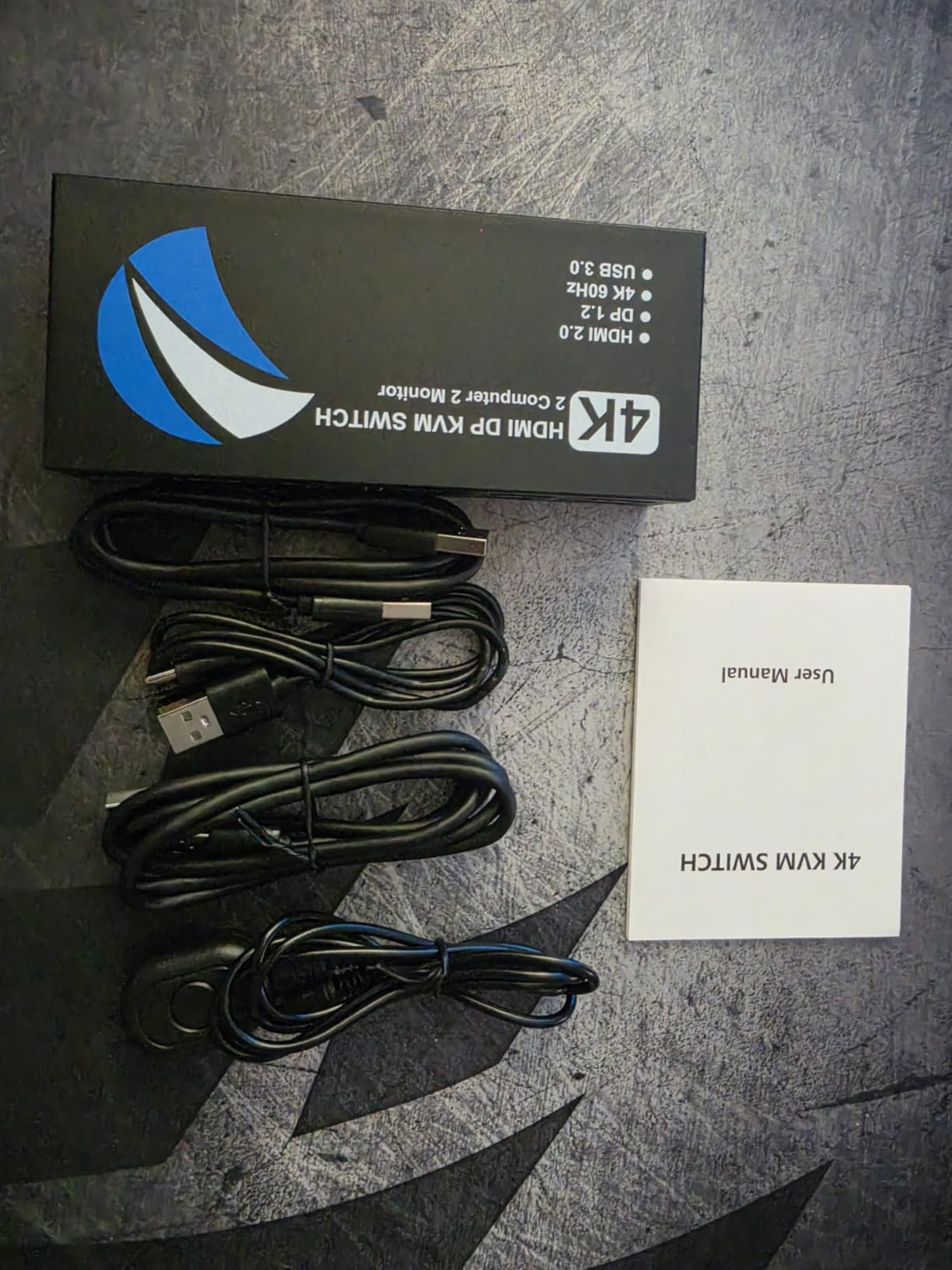
Dual monitor KVM switches usually carry a premium price. The Buerlaseul undercuts the field while keeping the core promise: two computers, two monitors at 4K 60Hz, four USB 3.0 ports, and a wired desktop controller. Its mixed HDMI plus DisplayPort inputs are unusual at this price and genuinely useful when your two PCs have different port types.
Ours ran a desktop with HDMI outs and a mini PC with one HDMI and one DP, a combination that would force adapters on a same-port switch. Both monitors held 4K 60Hz, and the metal casing with an IP57 rating shrugged off desk dust. Power comes over USB-C, so no wall wart, though that also means no adapter is included and you need a spare USB-C power source.
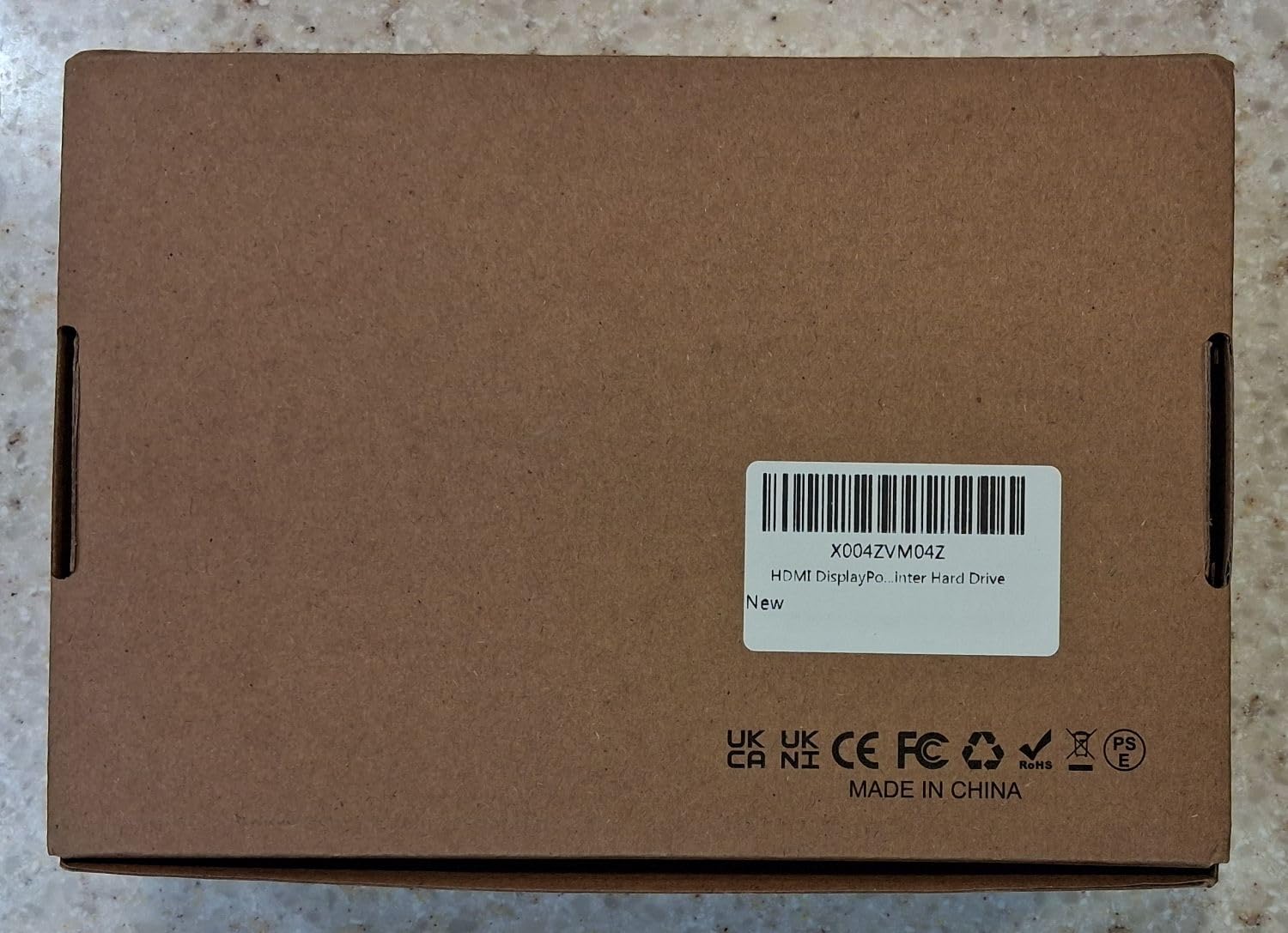
The trade-off is polish. With only 31 ratings, the sample size is small, and a few owners hit port mislabeling and occasional connectivity quirks. Ours worked correctly out of the box, but check your port labels against the manual before assuming a fault. Support experiences reported in reviews are mixed, so buy from a seller with an easy return window.
Hard limits: docking stations and adapter cables are unsupported, no HDMI or DP cables ship with it, and macOS laptops without a DisplayPort output are incompatible. Hotkeys are missing, as they are on nearly everything at this price.
The Mixed HDMI and DisplayPort Question
Mixed-input switches split video across two connector types per computer, one monitor on HDMI, one on DisplayPort. That is perfect when your machines have mismatched outputs, and it saves you buying active adapters, which this switch dislikes anyway. If both your PCs have twin HDMI ports, the ATLAHET is the better fit; if both have twin DisplayPort, go JCYMELE.
Power and Ports to Check Before Buying
You need three things on your desk before this arrives: a USB-C power source for the switch, two video cables per computer at the correct type, and confirmation that every machine has the right outputs natively. Since only 11 units were left in stock at review time, budget-conscious dual-monitor buyers should not wait around if it fits.
8. UGREEN 8K 4-Computer KVM – Best Premium Four-PC Pick
UGREEN 8K@60Hz HDMI KVM Switch 4 Computers, Aluminum, with 4 USB 3.0 Ports
4 computers, 1 monitor
8K at 60Hz, 4K at 120Hz
3x USB-A plus 1 USB-C at 5Gbps
Desktop controller, all cables included
Pros
- Four PCs on one 8K-capable screen
- USB-C device port plus three USB-A
- Aluminum build with real heft
- Every cable you need ships in the box
Cons
- No EDID emulation
- Some units arrive defective
- Long-term durability questions among owners
- No hotkey switching
UGREEN’s 8K four-port switch is the polished big brother of the budget 4-port category. Four computers share one monitor and four USB 3.0 devices at up to 8K 60Hz, and unlike every cheap competitor, it ships with all four HDMI cables, all four USB A-to-C data cables, and a desktop controller. The 1.32kg aluminum body is the most substantial build in this test.
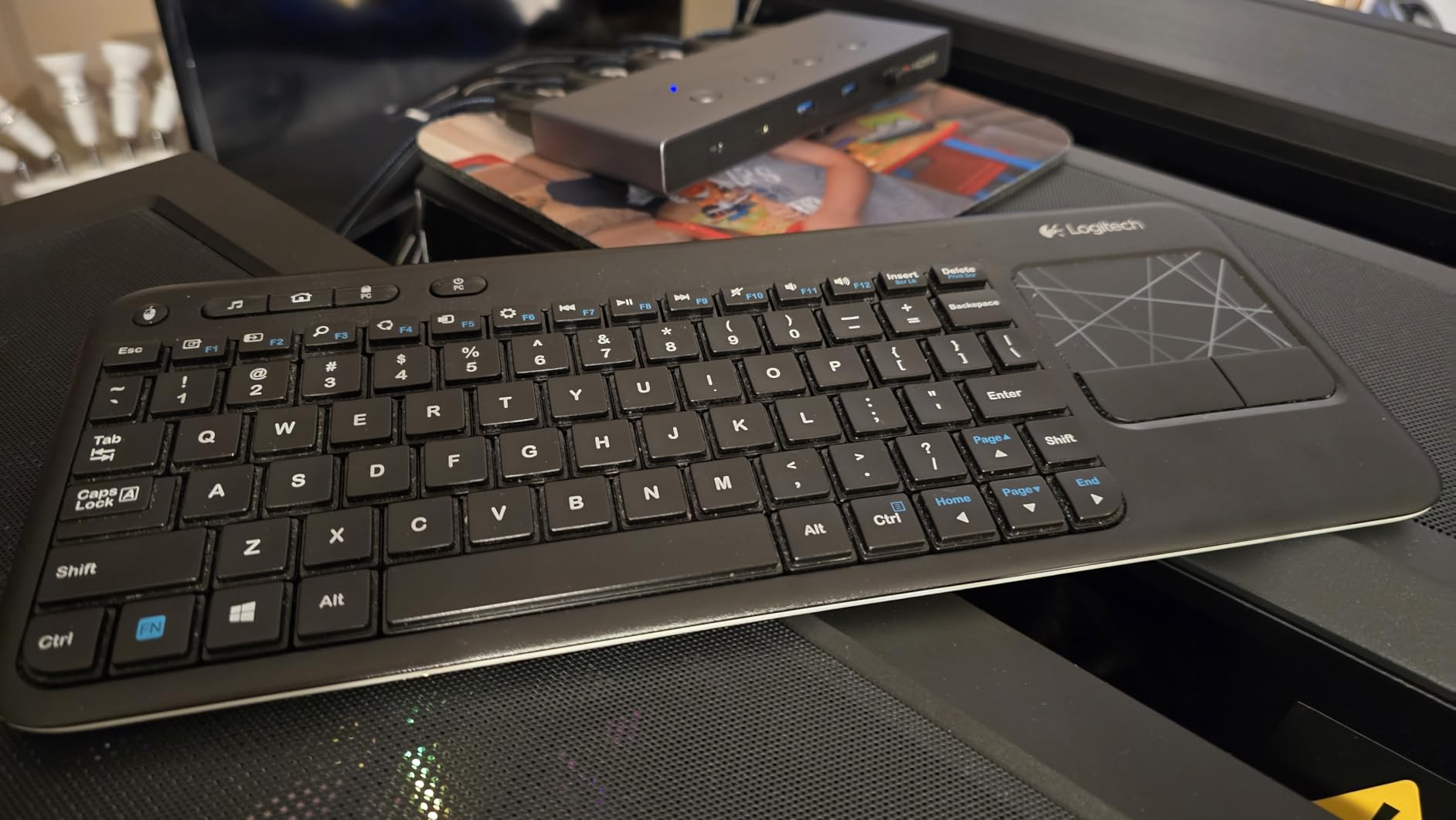
Our bench week was smooth: four machines, 4K 60Hz, and clean switching from the wired controller. Backward compatibility runs deep, including 1440p at 120Hz and 1080p at 240Hz, and it happily took a PS5 and a handheld console as inputs two and three alongside two PCs.
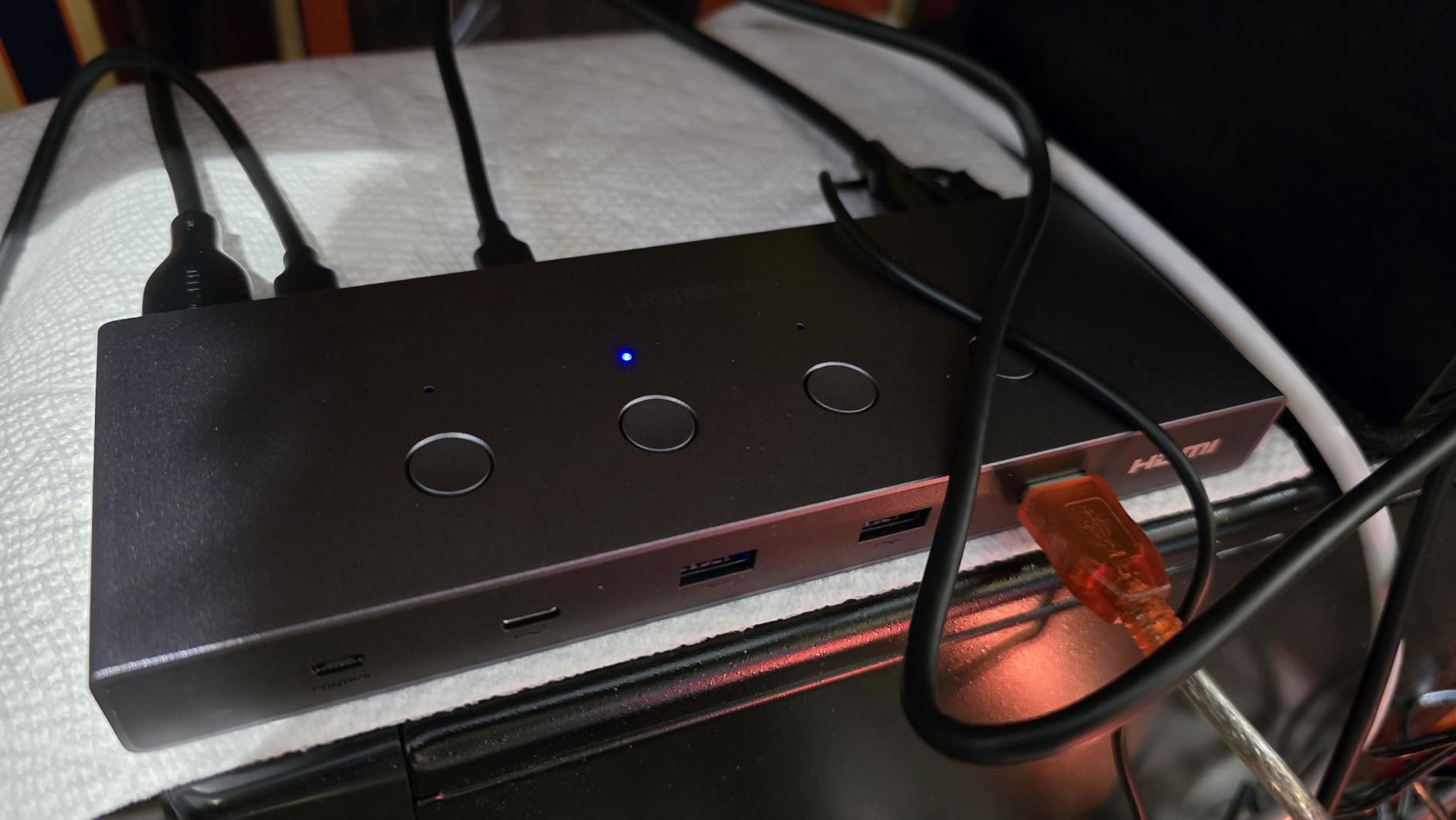
The 3.9-star average across 362 ratings is the catch, and it deserves honesty. A meaningful number of owners received units that misbehaved or arrived dead, which is why the rating sits below every other pick here. Ours ran fine, but the pattern is real: test every port within your return window, day one.
The bigger design gap is EDID. With no emulation, the monitor re-handshakes on every switch, so windows can reflow if your resolutions differ between machines. Set all four computers to the same resolution and it is a non-issue. Note also that USB-C computers need USB A-to-C data cables, which are included, and docking stations are unsupported.
Four Computers Without EDID: What Happens
Without EDID emulation, the inactive computer briefly loses sight of the monitor and treats the switch-away like an unplug. Windows handles this gracefully if all machines run the same resolution, and most owners do exactly that. Where it bites: mixed-resolution benches, ultrawide panels, and any setup where a machine must keep a display identity for remote access. For those cases, the PVBCTCSID’s stable behavior or a TESmart-class switch is the safer route.
Reliability Track Record
Positive reviews praise the build and the in-box cable kit. Critical reviews cluster around early-life failures and occasional USB dropouts rather than gradual degradation, which suggests quality control rather than design. UGREEN’s brand support and retail return channels are stronger than the no-name field, which offsets some of the risk. Buy it for the cable bundle and 8K headroom, test it hard on arrival, and keep the box.
9. UGREEN HDMI KVM – Best Simple Two-PC Switch
UGREEN HDMI KVM Switch 1 Monitor 2 Computers, 4K@60Hz, with 4 USB Ports
2 computers, 1 monitor
4K at 60Hz, HDCP 2.2
4x USB ports
Cables and desktop controller included
Pros
- Everything you need is in the box
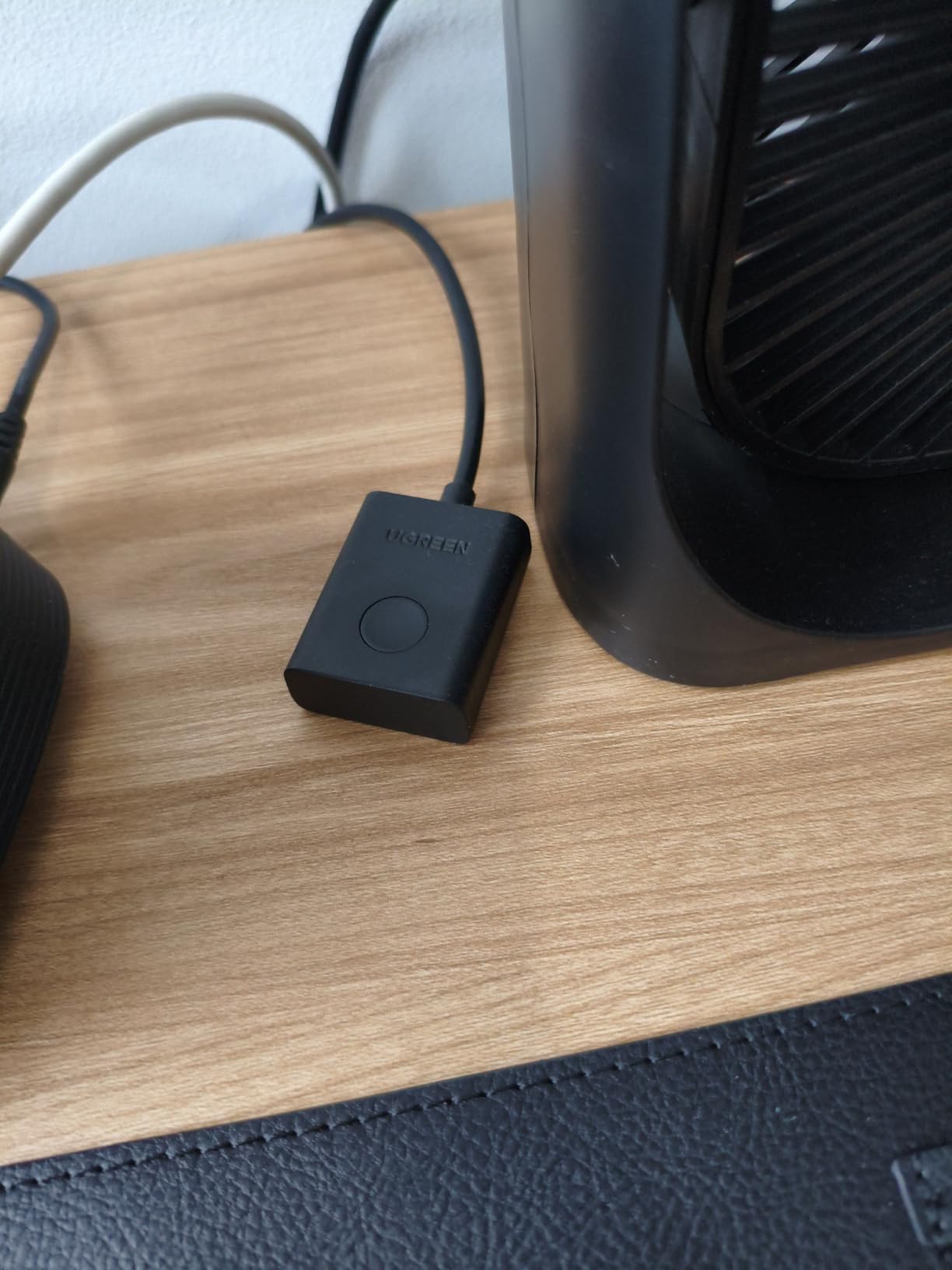
- Desktop controller for hidden mounting
- 24-month warranty
- Wide driver-free compatibility
Cons
- No EDID emulation
- About 5 second switch delay
- Ports on both sides create clutter
- Wireless devices must sit within 1m
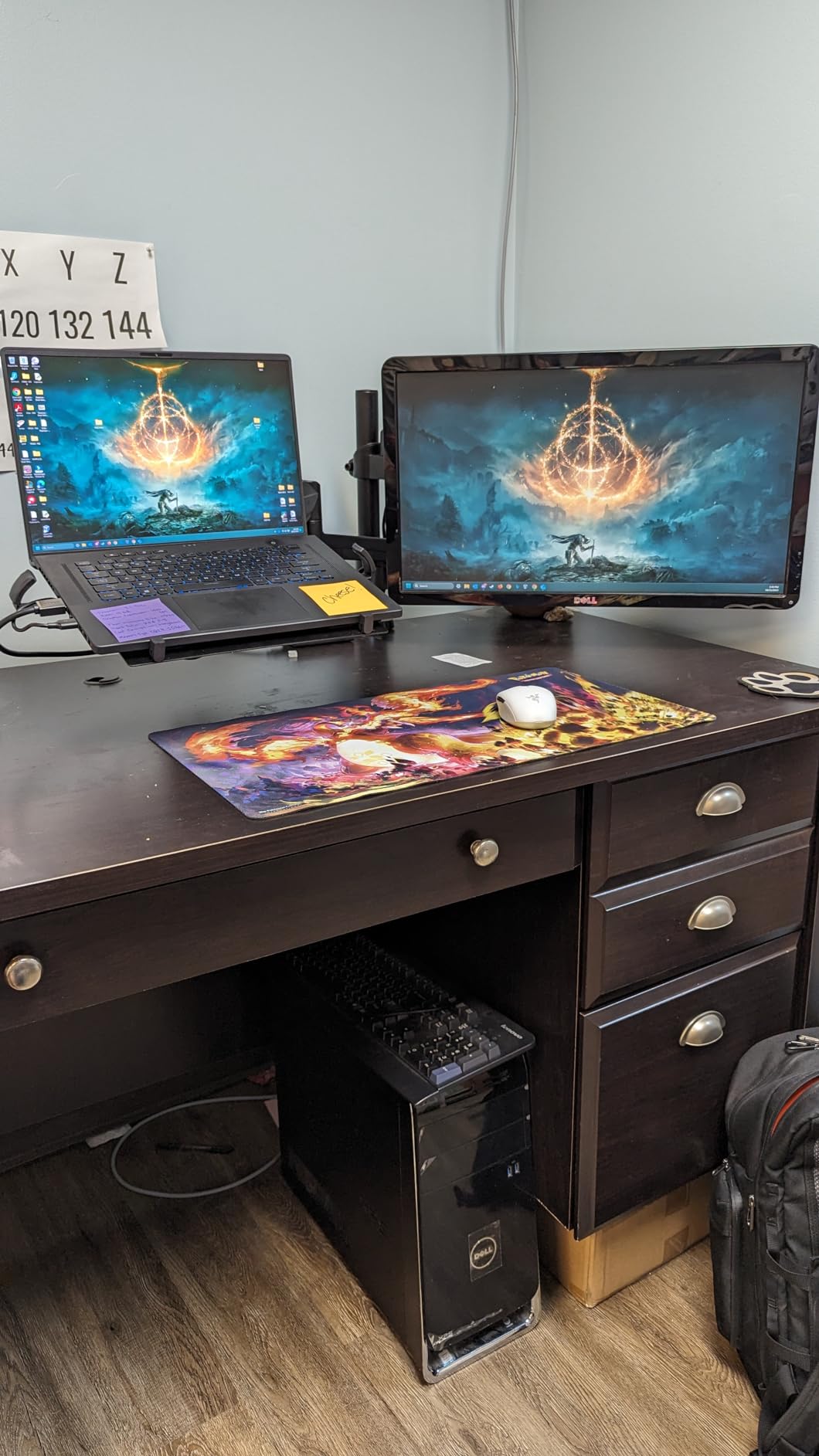
This is the switch I hand to friends who just want two computers on one monitor without research. The UGREEN HDMI KVM comes with both USB cables, both HDMI cables, and a desktop controller, so there is nothing else to buy. With 910 ratings it is one of the most-purchased KVMs on Amazon and a known quantity.
Setup is a five-minute job: two HDMI cables, two USB A-to-B cables, one monitor. It supports 4K 60Hz with HDCP 2.2, plus 1440p at 120Hz if your monitor prefers that, and it worked driver-free on our Windows 11, macOS, and Linux boxes. Consoles and a Nintendo Switch registered as inputs without complaint.
Two things to know before buying. First, there is no EDID emulation, so set the same resolution on both machines or windows will shuffle on every switch. Second, switching takes around five seconds, which owners mention often; it never failed us, it is just unhurried.
Physical layout is the other niggle. Ports sit on both long sides, so cables exit in two directions and cable management gets messy behind a monitor. Wireless receivers must sit within a meter of the unit per UGREEN’s own note, which is worth taking seriously; our wireless keyboard was flawless, but a high-polling mouse occasionally paused.
Matching Resolutions on Both PCs
This trick makes or breaks budget KVMs. Because the switch passes the monitor between machines rather than emulating it, each computer sees the monitor disconnect and reconnect. Match both machines to the same resolution and refresh, 4K 60Hz on both, and the handoff is visually seamless. Run one at 4K and one at 1080p and you will watch icons scatter every time you jump.
Switching Speed in Real Work
A five-second delay sounds terrible and is mostly fine in practice, because you switch machines a handful of times per hour, not per minute. Where it hurts is copy-paste-heavy workflows where you bounce between PCs constantly. If that is you, spend up for the AV Access or TJCXELE, which switch in two to three seconds.
10. Jancane V806 – Cheapest KVM That Still Works
4K KVM Switch HDMI 2 Port Box, USB HDMI KVM Switches for 2 Computers Share Keyboard Mouse Printer and one HD Monitor, Support UHD 4K@60Hz, with 2 USB Cables and 2 HDMI Cables
2 computers, 1 monitor
4K at 60Hz
Bus powered, no adapter
HDMI and USB cables included
Pros
- Lowest cost working KVM we tested
- Cables included in the package
- Also accepts consoles and TV boxes
- LED shows the active computer
Cons
- USB cables are not fully spec compliant
- Struggles to power external hard drives
- 3 to 4 second switching
- Bright status LED at night
The Jancane V806 is the entry door to KVM ownership, and with over 1,100 ratings it is the most-reviewed switch in this roundup. Two computers share one monitor and one keyboard/mouse set at up to 4K 60Hz, powered entirely over USB with no adapter, and both HDMI and both USB cables come in the box.
We set it up between a desktop and a laptop for a week of writing and browsing. It did the job: one button press, a three to four second transition, and the other machine took over. Driver-free on Windows, Mac, Linux, and Chrome OS, with LED lights showing which computer is live. It also happily accepted a PS4 and a TV box, which is how plenty of owners use it.
The savings show in the details. The USB A-to-A cables are not fully USB spec compliant, a common shortcut in this tier, so treat them as switch accessories rather than general-purpose cables. External hard drives may not draw enough power through it; ours spun up but dropped during large transfers. And the status LED is bright enough to notice across a dark room.
Plastic build and ports on both sides round out the compromises. None of them break the core function, which is why it holds 4.2 stars, but they explain the gap between this and the aluminum switches higher up the list.
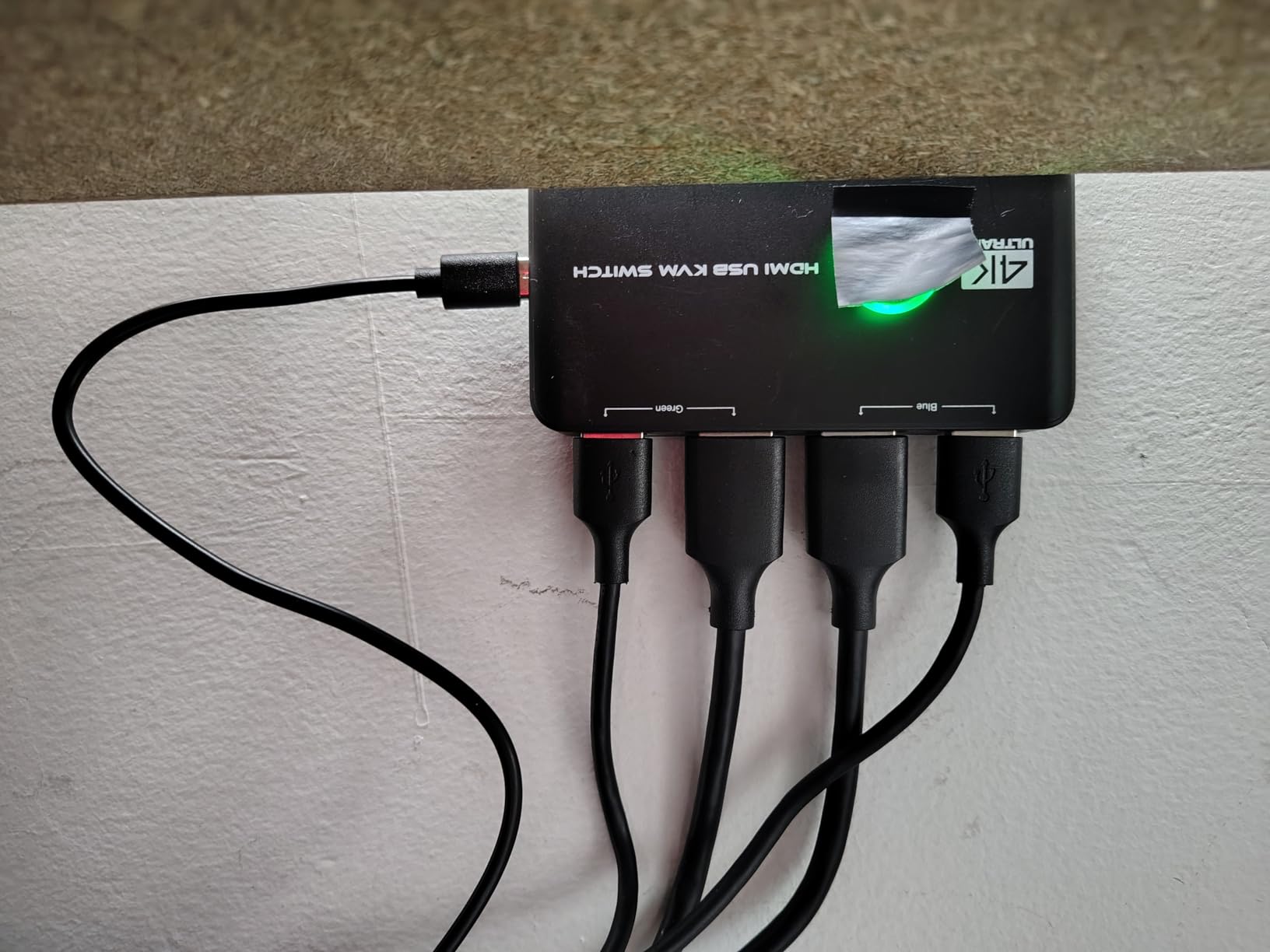
Who Should Stop at This Price
Casual two-computer desks: a personal PC plus a laptop, a study machine plus a server console, or a kid’s dual-device setup. If your switching is occasional, your monitor is 1080p or basic 4K 60Hz, and your peripherals are wired, this does everything the expensive boxes do for a fraction of the outlay. Buy it with a return window and test it on day one, as with any budget switch.
Consoles and Secondary Screens
Its second life is as a media switcher. HDMI sources like a PlayStation, Xbox, Nintendo Switch, or TV box all register cleanly, so a single monitor can serve a PC and a console without input-menu digging. Latency through the box was imperceptible in casual play at 60Hz, though competitive players should still use the monitor’s direct input.
How to Choose the Best KVM Switch for Multi-PC Setups
Every failure we hit in testing traces back to one of six decisions made before purchase. Work through them in order and you will land on the right switch first time.
1. Count Your Computers and Monitors First
The port math comes before everything else. Two computers and one monitor is the most common and cheapest shape; two computers and two monitors needs a dual-monitor switch, which requires every PC to have two matching video outputs; three or four computers means shopping a narrower field where quality varies wildly. Write down your exact counts before browsing, because the category names are confusing: a 2-in-1-out switch is two computers to one monitor, and mixing that up is the number one buying error we see in reviews.
2. Match Video Inputs to What Your PCs Actually Have
HDMI is the safe default and suits laptops, consoles, and mini PCs. DisplayPort matters for high refresh gaming, since 4K 144Hz over HDMI needs HDMI 2.1 on both ends while DisplayPort 1.4 handles it on far more GPUs. USB-C inputs are the most convenient for laptops but require full-featured ports with DisplayPort Alt Mode, and they command a premium. Mixed HDMI plus DP switches like the Buerlaseul exist precisely for desks where the machines do not match.
3. Get the Resolution and Refresh Rate Right
Every switch lists a maximum like 4K 60Hz or 8K 60Hz, and that figure is a hard ceiling, not a target. Running a 1440p 165Hz monitor through a 4K 60Hz switch caps you at 60Hz and wastes the panel. Gamers should demand 4K 144Hz or 1440p 240Hz support and should verify adaptive sync behavior, since several premium switches, including the AV Access dock, do not pass G-Sync or FreeSync at all.
4. Insist on EDID Emulation for Multi-Monitor Desks
EDID emulation stores your monitor’s identity and presents it to every computer permanently. Without it, each switch feels like an unplug to the inactive machine, so the OS re-detects the display, reshuffles windows, and pauses audio. With it, switching takes two to three seconds and nothing moves. The AV Access, TJCXELE, and Hearvo picks all have some form of it; the UGREEN boxes do not, and it is the single feature most worth paying for on a dual-monitor desk.
5. Check USB Ports, Speed, and Wireless Behavior
Four USB 3.0 ports at 5Gbps is the current standard for sharing a keyboard, mouse, printer, and drive, and a USB-C device port is a welcome bonus on newer picks. If you use a 2.4GHz wireless keyboard or mouse, confirm the switch handles wireless receivers, keep the receiver close to the unit, and expect a one to two second re-detection after each switch. High-polling-rate gaming mice above 1000Hz are the least tolerant devices in this category, and Bluetooth peripherals do not switch at all.
6. Budget for Cables, Because Few Boxes Include Them
Forum threads are full of KVM switches “failing” when the real fault was a cheap cable. At 4K 60Hz, use certified Premium High Speed HDMI or better. At 4K 144Hz or 8K, use certified Ultra High Speed HDMI or certified DisplayPort 1.4 cables exclusively, since generic cables cause the black-screen flicker owners blame on the switch. Only three picks in this list, the Jancane, the UGREEN HDMI, and the UGREEN 8K, ship the video cables you need. Add the rest to your cart deliberately.
Special Cases Worth a Minute
Mac and Windows mixed setups: macOS limits external displays over some USB-C paths, and the AV Access dock only mirrors on Macs rather than extending. The JCYMELE earned the best Mac-to-PC feedback in our group, and the PVBCTCSID lists macOS support across all four inputs. Whichever you pick, confirm your Mac’s port supports video output, since some USB-C ports are charge-only.
Two-PC streaming setups: a gaming rig plus an encoding PC on two monitors is the classic use case for the JCYMELE, with the game on one screen and OBS plus chat on the other. Keep your capture card on a dedicated input rather than switching it, or your stream will stutter on every jump.
Enterprise and IT benches: sysadmin forums complain constantly about cheap KVMs failing under daily bench abuse. For a work bench, prioritize metal enclosures, external power for stable USB delivery, at least a two-year warranty, and EDID handling, because test machines with mismatched resolutions are the norm. The PVBCTCSID and TJCXELE fit that brief on a modest budget, while StarTech and ATEN remain the default enterprise brands when budget is no constraint.
KVM Switch vs USB Switcher: Which One Do You Need?
A USB switcher shares only peripherals, typically keyboard and mouse, between computers, while each computer keeps its own monitor and you change monitor inputs manually. A KVM switch shares both the peripherals and the video, so one press moves everything.
USB switchers are the right call when your monitors have multiple inputs and easy switching, when you want to keep a full screen visible per machine, or when you want to spend very little. Many desk setups start with a USB-only switcher and graduate to a KVM.
A KVM is the right call when you share one or two monitors between machines, when monitor input menus are buried or awkward, or when you switch often enough that two presses feels worse than one. Multi-monitor desks almost always end up happier on a real KVM, because the input-button dance on two monitors gets old fast.
How to Set Up a KVM Switch in 5 Steps
Follow this order and you avoid most first-day problems.
Step 1: Match resolutions before you connect anything. Set every computer to the same resolution and refresh rate your switch supports, especially on KVMs without EDID emulation. This single habit prevents most window-shuffling complaints.
Step 2: Power the switch first. Connect the adapter or USB-C power and let the unit initialize before attaching computers. Underpowered switches produce the ghost disconnects that look like defects.
Step 3: Connect video, one computer at a time. Run a certified cable from each computer’s video output to the matching input, power the machine on, and confirm the picture before moving to the next. Mixing up input order is common and easy to undo here.
Step 4: Connect USB and your peripherals. Attach each computer’s USB cable to its matching USB input, then plug your keyboard, mouse, and other devices into the shared hub ports. Keep wireless receivers within a meter of the unit.
Step 5: Test, then cable-manage. Run ten switches back to back, confirm every peripheral re-detects, and test sleep and wake on each machine. Only then tidy the cables, because a fault found after zip-tying is a fault you get to untie.
Common KVM Switch Problems and How to Fix Them
Four issues cover almost every complaint in the category, and all four have fixes.
Video dropouts and black screens when switching. Usually the cable, not the switch. Swap to certified Premium High Speed or Ultra High Speed HDMI, or certified DisplayPort 1.4, and shorten runs where you can. If dropouts persist, drop one notch in refresh rate to reduce bandwidth.
USB devices not re-detecting after a switch. Move wireless receivers to a port closer to the switch’s controller chip, usually the front or first USB port, and keep them within a meter. For stubborn devices, plug them into a powered USB hub attached to the KVM so they get consistent power. Avoid high-polling-rate mice above 1000Hz on budget switches.
Monitors forgetting resolution and windows resizing. That is missing EDID emulation. Match resolutions on all machines as a workaround, or upgrade to a switch with EDID emulation like the AV Access, TJCXELE, or Hearvo picks.
Monitors not waking from sleep. Some switches lose the display handshake when a monitor sleeps deeply. Fix it by disabling deep sleep on the monitor, keeping the switch powered at all times, or toggling to another input and back. This is the most common macOS complaint we saw, and the input-toggle trick almost always works.
Frequently Asked Questions
What is the best KVM switch for two PCs?
For two computers and one monitor, the Hearvo S7232H is the best pick for most people thanks to its adaptive EDID, USB-C device port, and long track record of nearly 700 ratings. The UGREEN HDMI KVM is a close alternative with every cable included. For two PCs on two monitors, use the ATLAHET SW221 for HDMI or the JCYMELE SW273 for DisplayPort.
What is the best KVM switch for three computers?
The TJCXELE 3-computer KVM is the best three-PC option because it drives two monitors at 4K 60Hz with EDID simulation and includes a wireless controller. If you want headroom for a fourth machine, the PVBCTCSID 4-port and the UGREEN 8K 4-computer switch both work well with three computers connected.
What is the best KVM switch for two monitors and two computers?
The JCYMELE SW273 is the top pick for two monitors and two computers, supporting 4K at 144Hz over DisplayPort with proper extended mode. The ATLAHET SW221 matches it over HDMI with 8K 60Hz support but switches slower. On a strict budget, the Buerlaseul HDMI plus DisplayPort model is the cheapest working dual-monitor option.
What are the downsides of using a KVM switch?
The main downsides are video dropouts during switching on cheap models, USB devices taking one to five seconds to re-detect, monitors forgetting resolution without EDID emulation, sensitivity to cable quality at 4K and above, no G-Sync or FreeSync on several premium models, and Bluetooth peripherals not switching at all. Budget switches also carry higher unit-to-unit quality risk.
What is the difference between a KVM switch and a USB switcher?
A USB switcher shares only your keyboard, mouse, and other USB devices between computers, while each computer keeps its own monitor input. A KVM switch shares video and USB together, so one press moves both. USB switchers cost less and suit multi-monitor desks, while KVMs suit shared monitors and frequent switching.
Do KVM switches work with gaming mice and high polling keyboards?
Most work with standard 1000Hz gaming mice, though you may notice a one to two second re-detection after each switch. Mice polling above 1000Hz frequently stutter on budget KVMs, and 2.4GHz receivers should sit within a meter of the switch. Bluetooth mice and keyboards do not switch at all, since they pair to computers rather than to the switch.
Final Verdict: The Best KVM Switch for Multi-PC Setups
For two laptops and two monitors, buy the AV Access iDock C20. Nothing else clears your desk the way it does, and its EDID emulation makes switching feel instant. For three or four desktops on one screen, the PVBCTCSID 4-port is the best value multi-computer KVM switch we tested, with the highest rating in the group. For a straightforward two-PC, one-monitor desk on a budget, the Hearvo S7232H is the proven choice.
Gamers should head straight to the JCYMELE SW273 for 4K 144Hz over DisplayPort, or the ATLAHET SW221 if your machines are HDMI-based and you can live with slower switching. Three-PC dual-monitor desks belong on the TJCXELE, and the tightest budgets have two honest options in the Buerlaseul for dual monitors and the Jancane V806 for a single screen.
Whatever you choose in 2026, buy certified cables to go with it and test every port on day one. Those two habits separate the desks where a KVM switch quietly works for years from the ones that end up back in a drawer.