
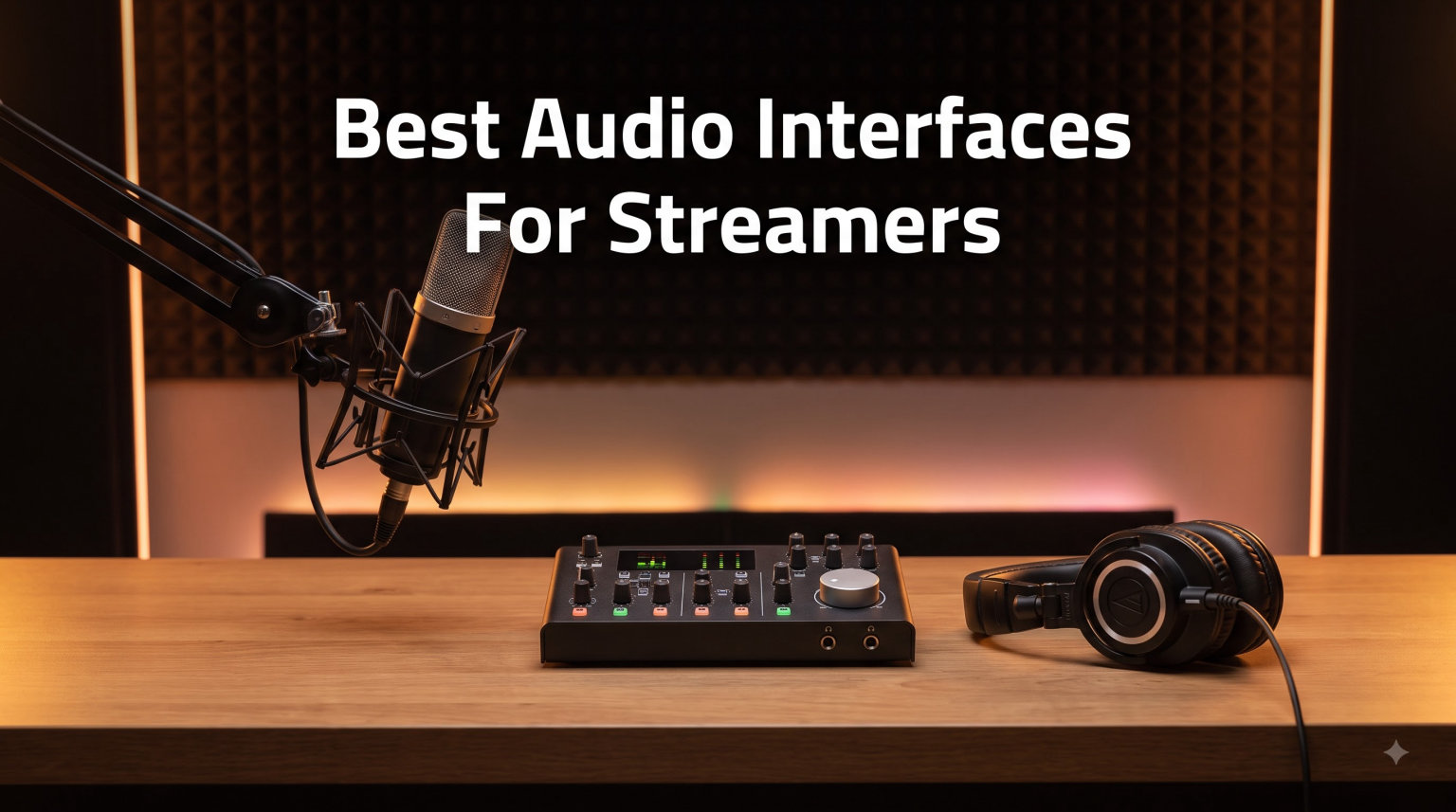
A good streaming audio interface does three jobs that a basic computer sound card often cannot: it gives your XLR microphone clean gain, lets you hear yourself without distracting delay, and provides a dependable route for game, music, chat, and voice audio. For most single-PC streamers, the Focusrite Scarlett 2i2 4th Gen is the best all-around choice because its two preamps, automatic level controls, excellent headphone output, and broad macOS and Windows support make setup straightforward.
The right pick still depends on your microphone and routing needs. A solo creator with one XLR mic can save desk space with the Scarlett Solo, while an Elgato user who wants Stream Deck control will get more from the Wave XLR MK.2. Mobile streamers who do not need an XLR input should look at the IK Multimedia iRig Stream.
I evaluated all eight models on microphone inputs, gain, monitoring, routing, headphone power, software demands, and day-to-day streaming fit. My picks favor useful controls over the highest headline sample rate, since clean vocal capture matters more in a live mix than recording at a resolution your stream never uses.
Quick answer: Most streamers use a two-input USB audio interface with a clean preamp, direct monitoring, and loopback or a companion mixer. The Scarlett 2i2 4th Gen is my overall recommendation, the Scarlett Solo 3rd Gen is the strongest low-cost one-mic upgrade, and the Elgato Wave XLR MK.2 is the best choice for an Elgato-controlled desktop.
Table of Contents
Top 3 Picks for the Best Audio Interfaces for Streamers
The top three cover a conventional all-rounder, a value-focused single-mic setup, and a streaming-specific control surface. I would choose the 2i2 when two inputs or demanding headphones may enter the picture, not merely because it has an extra knob.

Focusrite Scarlett 2i2 4th Gen
- Two mic preamps
- Auto Gain and Clip Safe
- 120dB dynamic range
The Best Audio Interfaces for Streamers in 2026
Every model below connects over USB or USB-C and can feed a streaming PC, but they are not interchangeable. The table emphasizes real setup differences: XLR capacity, loopback method, monitoring, headphone output, and whether extra software carries the routing workload.
| Product | Specifications | Action |
|---|---|---|
 Scarlett Solo 3rd Gen Scarlett Solo 3rd Gen |
|
Check Latest Price |
| Scarlett 2i2 4th Gen |
|
Check Latest Price |
 Scarlett Solo 4th Gen Scarlett Solo 4th Gen |
|
Check Latest Price |
 Elgato Wave XLR MK.2 Elgato Wave XLR MK.2 |
|
Check Latest Price |
 M-Audio M-Track Duo M-Audio M-Track Duo |
|
Check Latest Price |
 M-Audio M-Track Solo M-Audio M-Track Solo |
|
Check Latest Price |
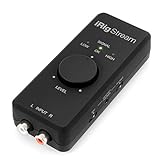 IK Multimedia iRig Stream IK Multimedia iRig Stream |
|
Check Latest Price |
 MOTU M2 MOTU M2 |
|
Check Latest Price |
1. Focusrite Scarlett Solo 3rd Gen — Simple Desktop Upgrade
Focusrite Scarlett Solo 3rd Gen USB-C Audio Interface
1 XLR preamp
24-bit/192kHz
Air mode and direct monitoring
Pros
- Clean 56dB preamp
- Air presence mode
- Compact USB-C design
Cons
- One XLR mic input
- No MIDI I/O
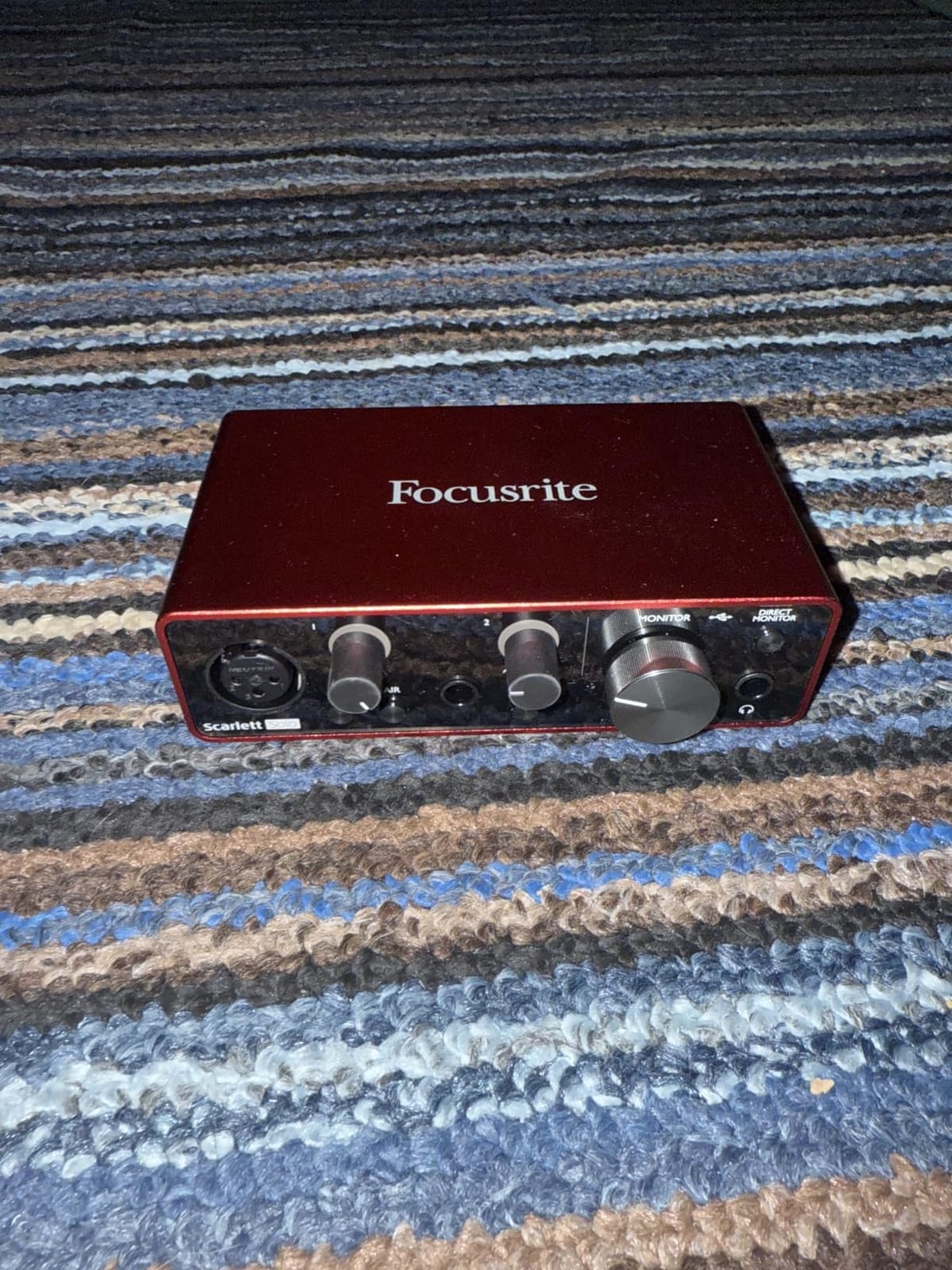
The Scarlett Solo 3rd Gen is the interface I recommend when a streamer wants to move from a USB microphone to a simple XLR setup without paying for inputs that will sit unused. Its one XLR preamp has 56dB of gain, and the separate instrument input is useful for a guitar or a second line-level source.
I like the physical flow for a first live setup. Plug the mic into the front, connect headphones, enable direct monitoring, and use the gain halo to keep peaks away from red. Air mode adds upper-mid presence, which helps a relaxed voice stay intelligible over game sound.
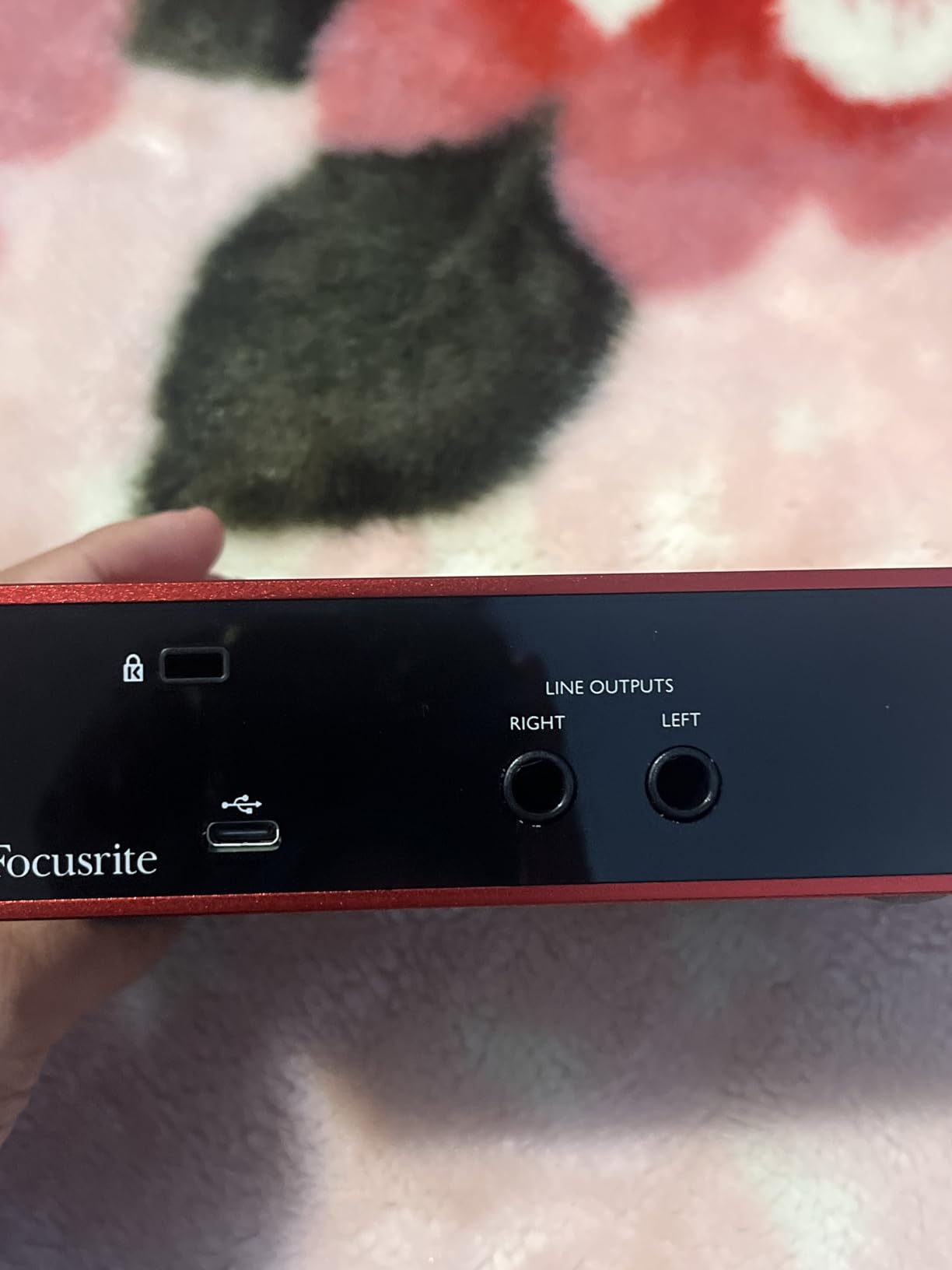
The 24-bit/192kHz specification is useful for recording, but I would stream at the sample rate supported by the rest of the PC. The converters and low-noise balanced outputs are the meaningful upgrades over a basic interface, while the lack of loopback at the interface means game and music audio must be routed through OBS or another mixer on the computer.
This is a strong match for a one-person Twitch, YouTube, or podcast channel using a dynamic or condenser microphone. It is not the right answer for a two-person show, a dual-PC stream that needs an extra analog input, or anyone who wants physical controls for Discord and game channels.
For whom it is good
This Solo makes sense for a beginner who wants one excellent XLR mic input, a compact box, and simple direct monitoring. It also suits a streamer who records guitar between sessions and values bundled recording software.
For whom it is bad
Skip it if you expect to connect two microphones, a music player, and a voice-chat source all at once. The one-mic design is intentional, not a defect, but it sets a hard limit on your routing plan.
2. Focusrite Scarlett 2i2 4th Gen — Best Overall
Focusrite Scarlett 2i2 4th Gen USB-C Audio Interface
2 mic preamps
120dB dynamic range
Auto Gain and Clip Safe
Pros
- Two clean inputs
- Automatic level help
- Strong 300-ohm headphone drive
Cons
- No MIDI I/O
- Two inputs mean extra cost for solo use
The Scarlett 2i2 4th Gen is the safest recommendation for a streamer whose setup may grow. Two rear-mounted combo inputs let you use two microphones, a microphone plus a keyboard, or a mic and another analog source without swapping cables.
Auto Gain sets both inputs after you perform the level test, and Clip Safe watches the input so sudden laughter or a loud exclamation does not ruin a take. Those features reduce the fiddling that makes a first streaming session feel like an audio-engineering class.
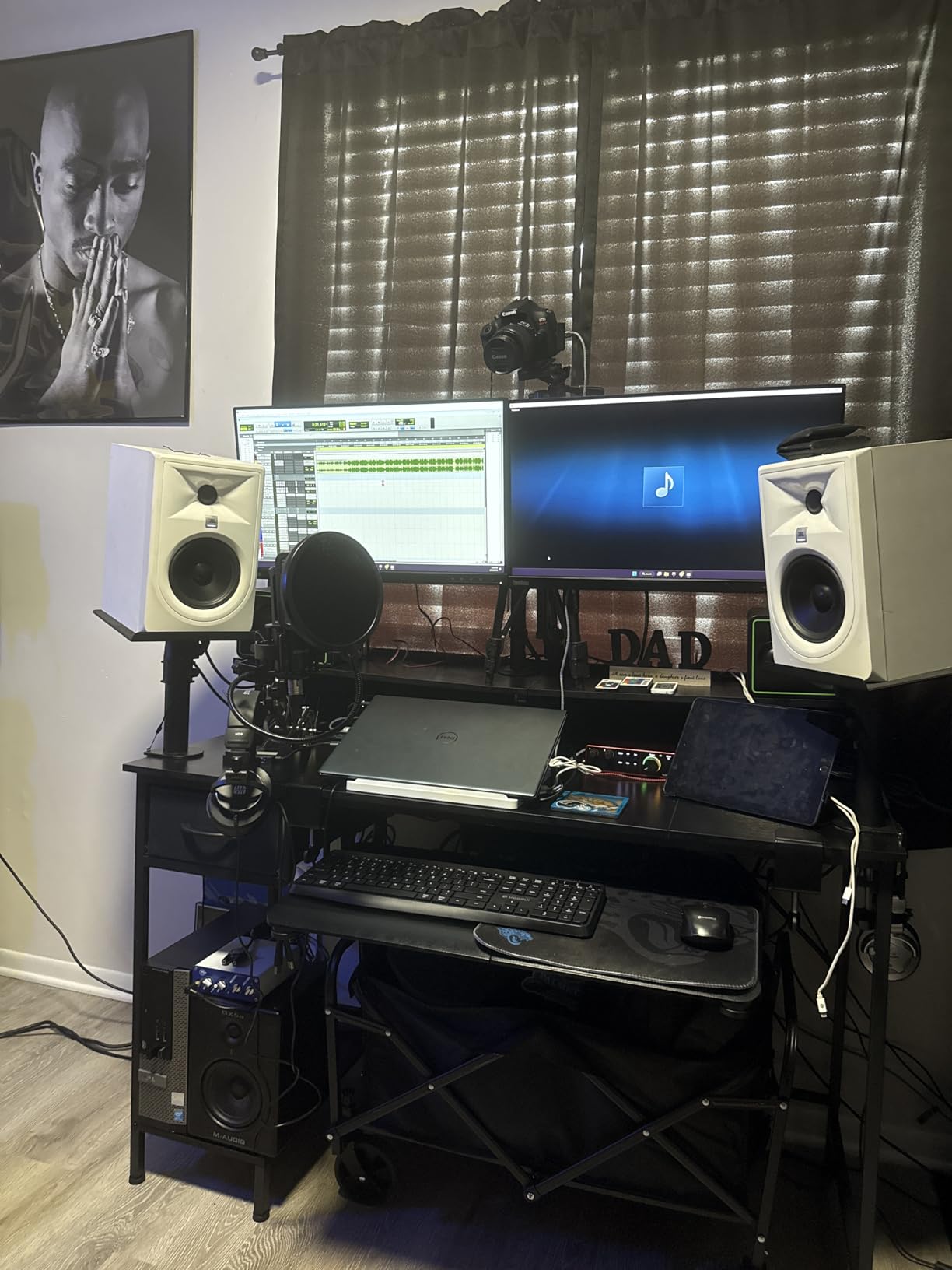
The headline feature I notice in daily use is the headphone amplifier. Focusrite says it can power 300-ohm headphones, so a streamer who owns demanding studio cans has less need to replace the interface when the headphones improve.
Like the Solo, the 2i2 relies on computer software for loopback rather than giving you a dedicated physical loopback channel. I would build the OBS mix from the interface inputs, desktop audio, and Discord, then save the scene as a starting point for future streams.
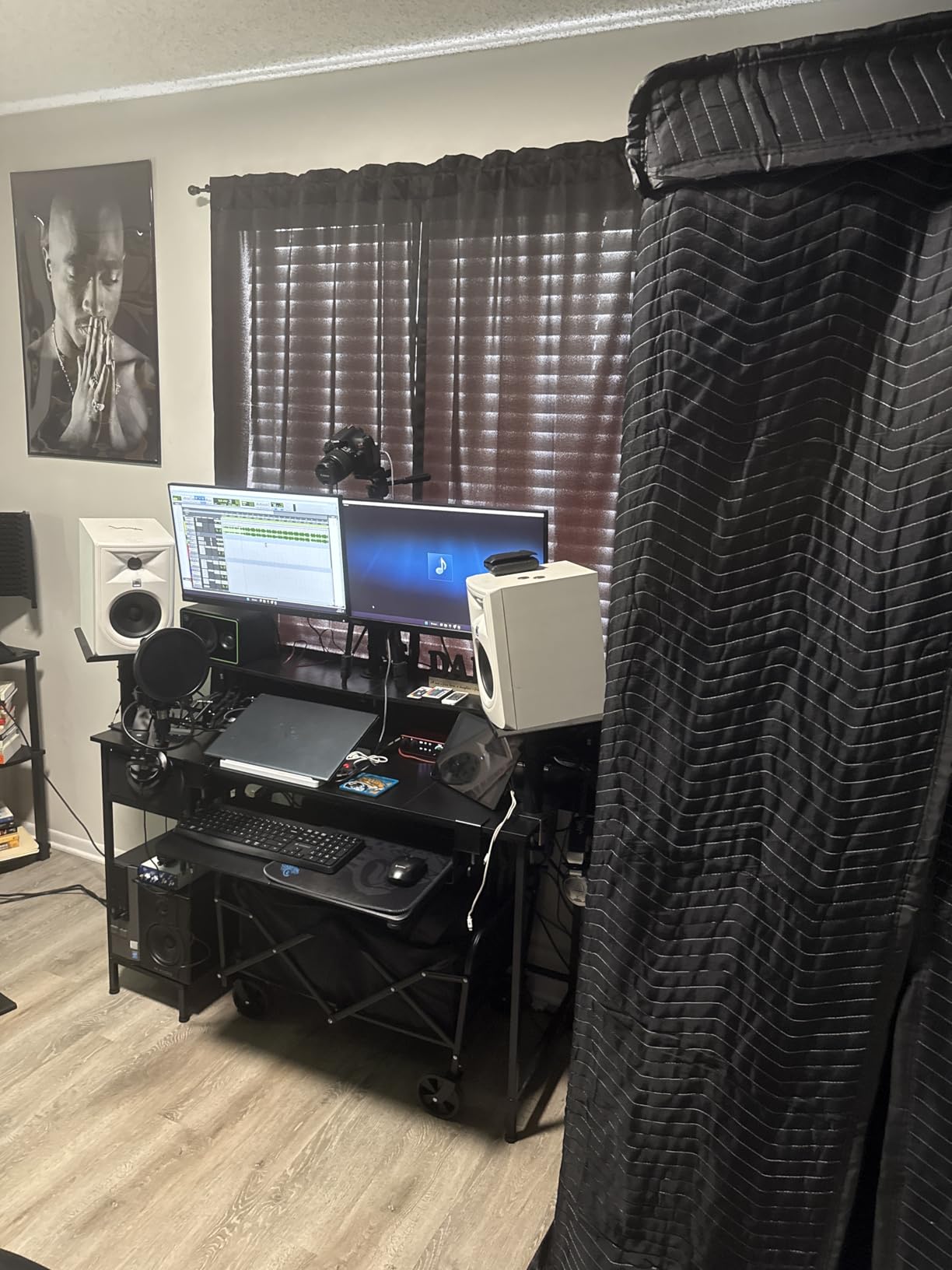
For whom it is good
The 2i2 is best for a serious solo streamer, a streamer with a co-host, or anyone who wants two inputs and excellent monitoring in one box. It is also a sensible bridge between streaming and recording voiceovers, music, or a podcast.
For whom it is bad
It is more than a one-mic streamer needs. If you will never use a second input and do not care about a powerful headphone stage, the Scarlett Solo 3rd Gen keeps the same family’s basic workflow at a lower cost.
3. Focusrite Scarlett Solo 4th Gen — Best Compact 4th Gen Pick
Focusrite Scarlett Solo 4th Gen USB-C Audio Interface
1 XLR preamp
120dB dynamic range
Zero-latency direct monitoring
Pros
- Excellent conversion
- Improved Air mode
- Clear gain halos
Cons
- Narrow gain sweet spot for some mics
- USB A-to-C cable included
The Scarlett Solo 4th Gen gives one-mic streamers much of the 2i2’s conversion and monitoring quality in a smaller chassis. Its 120dB dynamic range and improved Air mode make it a worthwhile step up from the third-generation Solo when the budget allows.
In practice, the gain halos are more helpful than the specification list suggests. They give a quick visual warning before distortion, which matters when you are watching a game instead of staring at a mixer window.
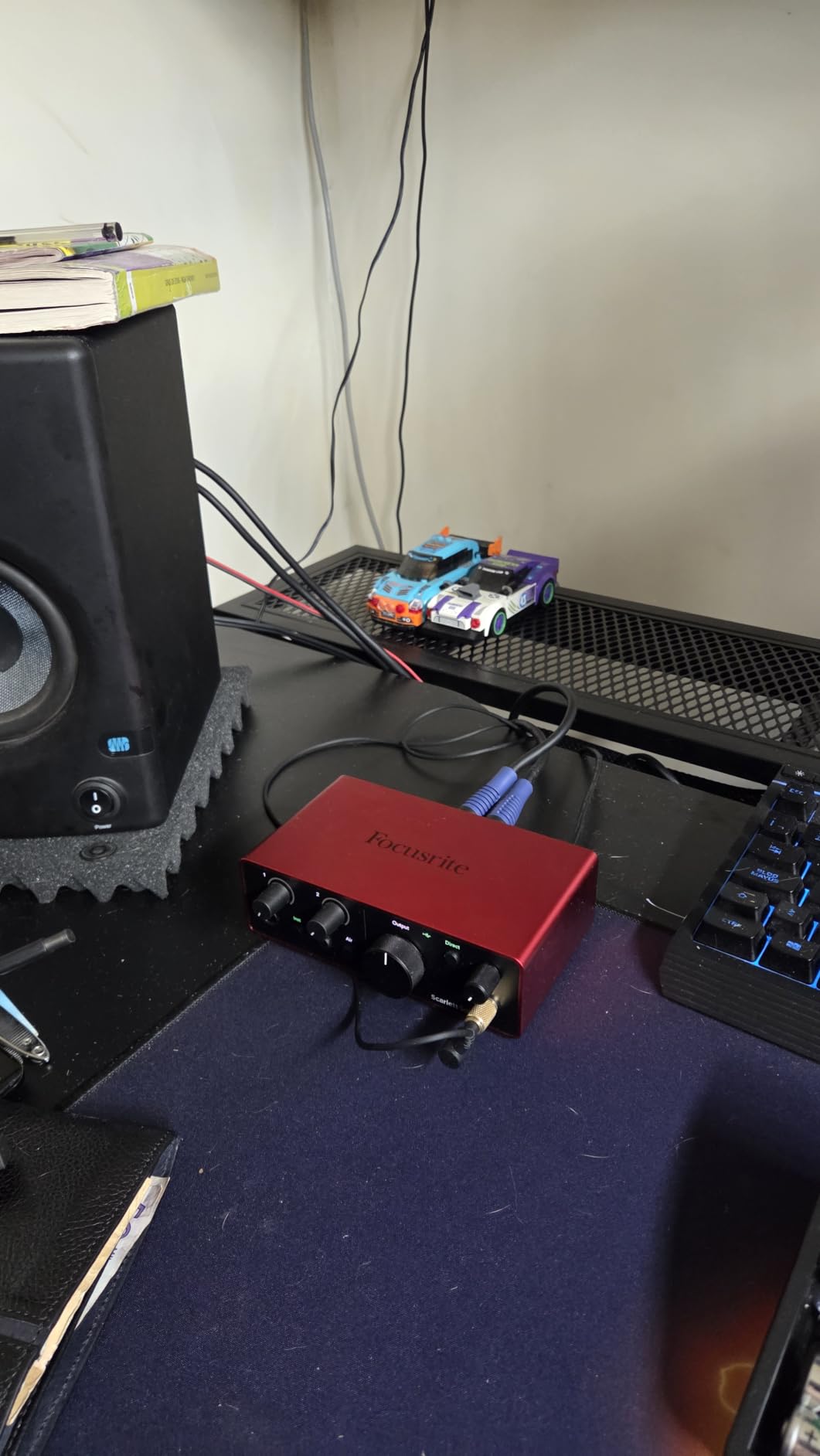
Direct monitoring is straightforward, and the compact housing leaves room for a Stream Deck or a small control pad. I would still check the microphone’s gain requirements: forum users commonly mention that gain-hungry microphones such as the SM7B may need more than this interface supplies comfortably.
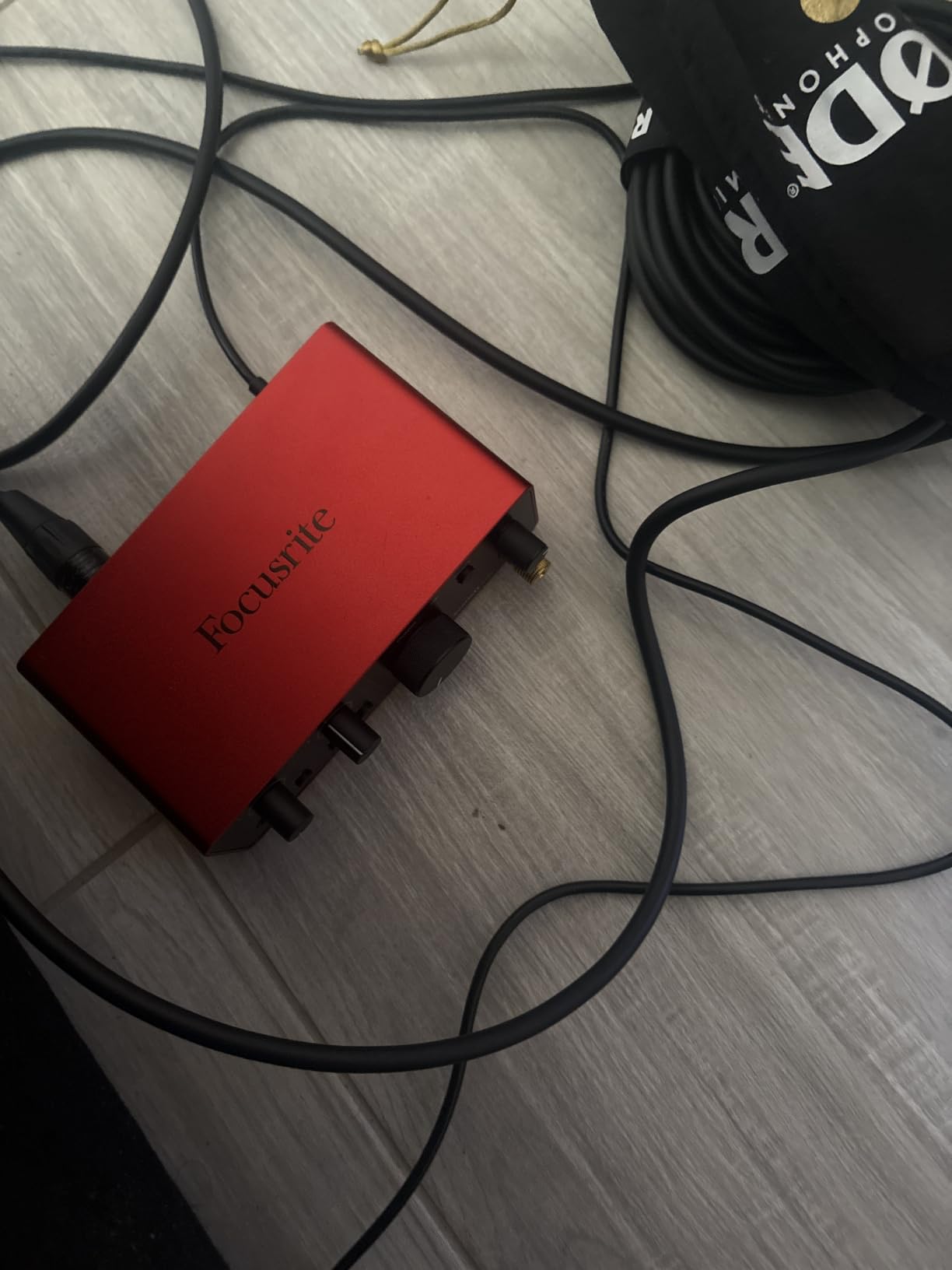
The third-generation Solo is the better value for a basic dynamic mic. The fourth-generation model earns its place when its improved converter, headphone performance, and Air mode are features you will actually use.
For whom it is good
Choose this Solo for a small desk, one high-quality XLR microphone, and a preference for newer conversion hardware. It is also a good fit for a streamer who wants an uncomplicated path from mic to OBS.
For whom it is bad
Choose the earlier Solo or M-Audio M-Track Solo if cost matters more than the 4th-generation refinements. A two-person channel should move up to the 2i2 rather than trying to squeeze two microphones into one preamp.
4. Elgato Wave XLR MK.2 — Best for Elgato Setups
Elgato Wave XLR MK.2 USB Audio Interface and DSP Mixer
80dB microphone gain
Onboard DSP mixer
Stream Deck integration
Pros
- High gain for demanding mics
- Touch mute
- Wave Link routing
Cons
- Newer OS requirement
- Wave Link software dependency
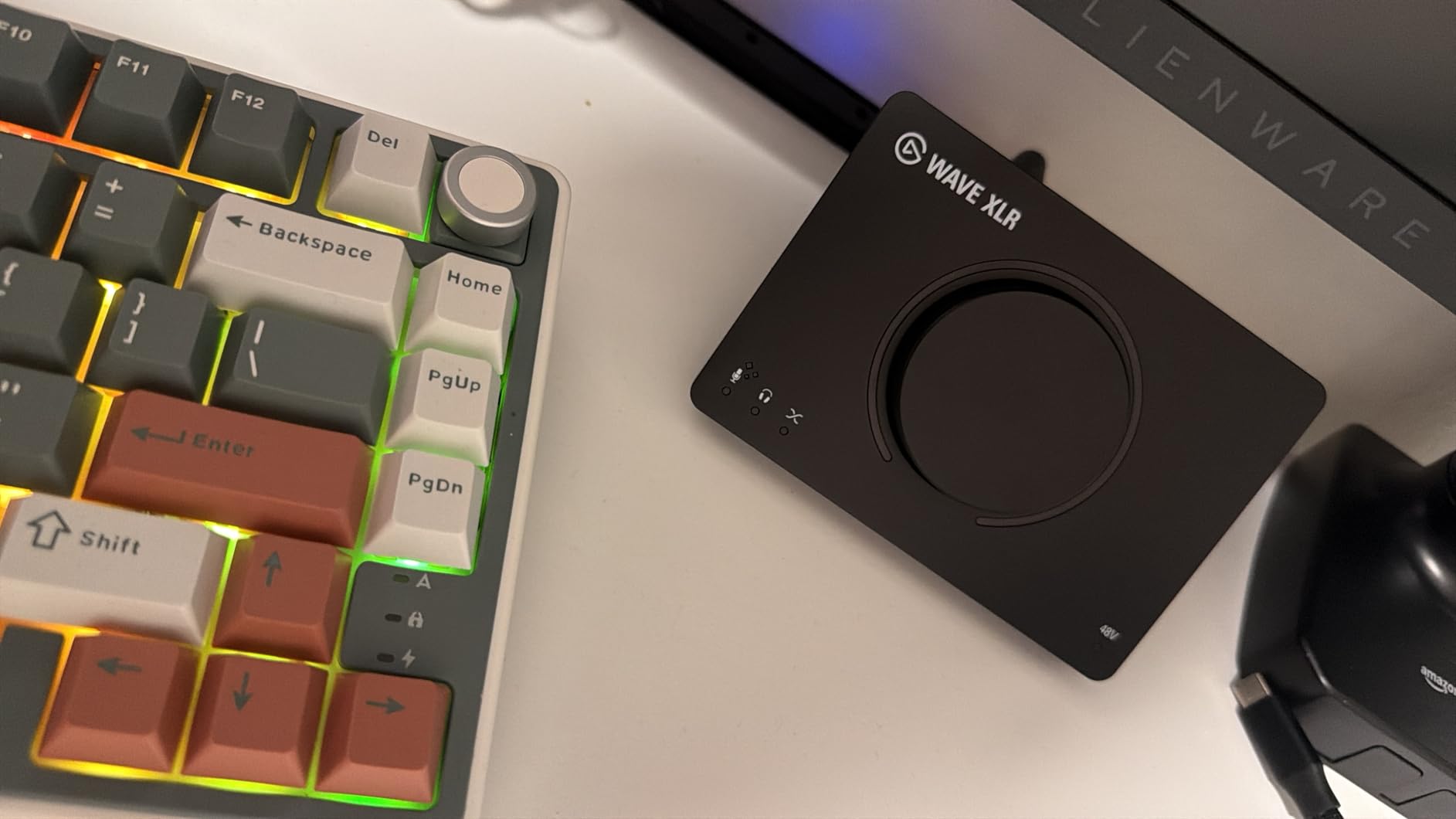
The Elgato Wave XLR MK.2 is less a general recording interface and more a compact broadcast control point. Its 80dB of gain is especially helpful with microphones that need substantial level, while the onboard voice enhancer, compressor, and EQ can make a live vocal sit better without a pile of plug-ins.
Wave Link is the reason to buy this model. It creates separate channels for your microphone, game, music, browser, and voice chat, then lets you decide which sources go to the stream, headphones, or a recording.
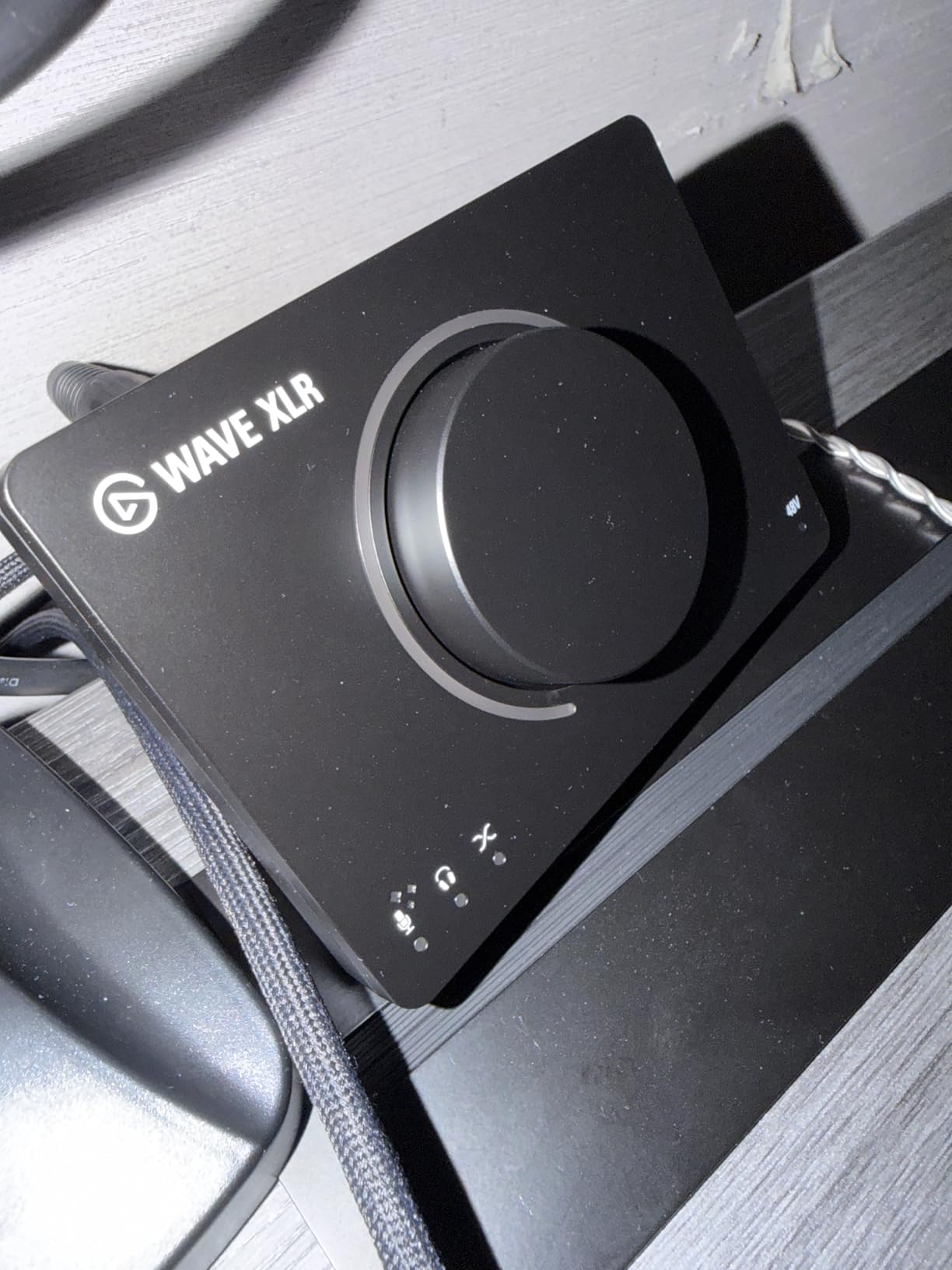
Stream Deck integration is the practical payoff. I can map a key to touch mute, change a vocal effect, or bring a channel into the · OBS, provided the software recognizes the request reliably.
The trade-off is software dependence. The supplied data says Windows 11 or macOS 14.2 and later is required, and users have reported Wave Link instability in some environments, so I would test a full stream before trusting it for a scheduled broadcast.
For whom it is good
This is the strongest choice for an Elgato setup with a Stream Deck, a gain-hungry XLR microphone, and a desire to keep routing controls in one ecosystem. It also appeals to solo streamers who want effects without recording a processed signal through a DAW first.
For whom it is bad
It is a poor fit for someone who wants a platform-neutral studio interface or does not want to install and troubleshoot Wave Link. A conventional Scarlett or MOTU is easier to carry into a different streaming app or a multi-PC workflow.
5. M-Audio M-Track Duo — Best Budget Dual-Input Option
M-AUDIO M-Track Duo USB Audio Interface
Dual combo inputs
48kHz/24-bit
USB/Direct monitoring
Pros
- Two XLR-capable inputs
- 48V phantom power
- Very accessible price
Cons
- 48kHz ceiling
- Plastic chassis
- Output is mono-summed
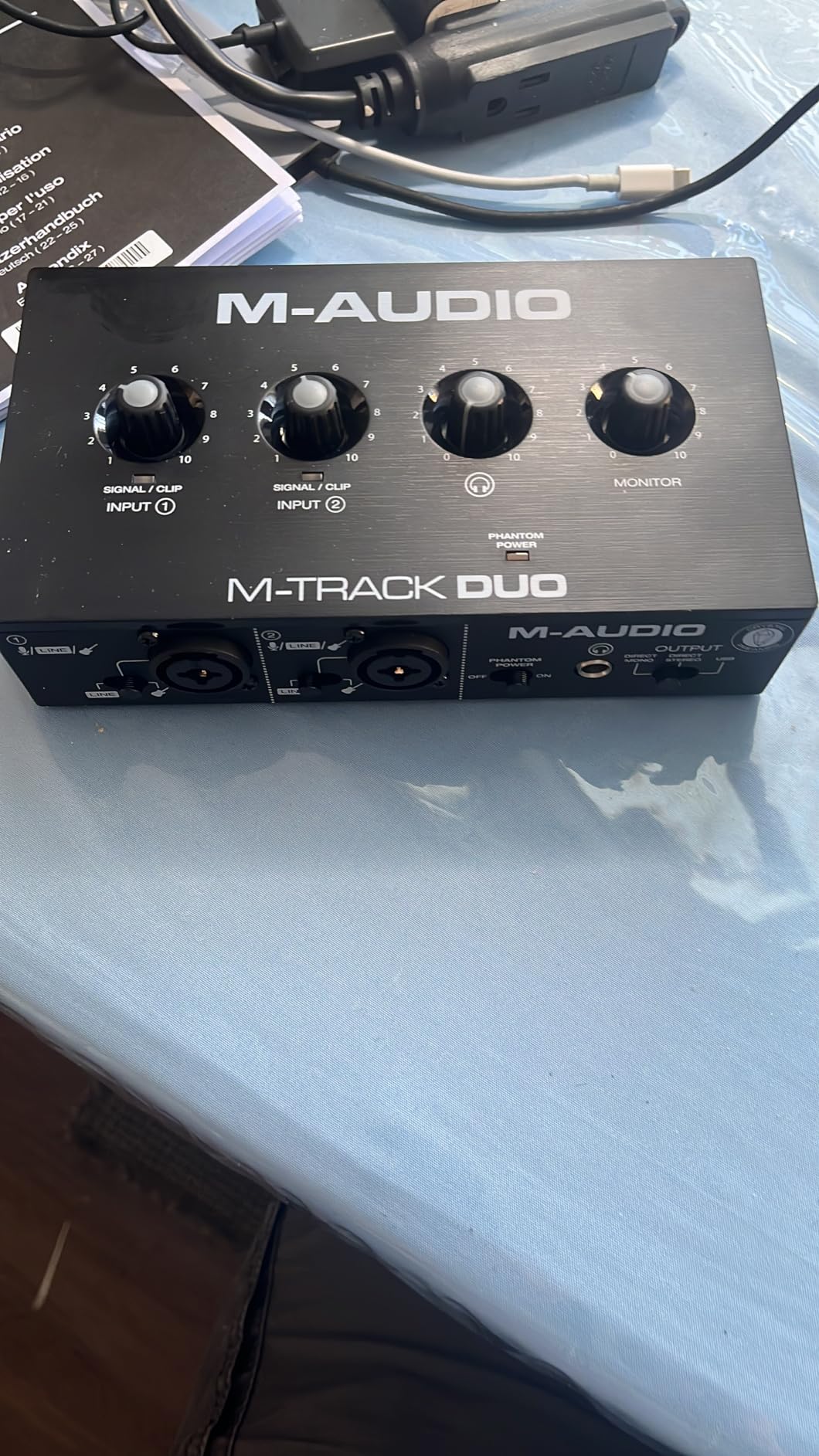
The M-Audio M-Track Duo is the budget option I would choose when two physical inputs matter more than pristine specifications. Both combo sockets accept XLR microphones, line sources, or instruments, and the 48V switch supports a condenser microphone.
The USB/Direct switch is a useful feature for a beginner. It lets you hear the input before the computer processes the sound, which makes it easier to tell whether a problem is in the microphone, cable, or OBS routing.
The limitation is not the fact that it records at 48kHz; that is enough for a typical live stream. The issue is the reported mono-summed output and the sensitive gain controls, which can make a careful setup more demanding than the price suggests.
I would use this as a straightforward live microphone interface rather than as a high-end music-recording hub. For one host and a spare instrument input, it delivers an unusually generous amount of connectivity for the money.
For whom it is good
The Duo is good for a budget streamer who wants two XLR-capable inputs, a condenser mic, and a simple direct-monitoring switch. It also works for a beginner who wants recording software included without buying a two-input Focusrite.
For whom it is bad
It is not ideal if you need separate stereo line routing, a premium headphone amp, or rock-solid physical controls for several live sources. The lightweight plastic body may also move around on a crowded desk.
6. M-Audio M-Track Solo — Best Entry-Level Pick
M-AUDIO M-Track Solo USB Audio Interface
One combo XLR input
48kHz/24-bit
USB/Direct monitoring
Pros
- Easy plug-and-play setup
- USB powered
- Clean beginner workflow
Cons
- One mic preamp
- Gain may feel limited
- No stereo line input
The M-Track Solo is the lowest-cost way I would consider adding an XLR microphone to a streaming PC. It is USB powered, works without a complicated control surface, and includes a direct-monitoring switch that helps you hear your voice with little delay.
Its one combo XLR/line input and one line/instrument input cover a sensible beginner setup: microphone on channel one, keyboard or music source on the second. The RCA outputs are convenient when the stream is also being sent to simple desktop speakers.
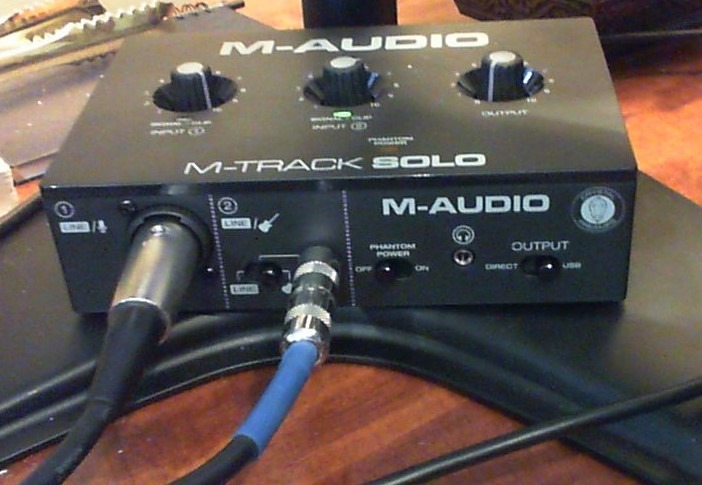
You should treat the second input as a convenience, not a second microphone channel. The line input is mono, and the supplied specifications describe a 48kHz ceiling that is entirely adequate for ordinary voice streaming.
For a first XLR upgrade, this is a sensible purchase if your microphone has normal output and your broadcast is one voice plus computer audio. It leaves less money for a boom arm, better headphones, or room treatment, all of which can affect the final sound as much as a more expensive interface.
For whom it is good
The Solo suits a student, casual creator, or budget Twitch streamer who wants one XLR microphone and no extra routing complexity. It is a good bridge when you are not ready to commit to a multi-input desk.
For whom it is bad
Do not buy it for a podcast with two people or a stream that requires independent game, chat, and music channels. A low-output dynamic microphone may also make the available gain feel limited.
7. IK Multimedia iRig Stream — Best for Mobile Streaming
IK Multimedia iRig Stream stereo audio interface for iPhone, iPad, Mac, iOS and PC with USB-C, Lightning and USB for 24-bit, 48 kHz recording from mixers and studio gear
Stereo RCA inputs
24-bit/96kHz
Three device cables included
Pros
- Very compact design
- Works with iOS and computers
- Direct headphone monitoring
Cons
- No XLR mic input
- Android app support is limited
- Loopback quirks
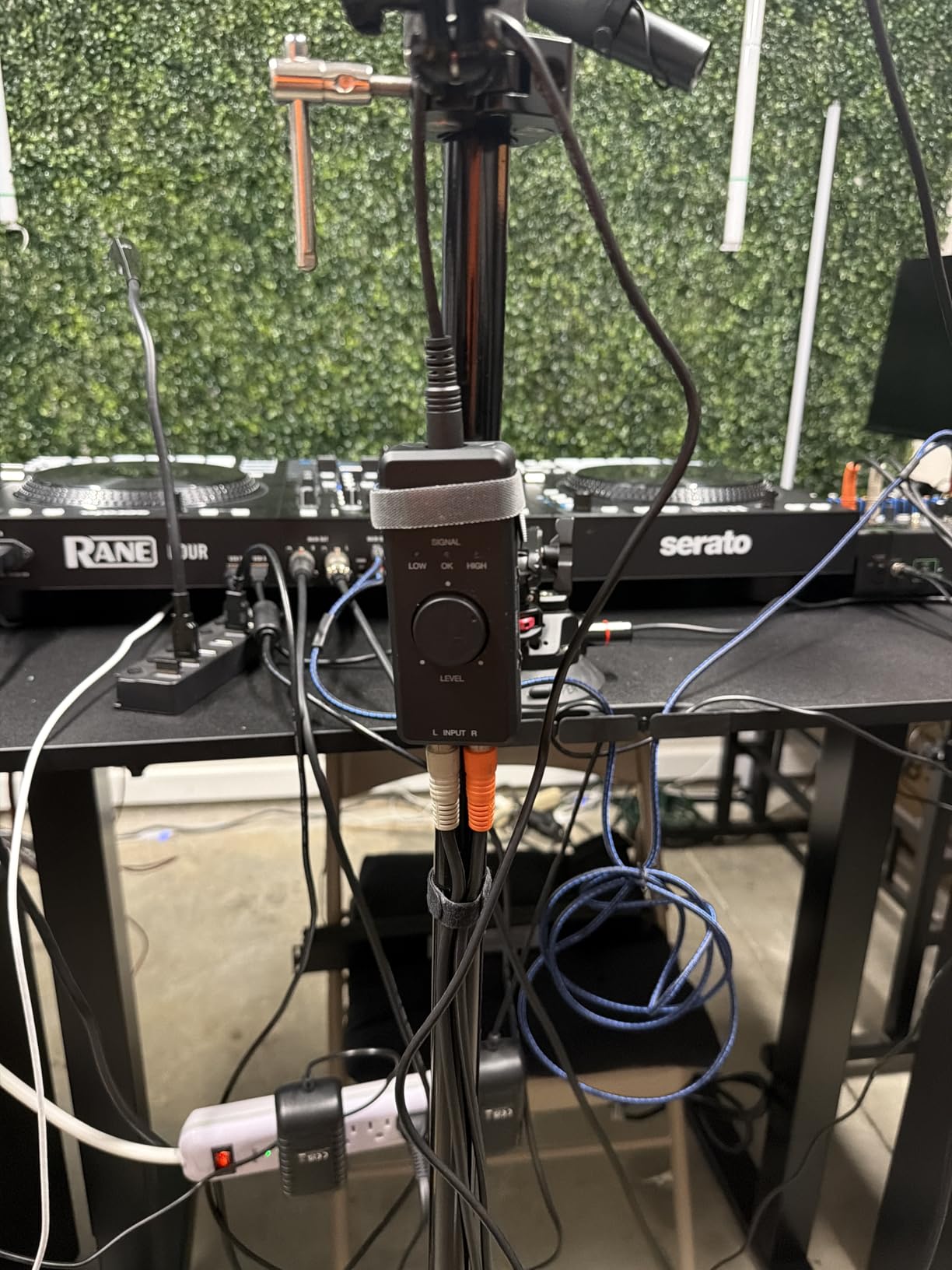
The IK Multimedia iRig Stream is for a different kind of streamer. Instead of a microphone preamp, it accepts a stereo source through RCA connections, making it a neat way to bring a mixer, keyboard, or music player into a phone or computer.
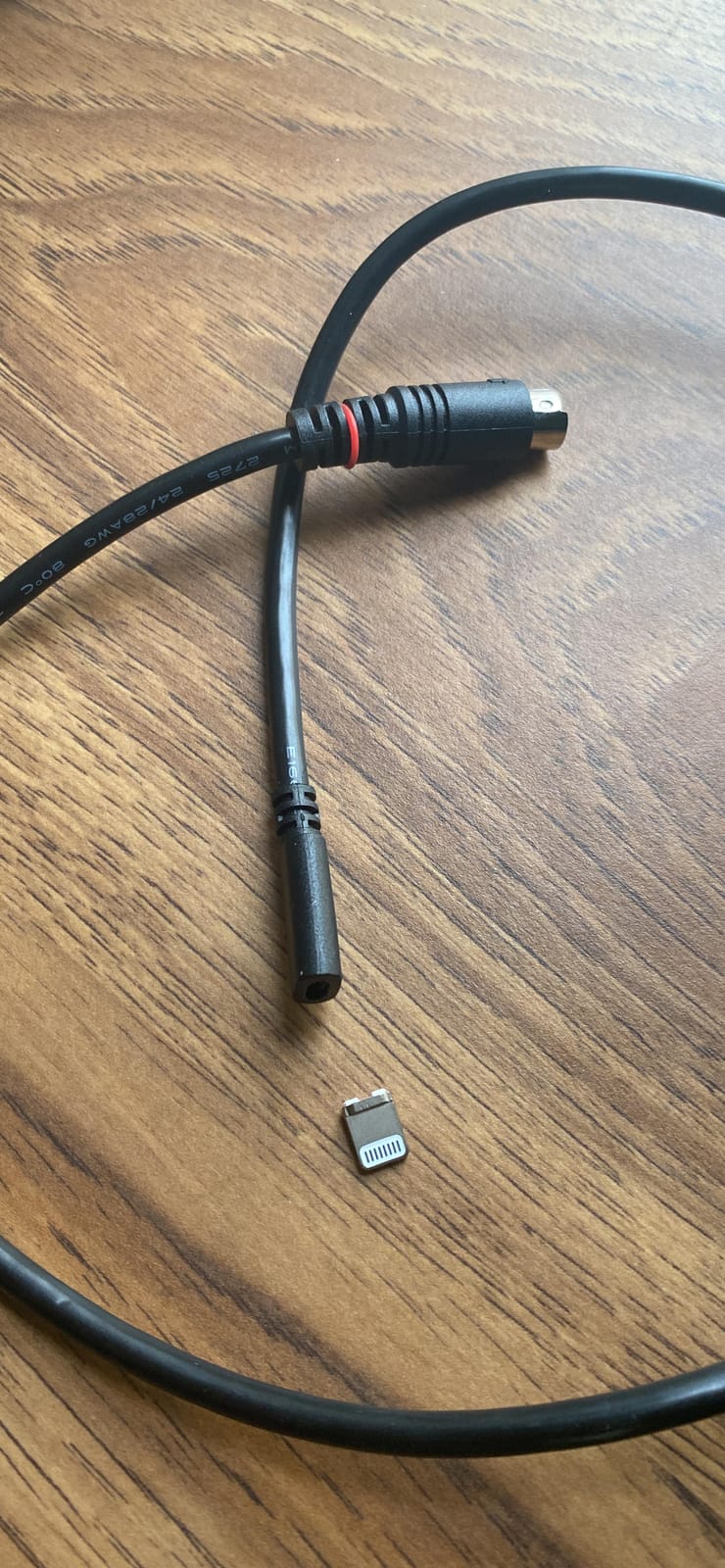
The included USB-C, Lightning, and USB cables make it easy to move between an iPhone, iPad, Mac, or PC. Its 24-bit/96kHz specification is more than enough for mobile live audio, and the global level LED gives a quick visual check.
Loopback lets you hear a music source while another source passes through, but the monitoring behavior is app-dependent. Before a live event, I would test the exact app and cable combination rather than assuming the loopback switch behaves like a desktop interface.
This is not the best choice for a creator who wants one XLR microphone and a dedicated OBS channel. It shines when the phone is already your camera and you need to combine a stereo feed with mobile apps such as Instagram, YouTube, or Clubhouse.
For whom it is good
The iRig Stream is good for a mobile DJ, musician, or creator who needs a tiny stereo audio interface and a selection of device cables. It is especially useful when the phone, not a gaming PC, is the center of the stream.
For whom it is bad
Skip it if your main goal is an XLR microphone upgrade. The limited Android app support and less predictable monitoring behavior also make it less suitable for a critical desktop broadcast.
8. MOTU M2 — Best for Audio-First Streamers
MOTU M2 USB-C Audio Interface
2 preamps
24-bit/192kHz
ESS Sabre DAC and color LCD meters
Pros
- Excellent conversion
- Powerful headphone amp
- Hardware monitoring and MIDI
Cons
- Front XLR placement
- Windows mic grouping limitations
- No simple gain-hungry mic boost
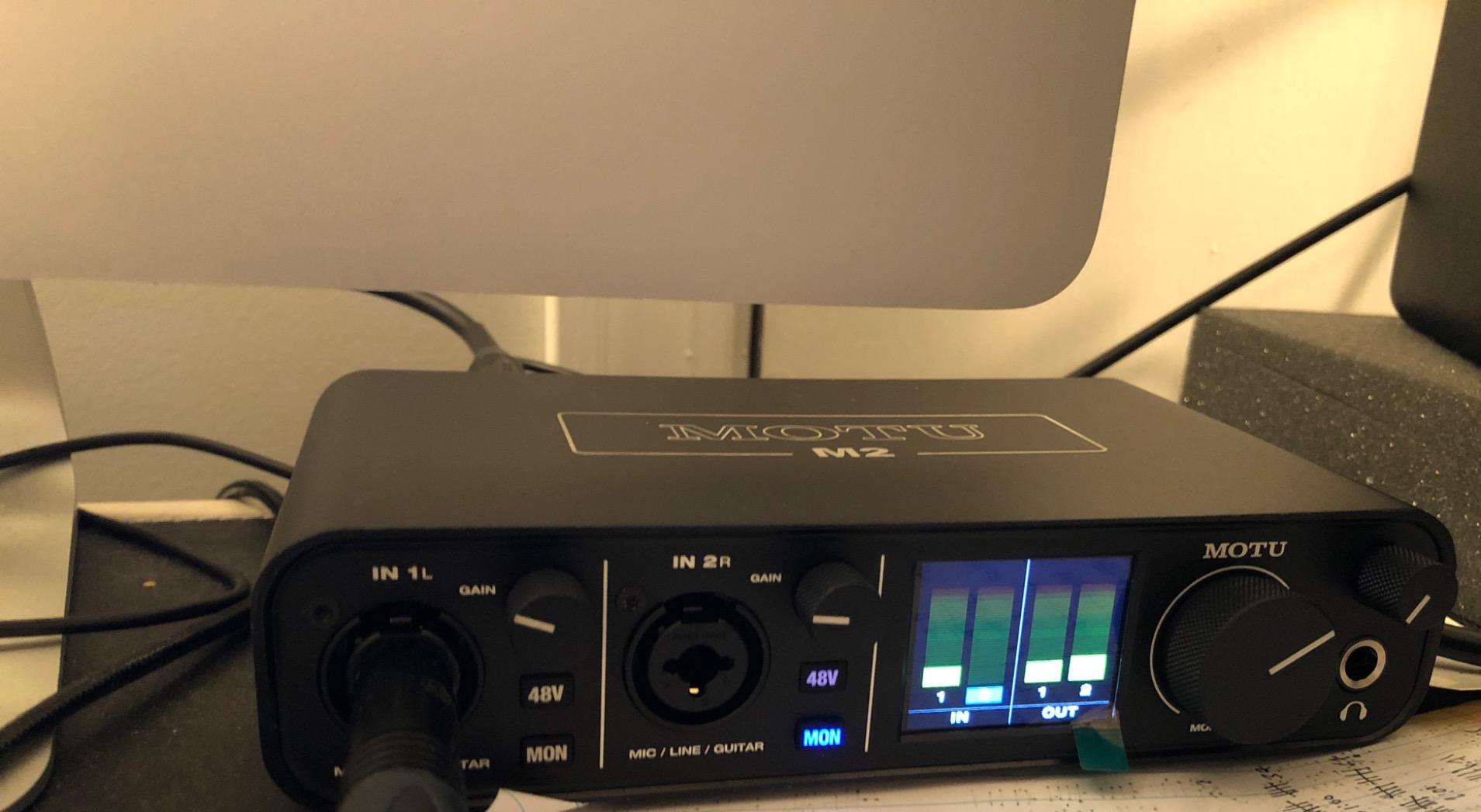
The MOTU M2 is the pick for a streamer who also cares about the recording chain. Its ESS Sabre DAC, clean preamps, 24-bit/192kHz conversion, and unusually strong headphone amplifier make it feel more like a serious music interface than a basic livestream box.
The color LCD meters are not decoration. I can see the incoming level and make a gain decision without opening a software window, which is useful when the stream is being controlled from across a room.
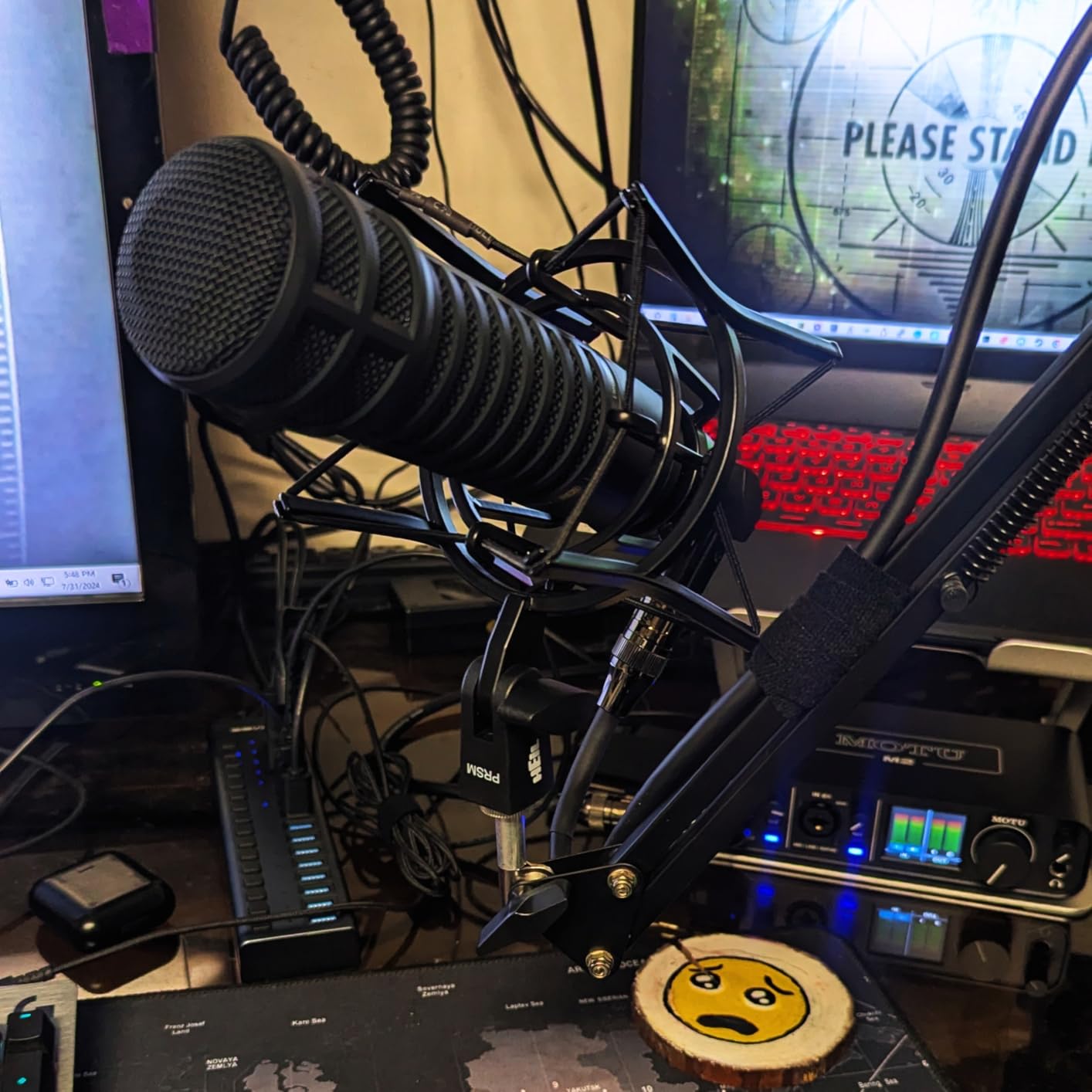
Two preamps make it suitable for a solo creator with a keyboard, a two-microphone podcast, or a future second host. Hardware monitoring and DIN MIDI connections are welcome extras for a creator who moves between streaming and music work.
The trade-off is routing. The supplied review data notes that Windows can expose the microphones as one stereo input, which may prevent independent channel use in the operating system. I would verify the exact OBS audio panel and use a separate mixer or virtual routing layer if each microphone must be controlled separately.
For whom it is good
The M2 is best for an audio-first streamer who wants excellent monitoring, two inputs, and a path into recording or music production. It is also a good fit for someone with high-quality headphones and a desk where the meters are part of the workflow.
For whom it is bad
It is more hardware than a beginner needs. If your only goal is a single voice channel in OBS, the Scarlett 2i2 or Wave XLR is a simpler starting point, especially if independent Windows input channels matter.
How to Choose the Best Audio Interface for Streaming
Choose an interface by the number of sources you need to control, not by its maximum sample rate. Most streams need one microphone input, a headphone jack, clean gain, and a reliable route for desktop audio; premium features become valuable when you add co-hosts, music, or several software sources.
Start with the microphone and input count
An XLR microphone needs an XLR mic preamp, and a condenser microphone needs 48V phantom power. Dynamic microphones usually work without phantom power, but low-output models can demand more gain than a budget interface provides.
Count every source you want to capture independently. One streamer needs one mic input, while a two-person podcast needs two; a keyboard or stereo music feed adds another input or a USB return from a mixer.
Understand loopback audio before you buy
Loopback lets a streaming program receive audio played by the computer without using a physical cable. That is what lets OBS combine game sound, music, and a microphone while keeping the microphone connected to the interface.
Some interfaces provide loopback in hardware or a mixer, while others require OBS virtual sources, Elgato Wave Link, a computer mixer, or a separate routing tool. I would confirm the exact Windows or macOS method before purchasing, because forum users consistently cite routing confusion as a source of stream problems.
Use direct monitoring to protect your voice
Direct monitoring sends the microphone signal to your headphones before it travels through the computer. This gives latency-free monitoring, or a near-zero-latency impression, and makes clipping, cable noise, and processing errors easier to hear.
Do not confuse direct monitoring with the playback mix you hear from OBS. I use direct monitoring for microphone technique and the software mix for what viewers will actually receive.
Plan for OBS, Discord, and voice chat
OBS can usually recognize a USB interface as an audio input, but the operating system decides how multiple inputs appear. Give each microphone its own input when possible, then add desktop audio and Discord as separate sources.
A streamer who wants Discord audible only to friends can use OBS audio monitoring, a virtual cable, or a hardware mixer. Test the route with headphones on and the stream recording offline, because a workaround that works in one app can fail in another.
For a dual-PC setup, use a mixer or deliberate digital routing
A dual-PC stream needs one place to mix game audio, Discord, the microphone, and the broadcast return. The simplest route is a hardware mixer with USB, a line input for chat, and a feed back to the streaming PC.
When both computers are connected digitally, use a tool that exposes virtual devices and label each source before the event. Avoid connecting the same microphone to two preamps unless you understand phase, level, and echo, since those are the problems a clean routing plan prevents.
Check driver and operating-system support
Plug-and-play USB audio is convenient, but the stable path is not identical on every platform. Windows may need an ASIO driver for the lowest monitoring delay, while macOS often uses a different class-compliant path.
Download the current driver, firmware, and mixer software before the first important stream. I would also disable automatic updates on the day of a broadcast, take screenshots of the working routing, and keep a short USB cable available.
Match the headphone amplifier to your headphones
Headphone impedance is only part of the equation, but a weak output can make good headphones sound quiet and limit your ability to catch noise. The Scarlett 2i2’s ability to drive 300-ohm headphones and the M2’s powerful separate amplifier are meaningful advantages if you own demanding cans.
For ordinary gaming headphones, the headphone output on any of these interfaces is likely enough. The difference becomes noticeable when you move to open-back studio headphones or use high levels for a long session.
Do not chase a higher sample rate than your stream needs
24-bit/192kHz is a recording specification, not a guarantee of a better live stream. A quiet preamp, correct gain staging, a clean vocal environment, and consistent OBS routing usually matter more than a number your platform may not accept.
For a typical voice stream, I would use a supported sample rate such as 48kHz and keep the same setting across the interface, streaming software, and video tools. Change it only when a tested setup gives you a reason.
Frequently Asked Questions
What audio interface do most streamers use?
Most streamers use a compact USB audio interface with one or two XLR microphone preamps, a headphone output, direct monitoring, and either hardware loopback or a software mixer. The Scarlett 2i2 is a strong general example, while a solo creator may choose the Scarlett Solo.
What is the best audio interface for streaming?
The best audio interface for streaming is the one that matches your microphone, input count, and routing. The Scarlett 2i2 4th Gen is the best all-around choice here, the Solo models suit one microphone, and the Elgato Wave XLR MK.2 suits Stream Deck and Wave Link users.
What is the best audio interface for live streaming?
For live streaming, choose a quiet interface with a headphone jack, direct monitoring, and a tested loopback route. The Scarlett 2i2 4th Gen offers the safest mix of two inputs and automatic level help; the Wave XLR MK.2 is better for an Elgato workflow.
Is an audio interface worth it for streaming?
An audio interface is worth it when you use an XLR microphone or need more control over game, music, chat, and voice channels. A USB microphone can already work for a solo stream, but an interface provides cleaner gain, better monitoring, and a path to expand.
The Right Interface Makes Your Stream Easier to Control
The Best Audio Interfaces For Streamers are the Scarlett 2i2 4th Gen for most setups, the Scarlett Solo 3rd Gen for a one-mic budget upgrade, and the Elgato Wave XLR MK.2 for an Elgato-controlled desk. Choose the interface that supports your microphone and routing today, while leaving room for the second host, instrument, or audio channel you may want next.
Before you broadcast, set the gain with the microphone at its normal distance, turn direct monitoring on, build separate OBS sources for desktop and chat audio, and record a five-minute test. That short check catches driver, level, and routing problems before your viewers do.